
mrbeanmrbeanmrbean
Members
-
Joined
Everything posted by mrbeanmrbeanmrbean
-
 79579001_850790779030621_5703659024038537269_n.mp4
 -
98699336_2838340463069653_9122214222661421414_n.mp4
-
88339673_113362757335182_338722300769468723_n.mp4
-
79637939_1125863754513012_3729791308028561147_n.mp4
98978302_402184870883639_5527581232252017809_n.mp4
Second one 75104202_798514700877383_8486922898107862192_n.mp4
74684811_975722899620928_5189080537881195707_n.mp4
98749497_751861075432756_2051142397215926585_n.mp4
518100304.mp4
jypsealocal.com






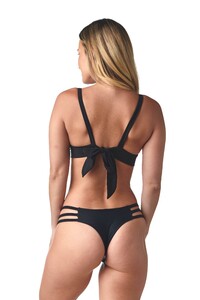







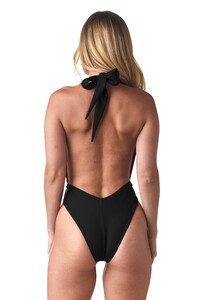










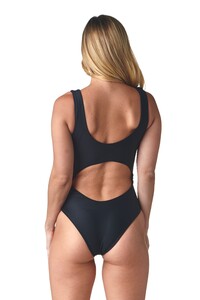

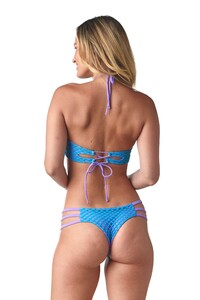




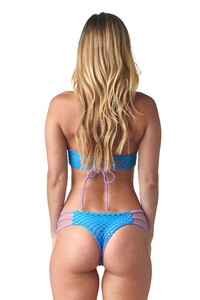
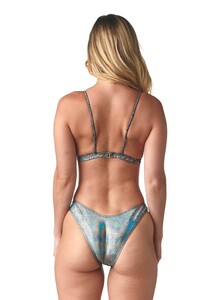






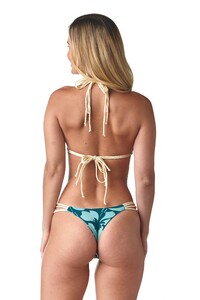





















.thumb.jpg.4c67e036ac7eb755dd1a6f51948e36d3.jpg)
.thumb.jpg.17eb908ef30ffeeeb8b6c67910b44238.jpg)

.thumb.jpg.0eb6d3b7e174abb5a61595c42a752fb7.jpg)




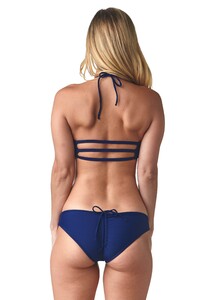


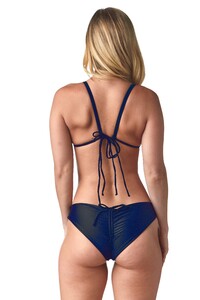










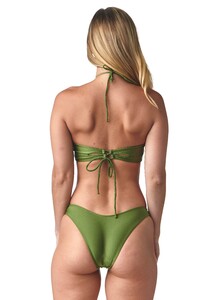
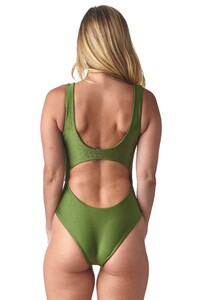












 jypsealocal.com
























 Patricia Marafon Catwalk.mp4
Patricia Marafon Intro.mp4
Lilly.mp4 Lilly Sanders Full Body Swim2.mp4
Patricia Marafon Catwalk.mp4
Patricia Marafon Intro.mp4
Lilly.mp4 Lilly Sanders Full Body Swim2.mp4























_result.jpg.48b91462d0f7373968a6146994640a8d.jpg)



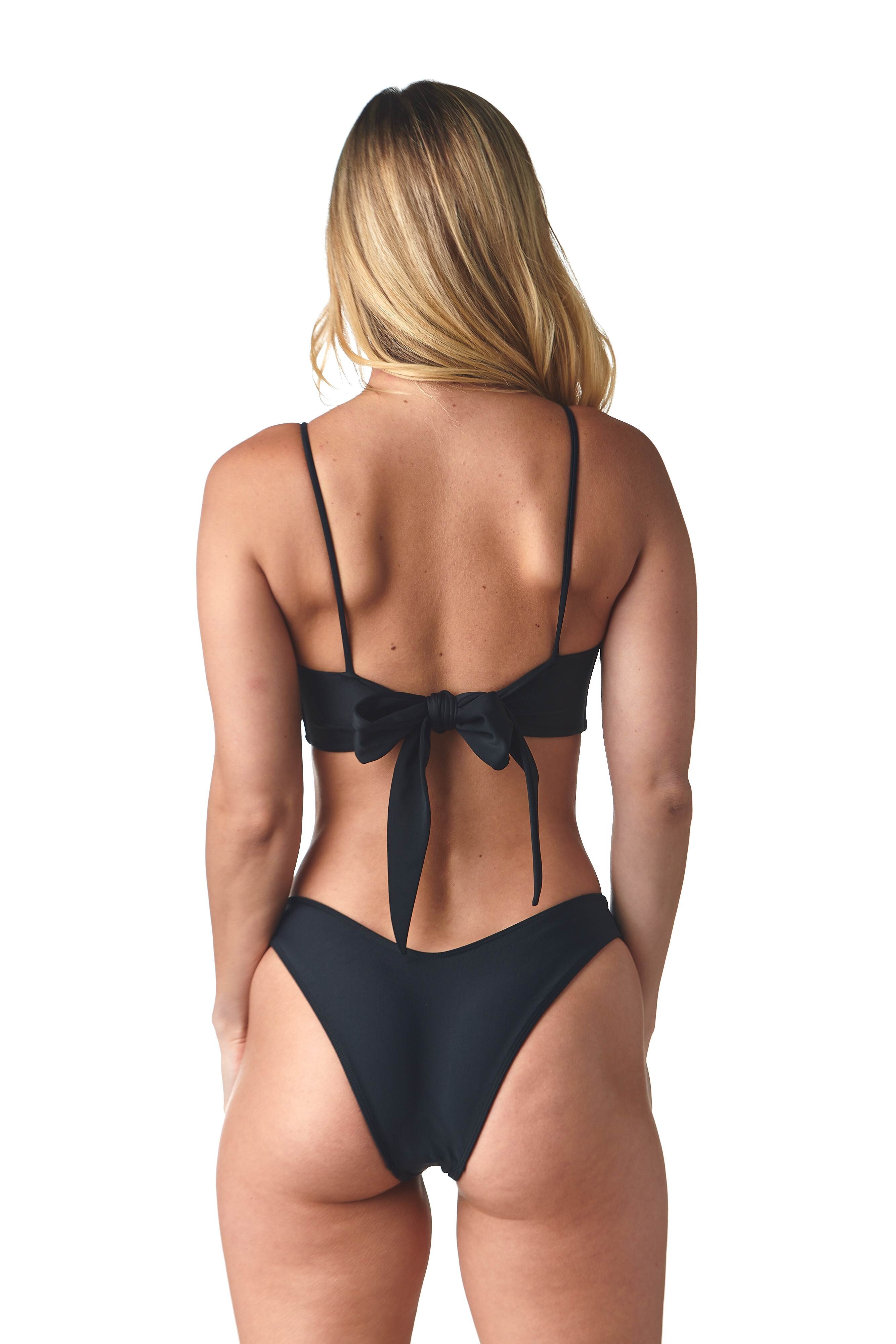
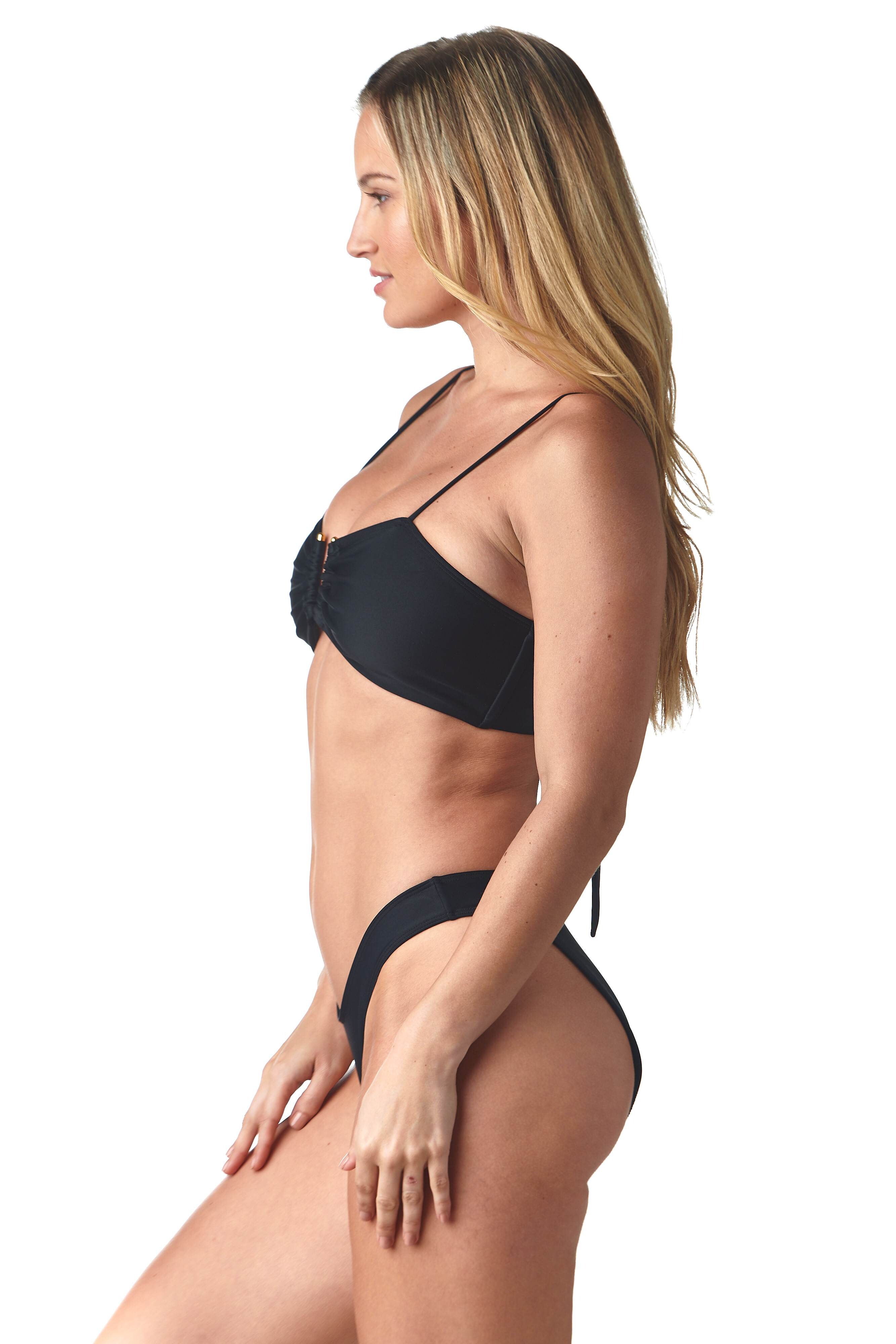
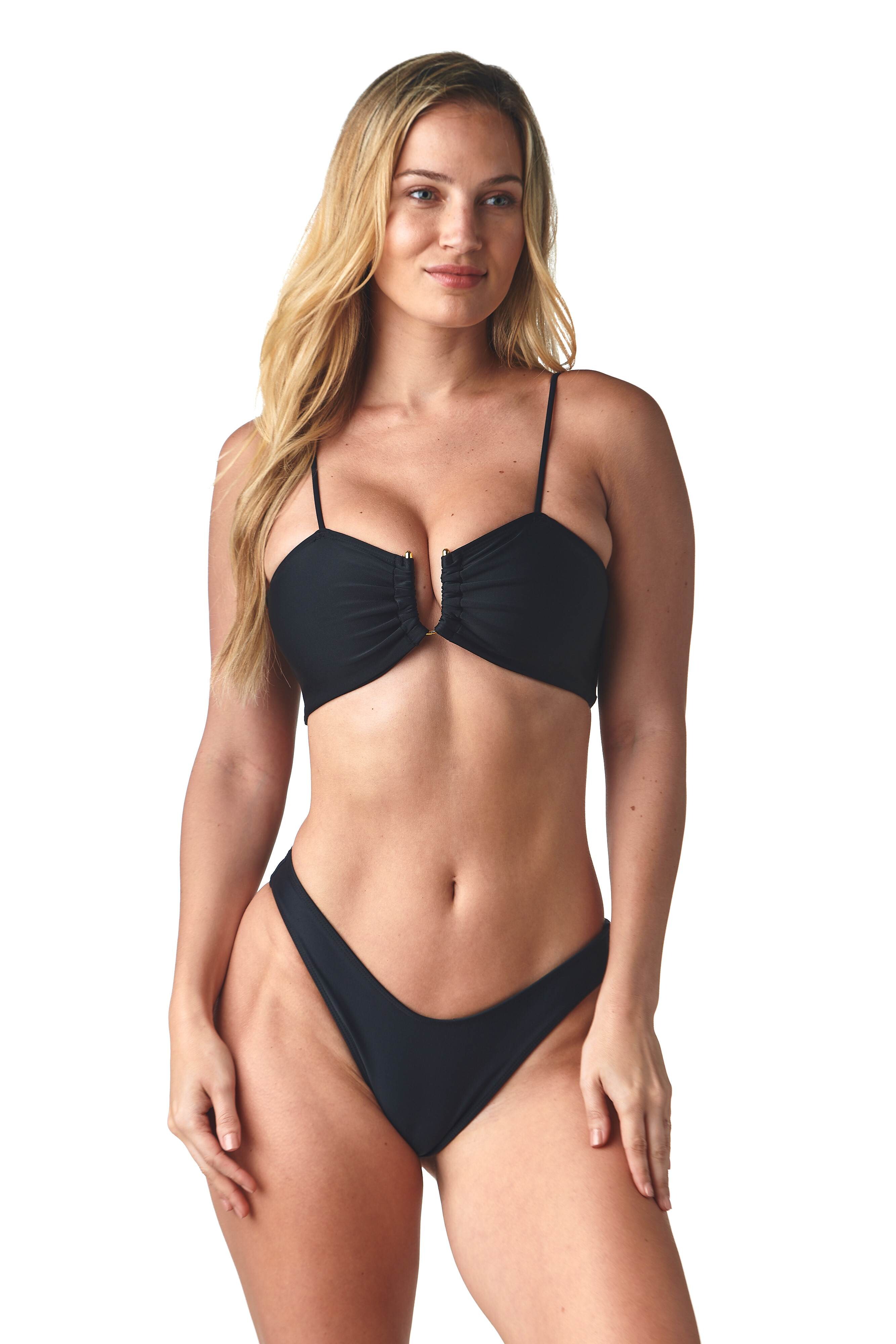

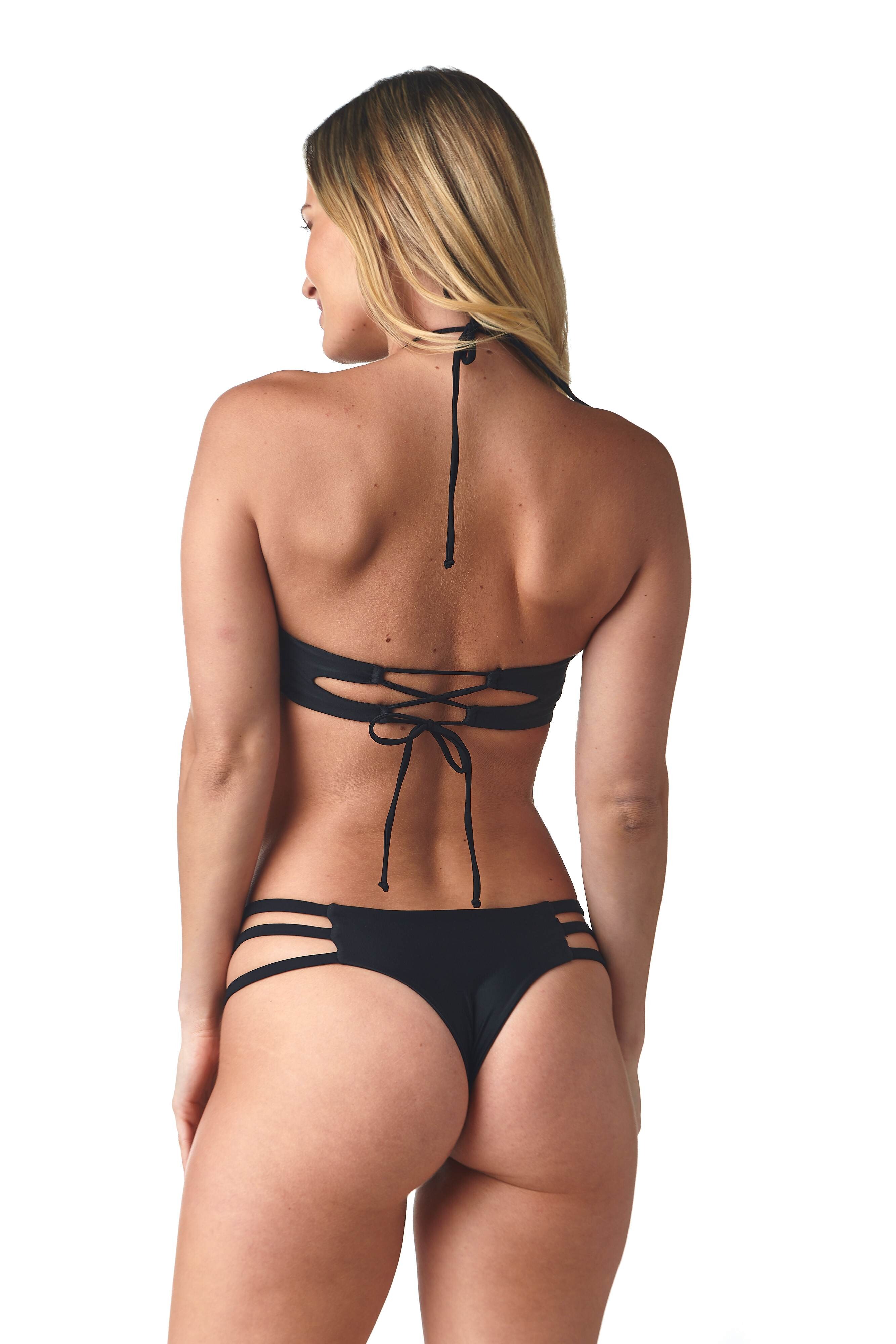






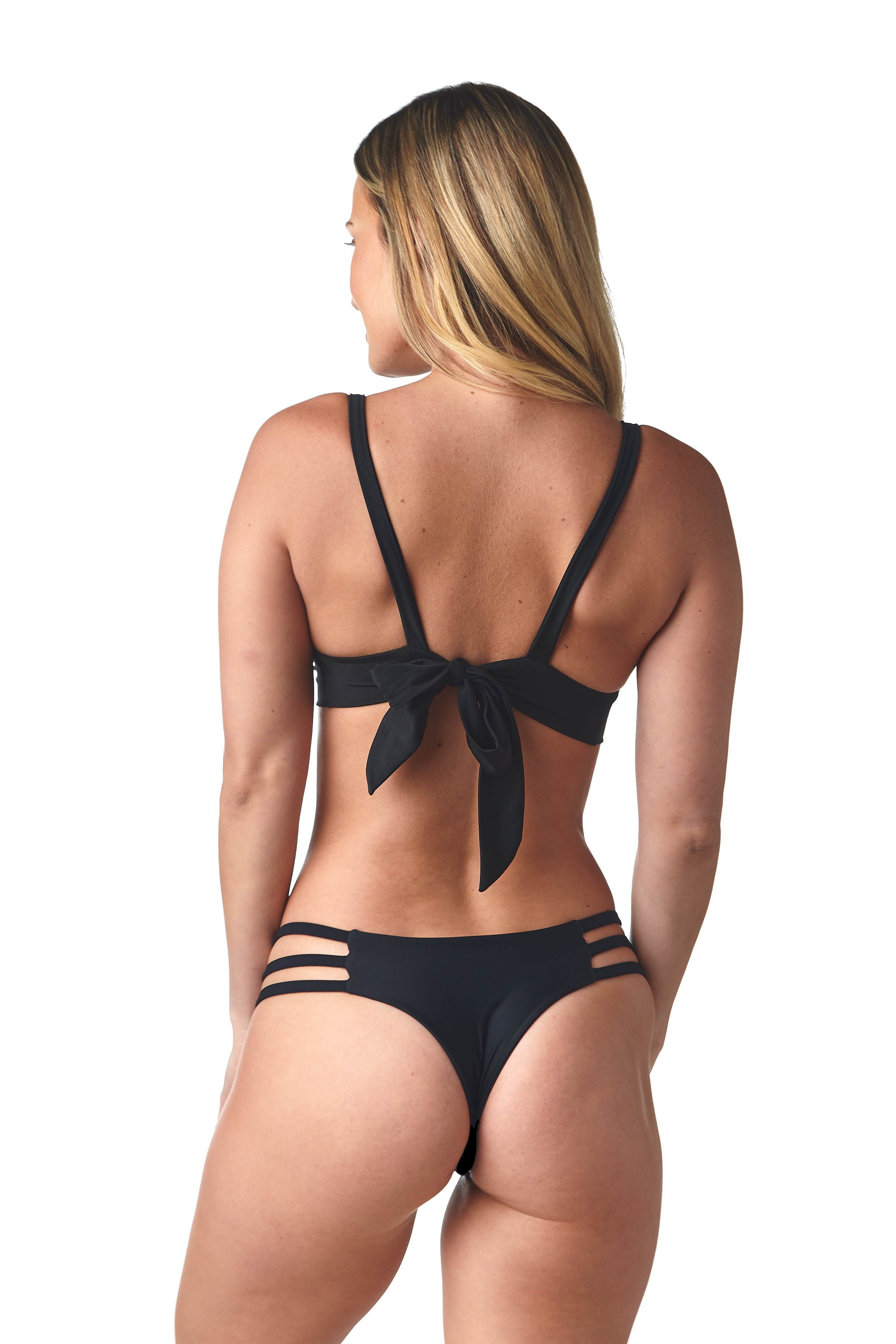



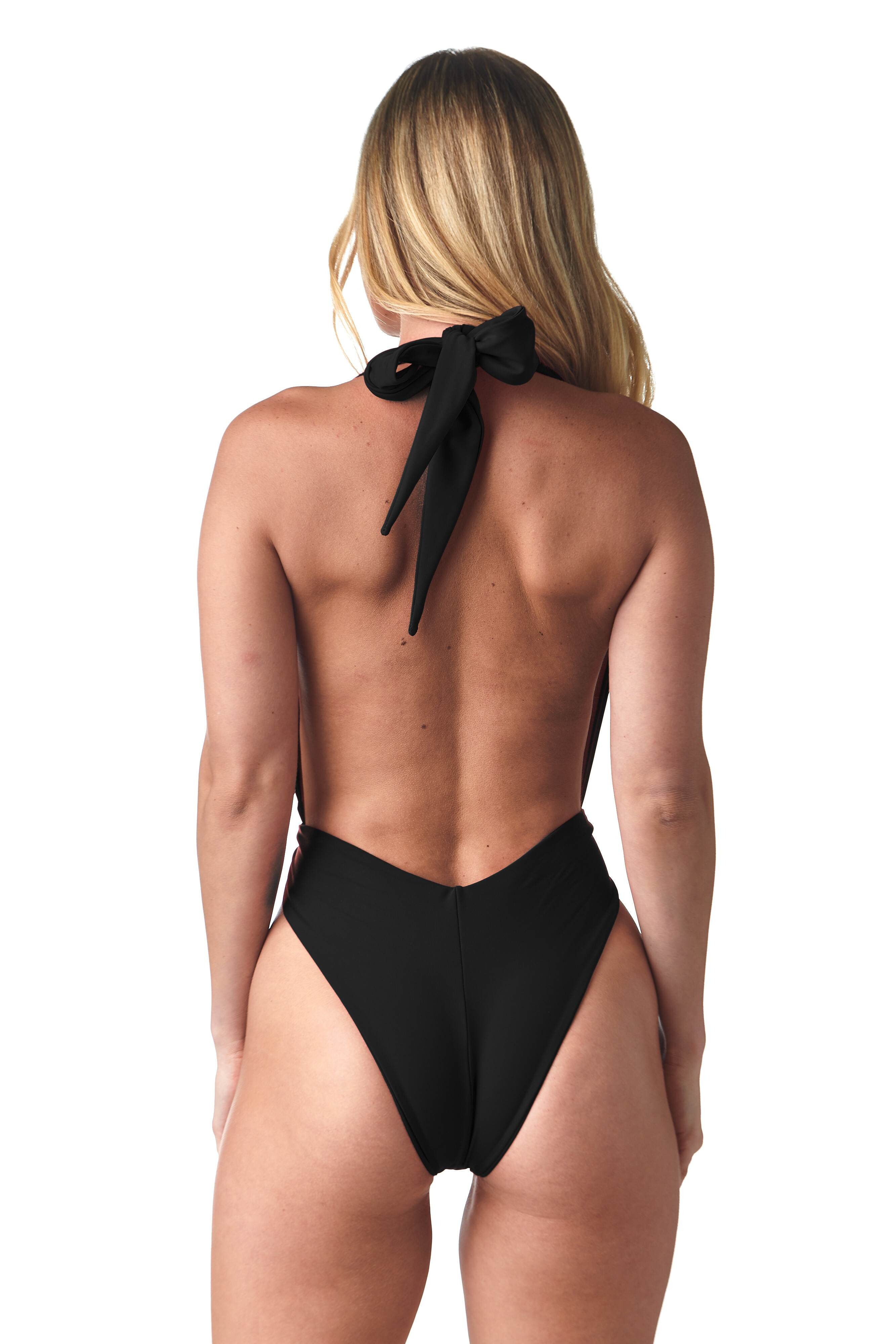
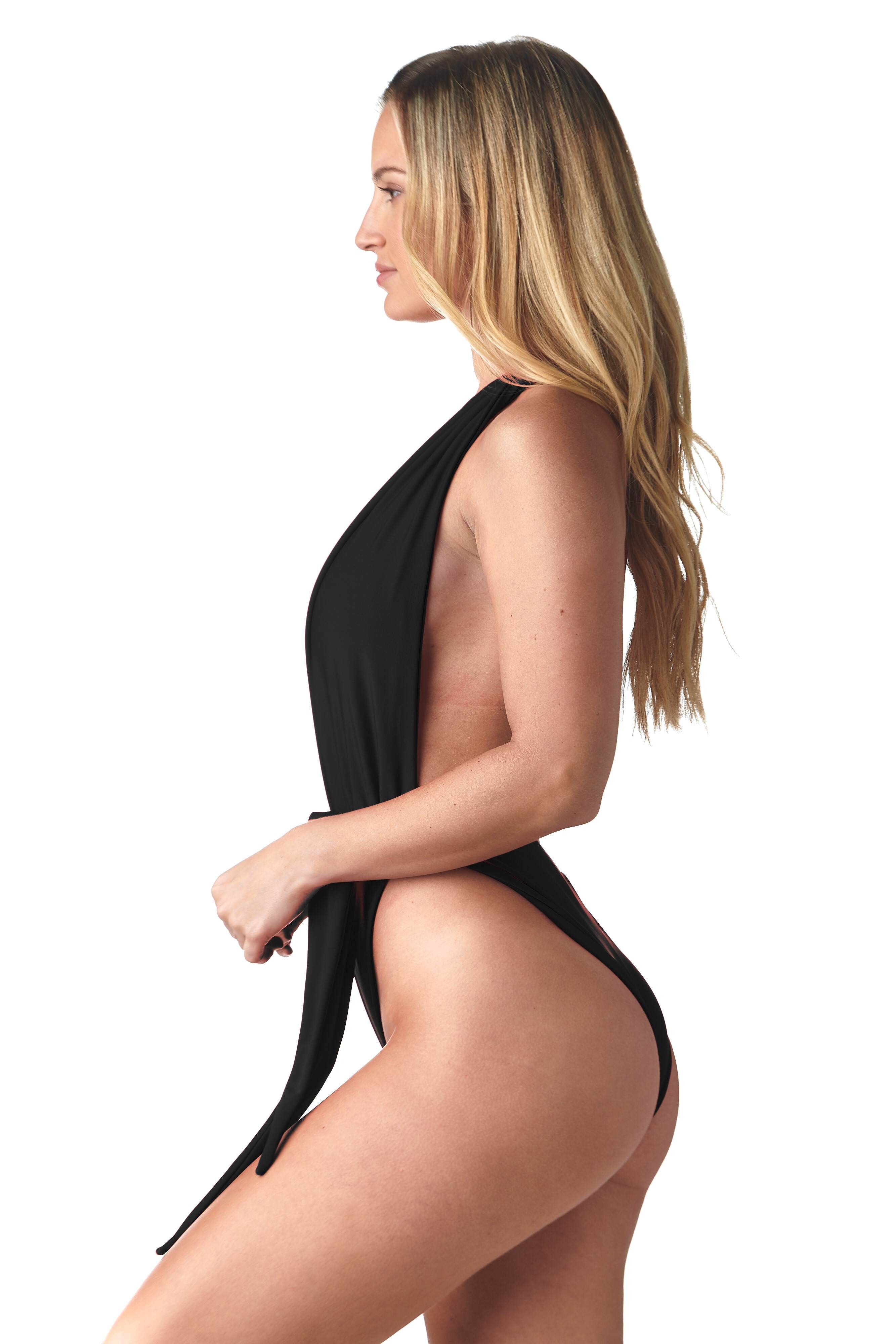


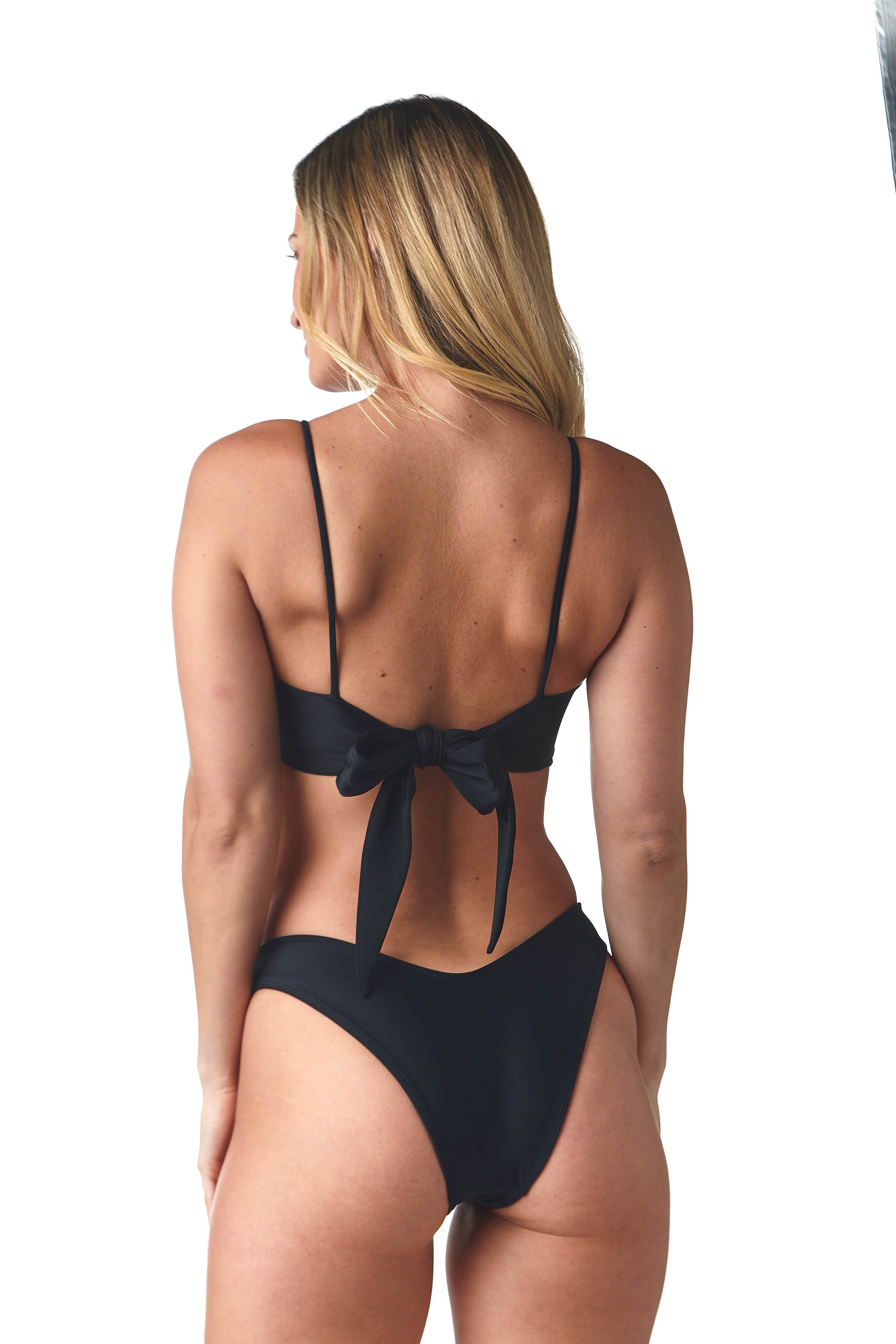
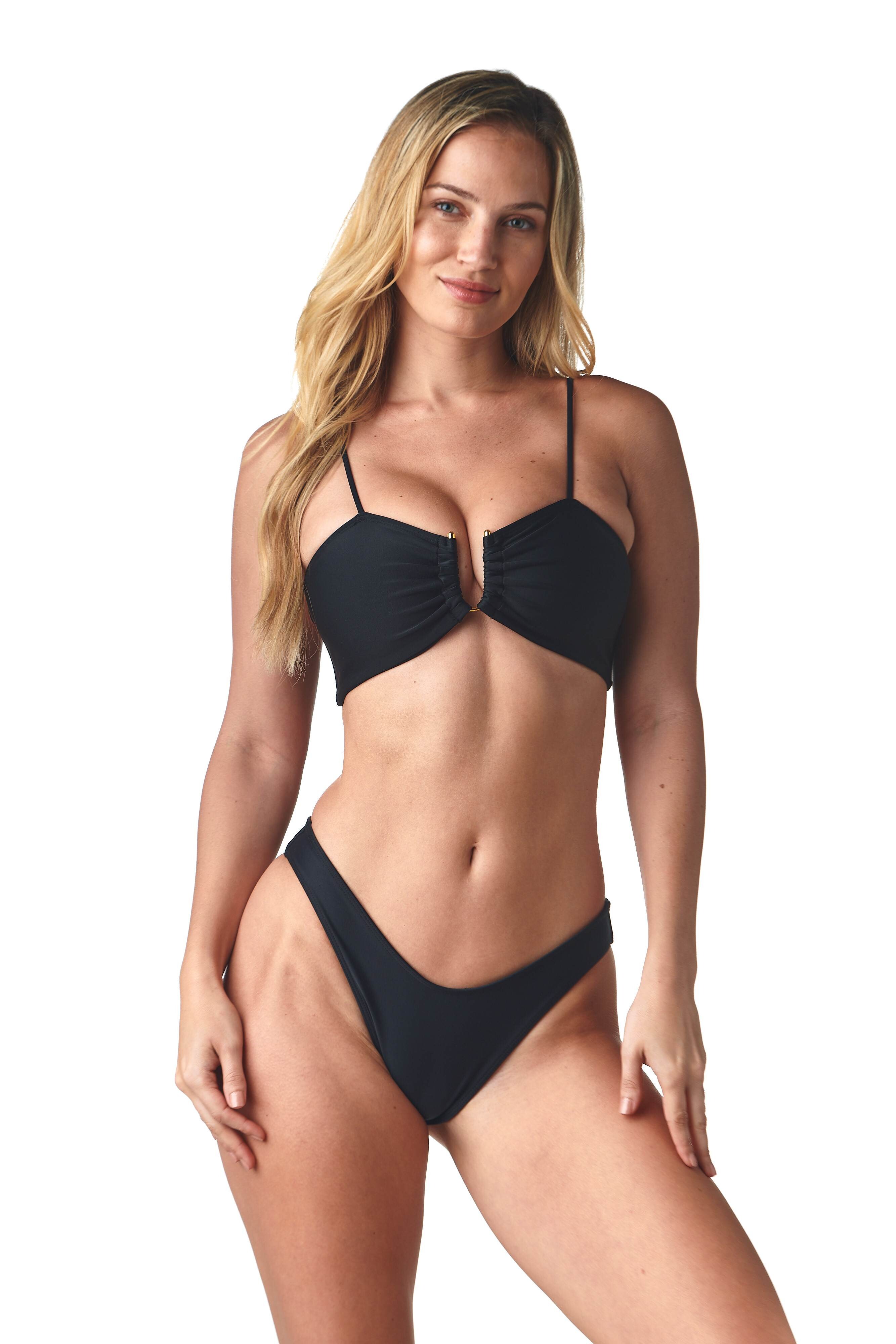
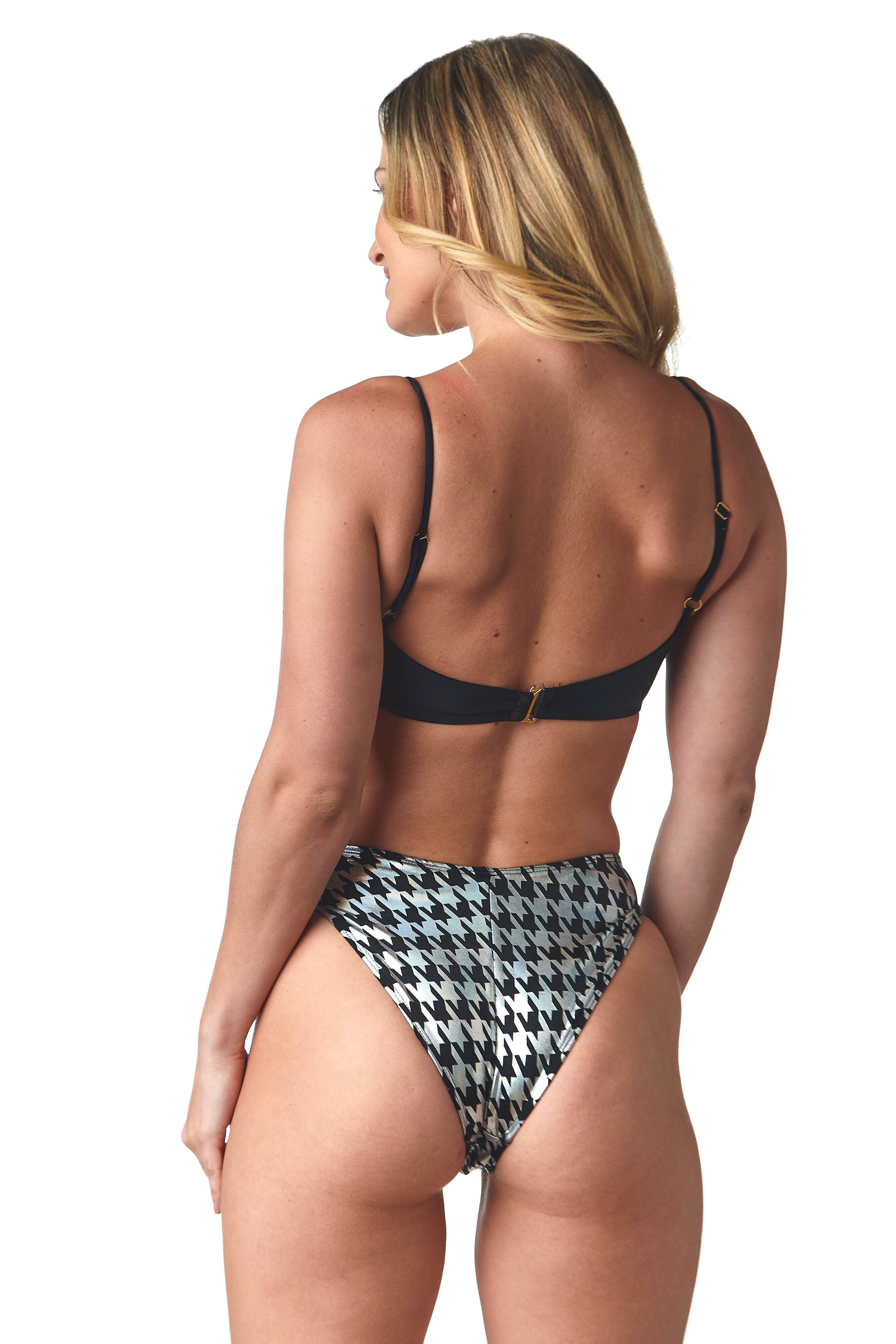



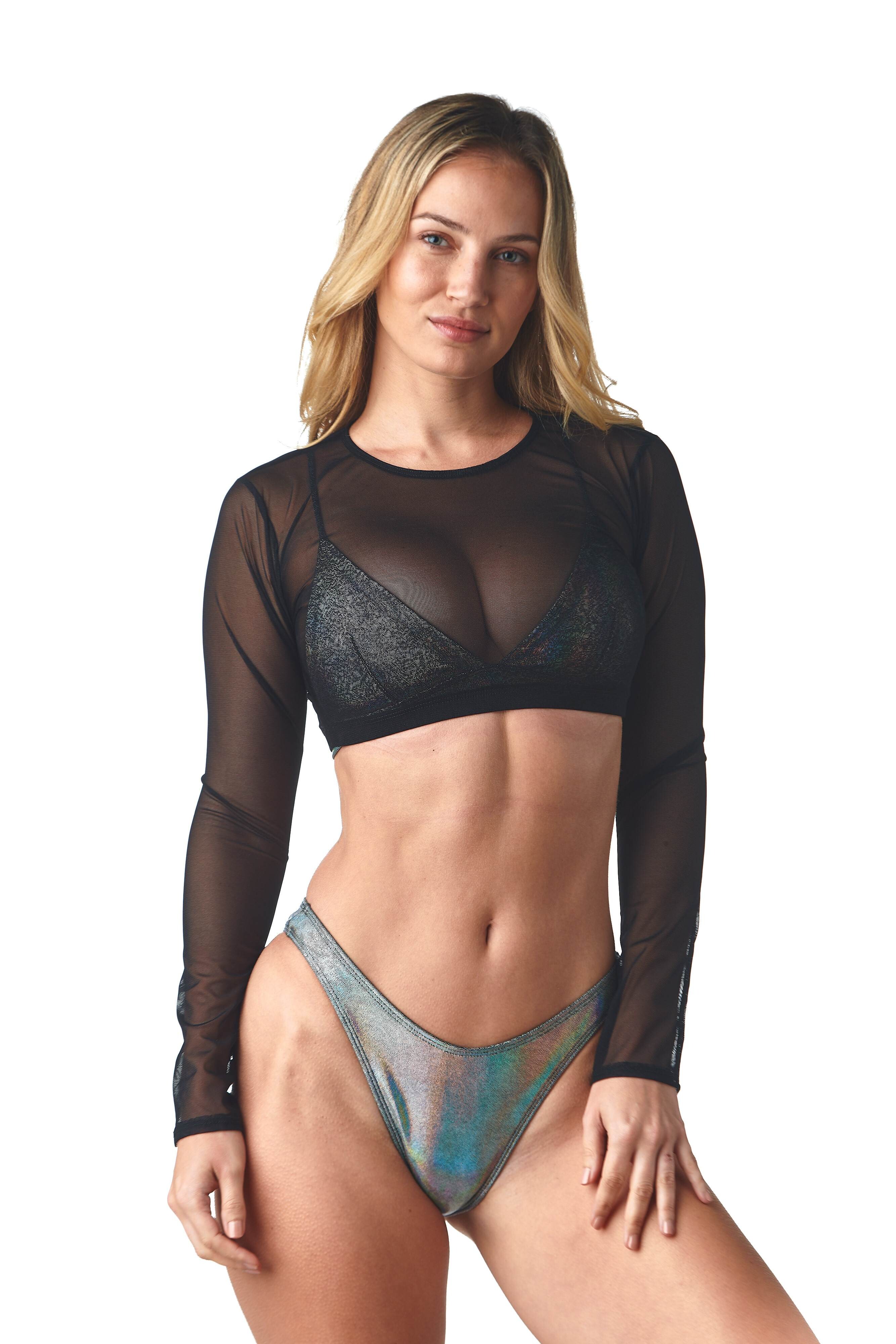
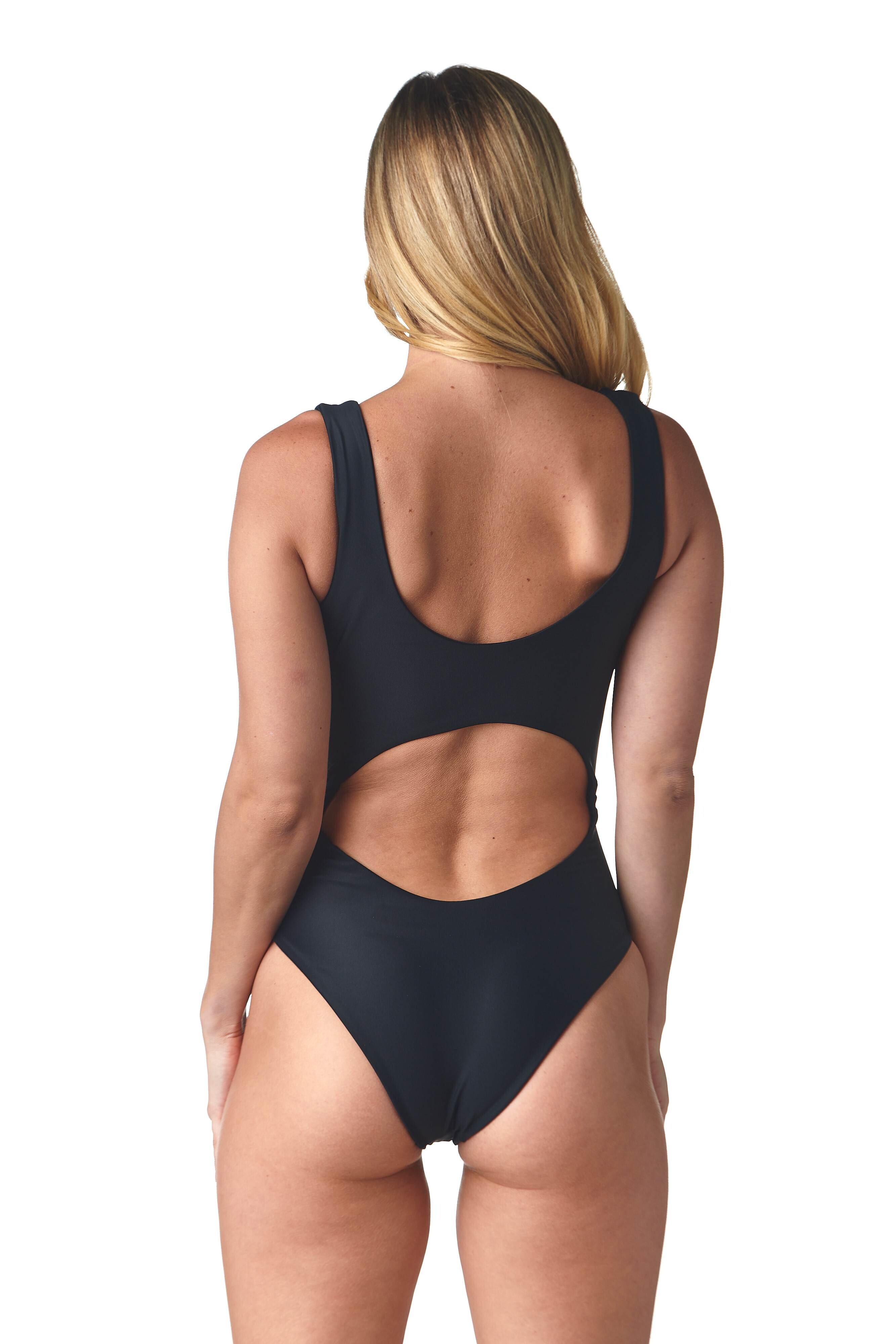

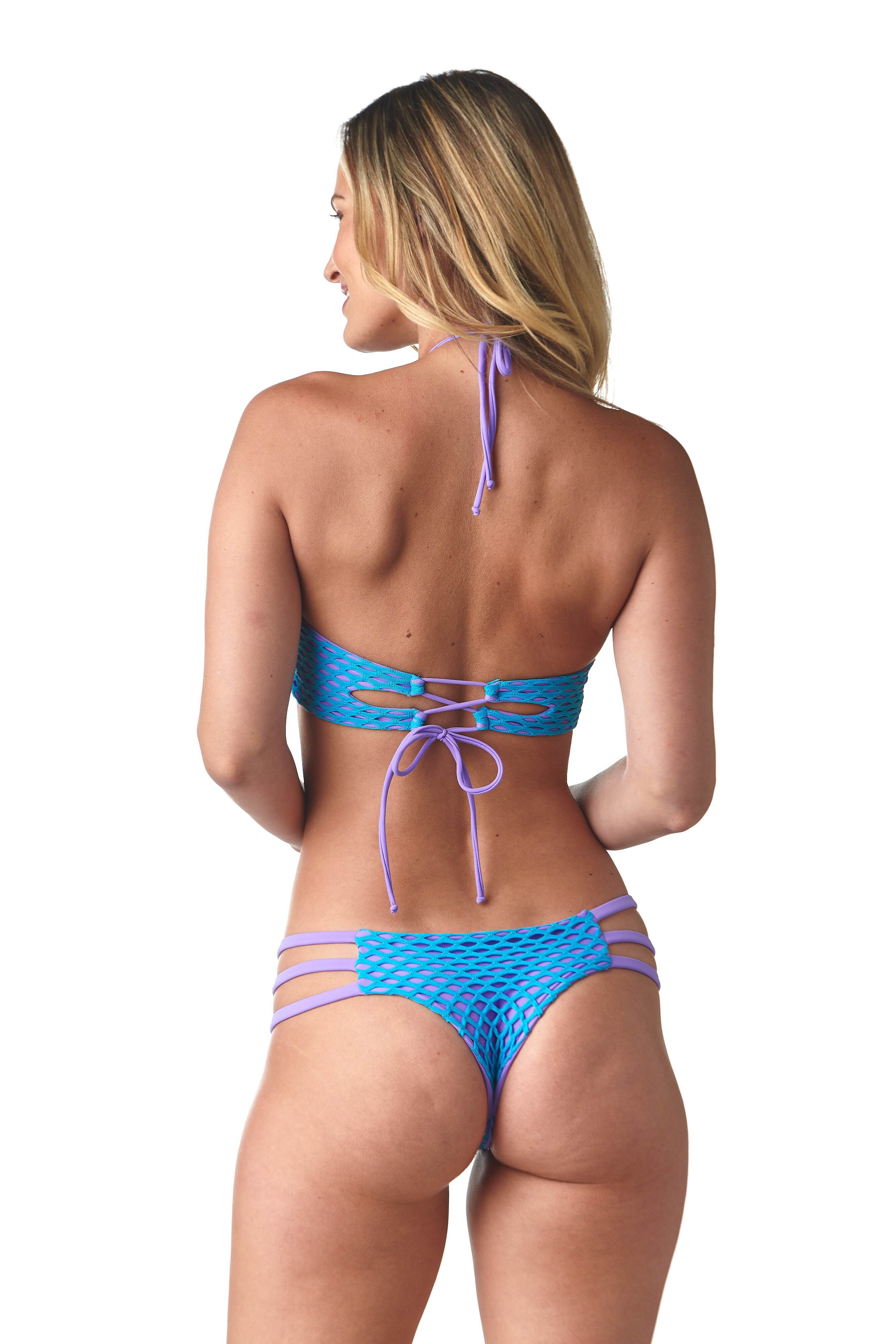




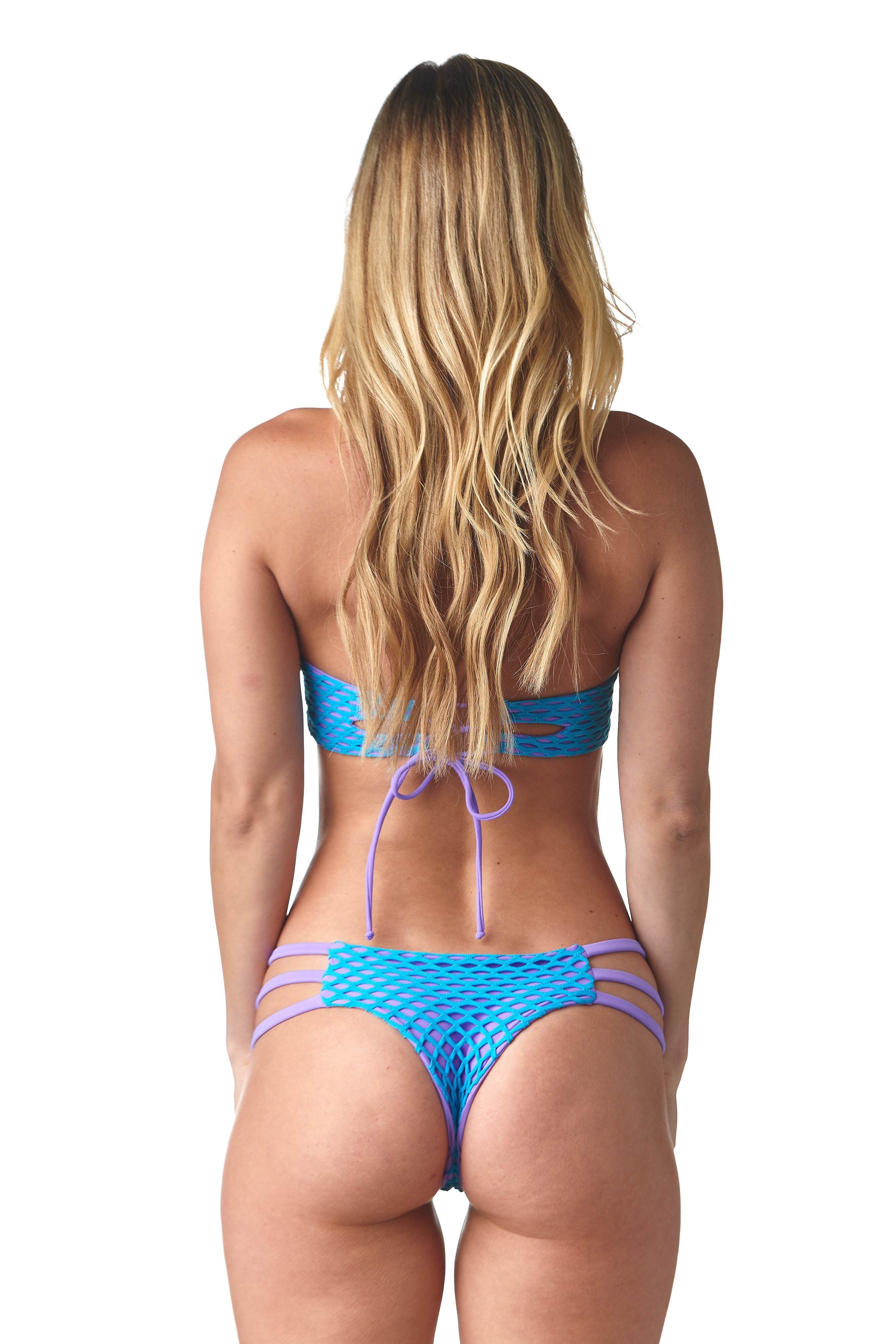
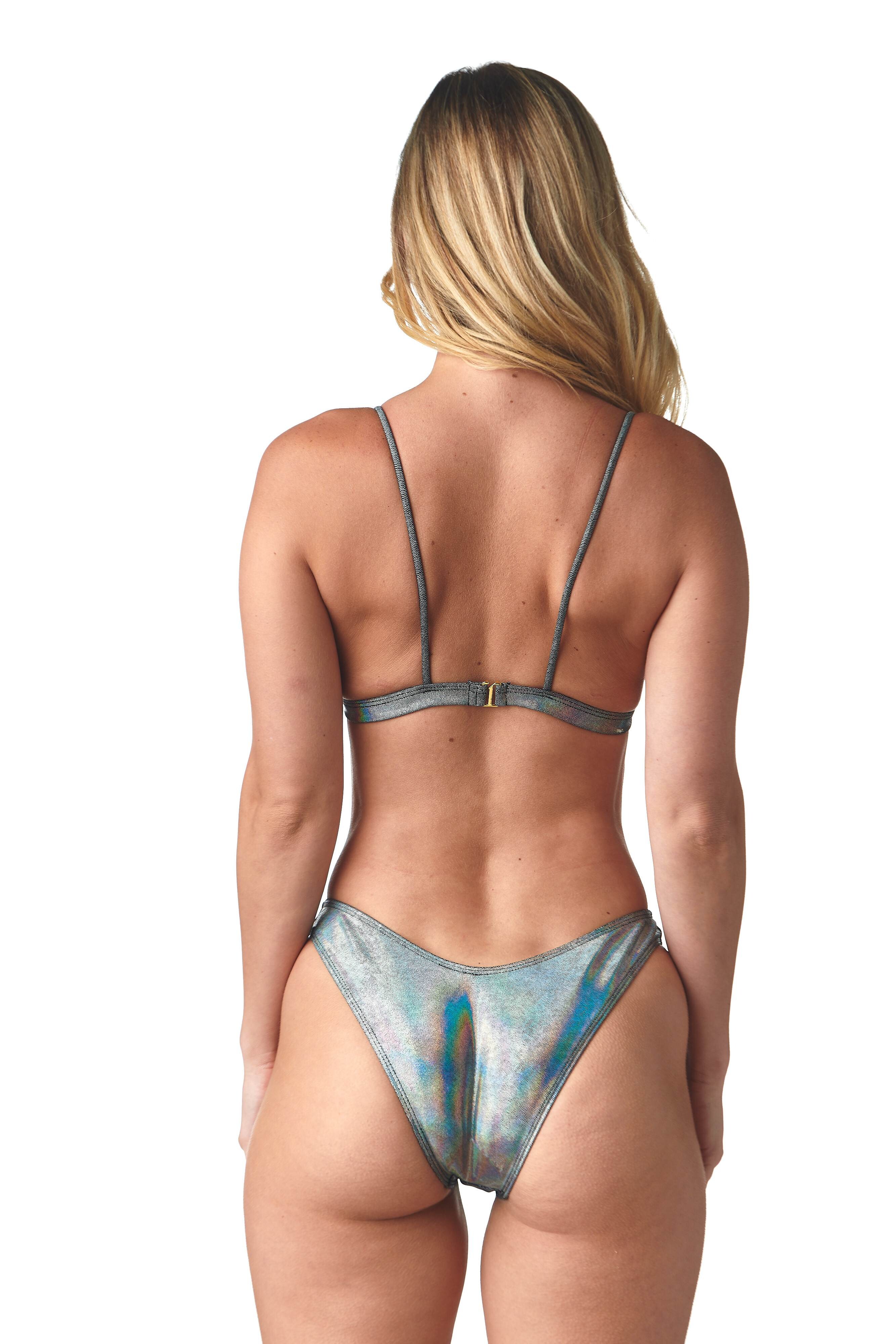




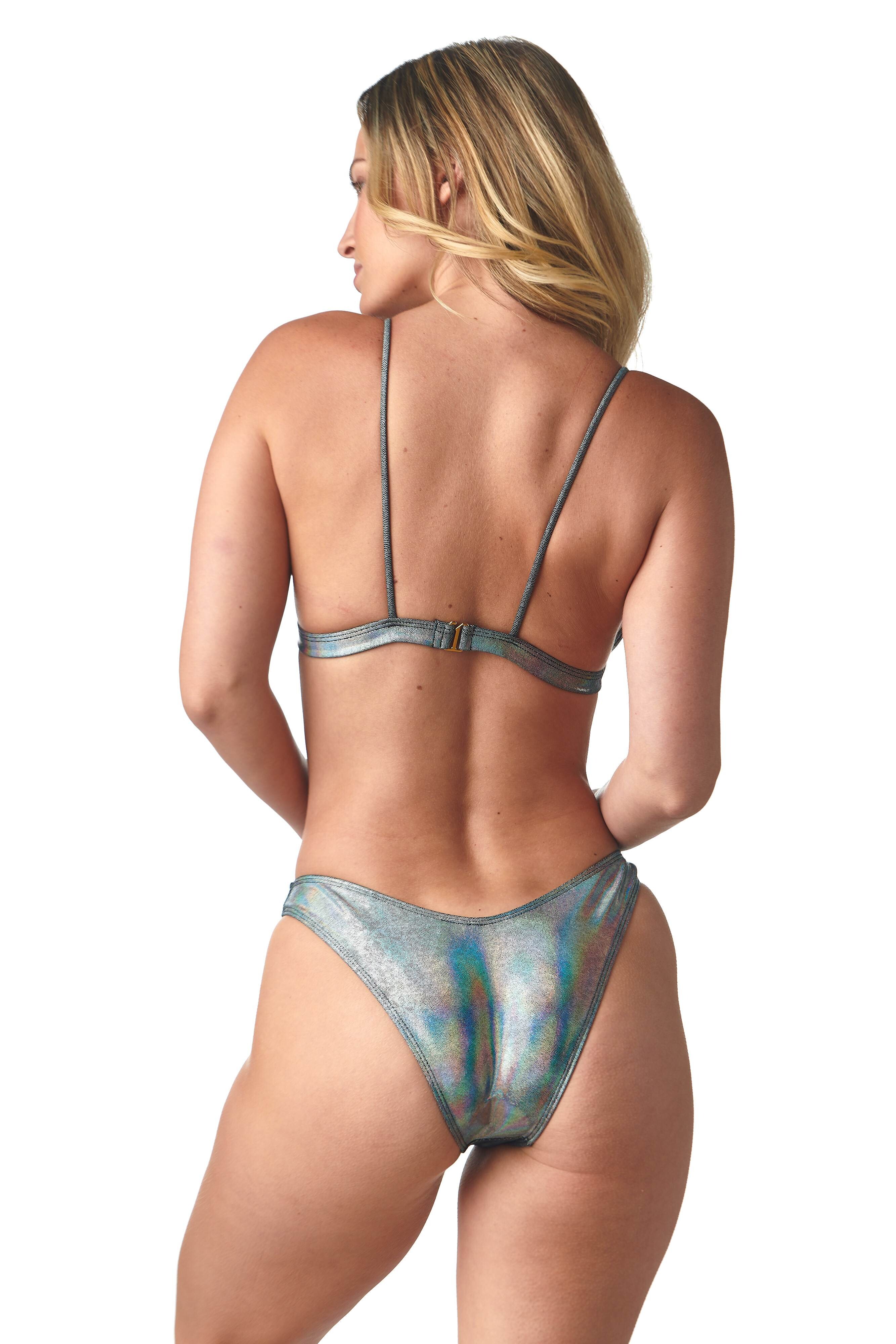

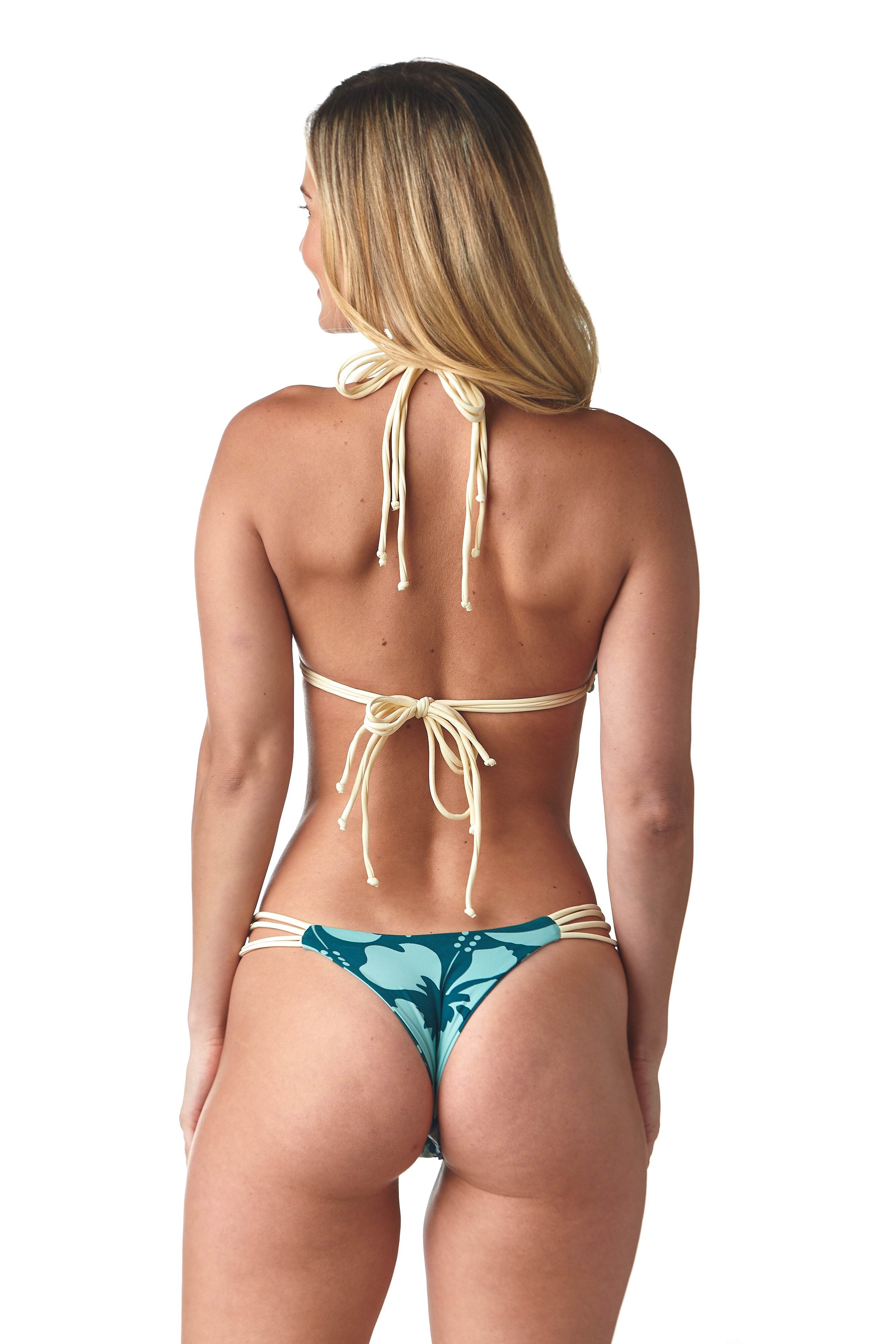
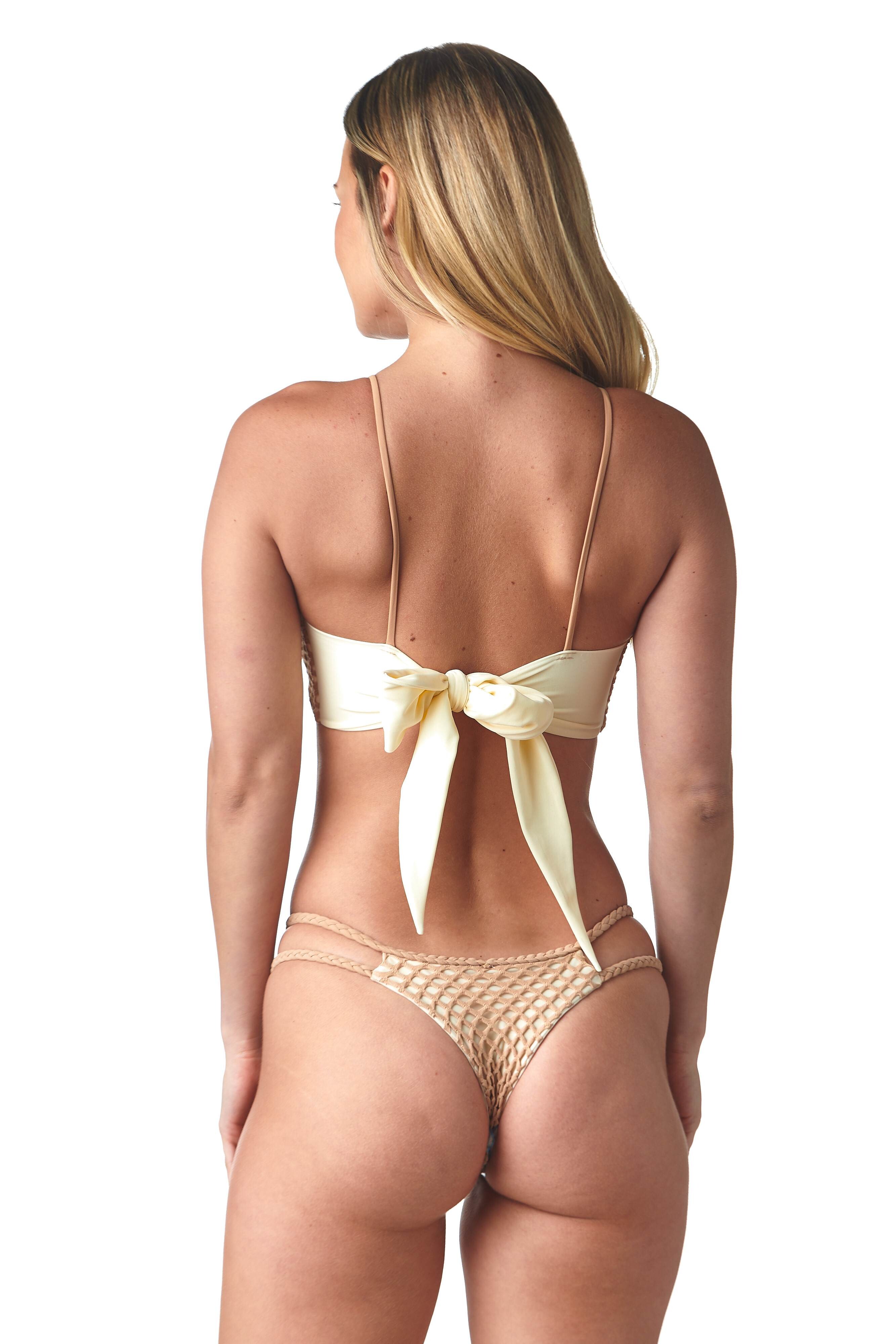




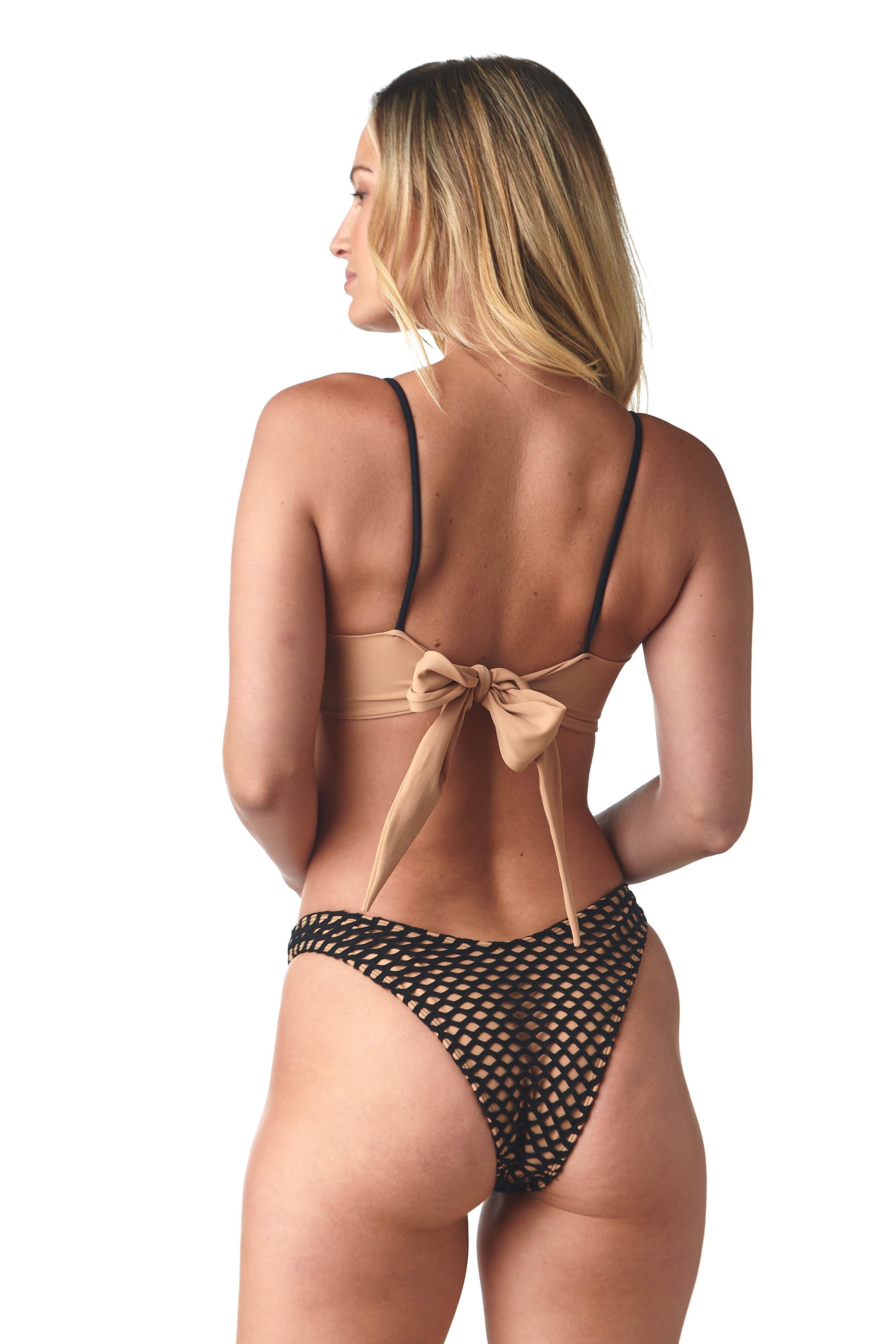

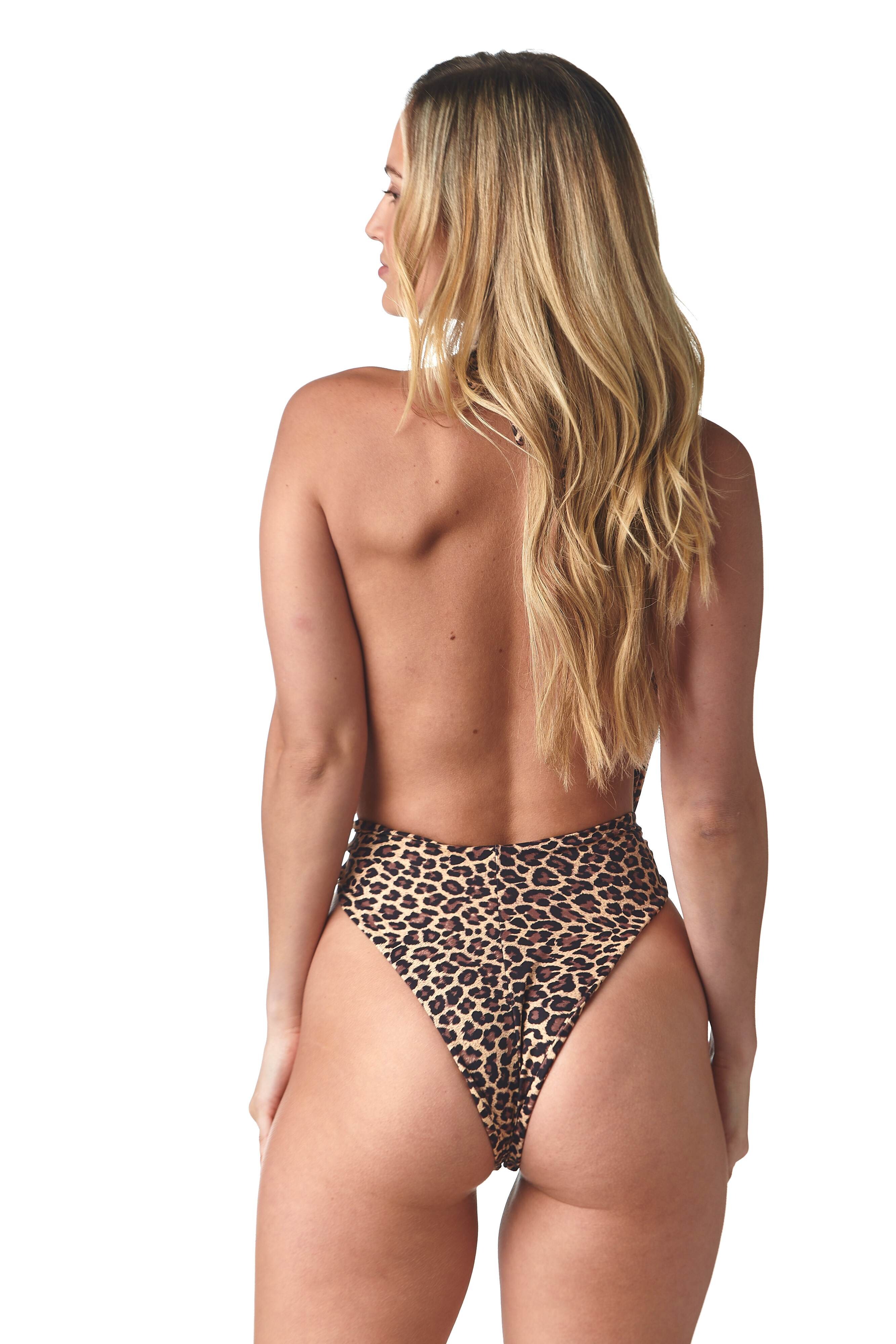
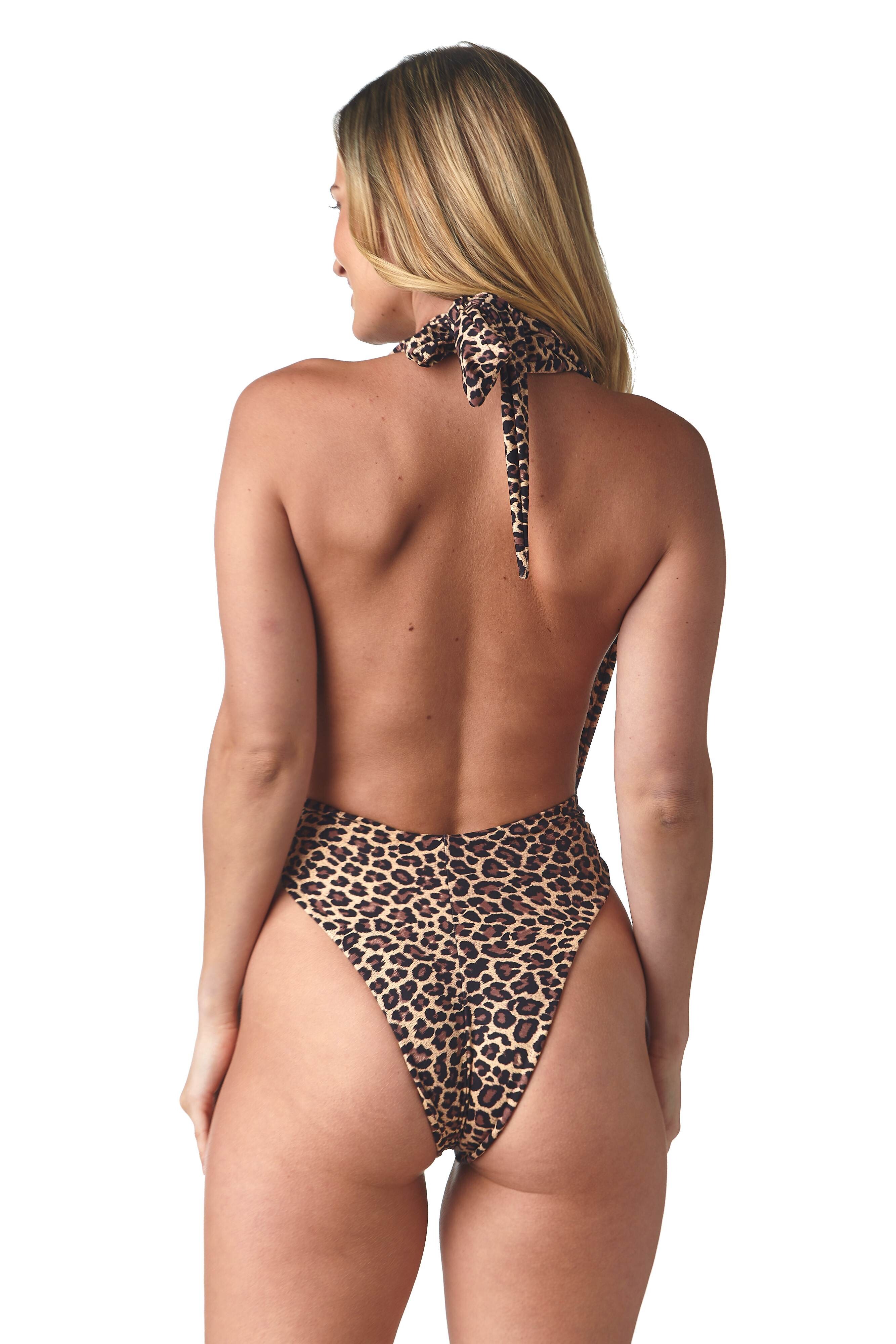




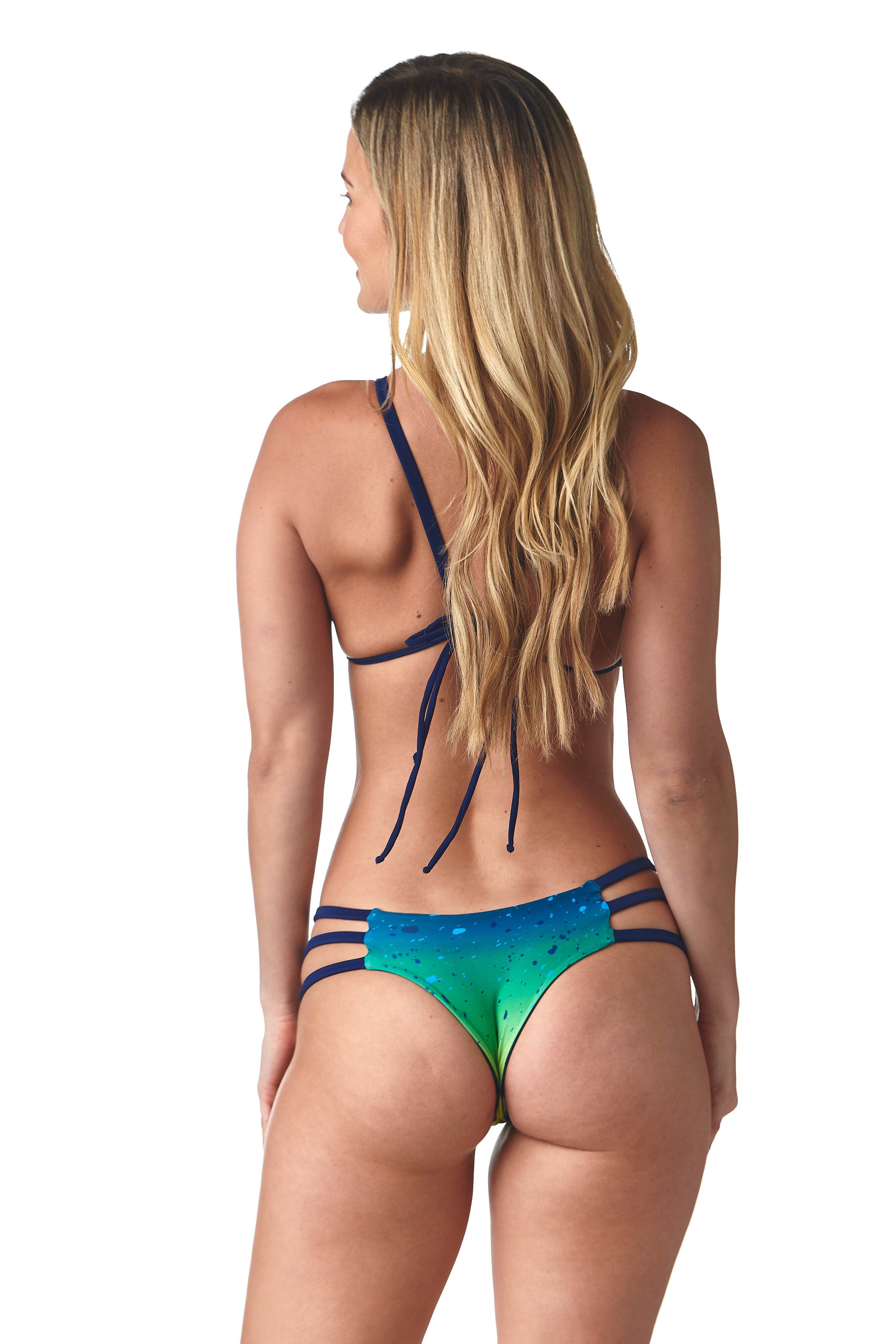
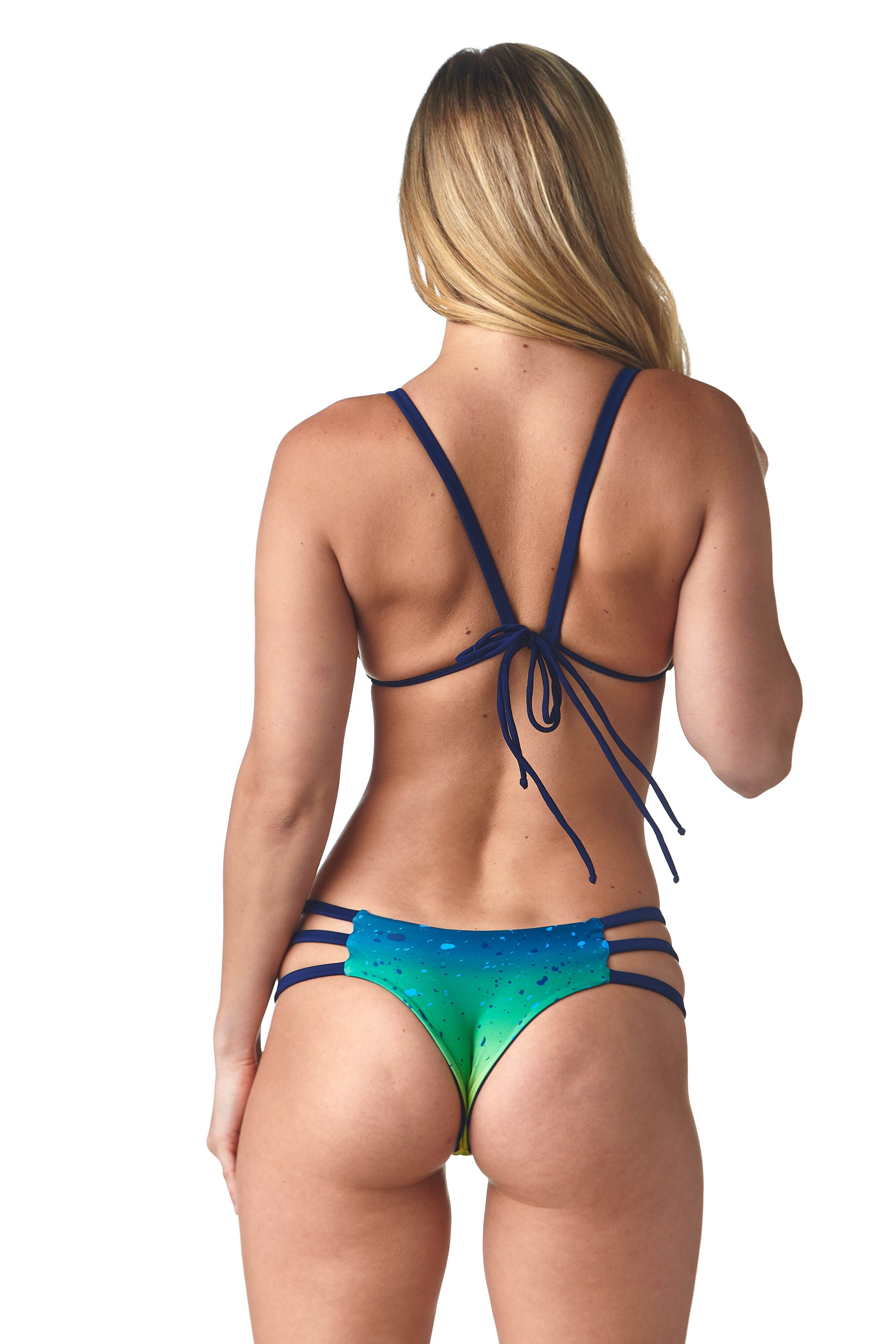
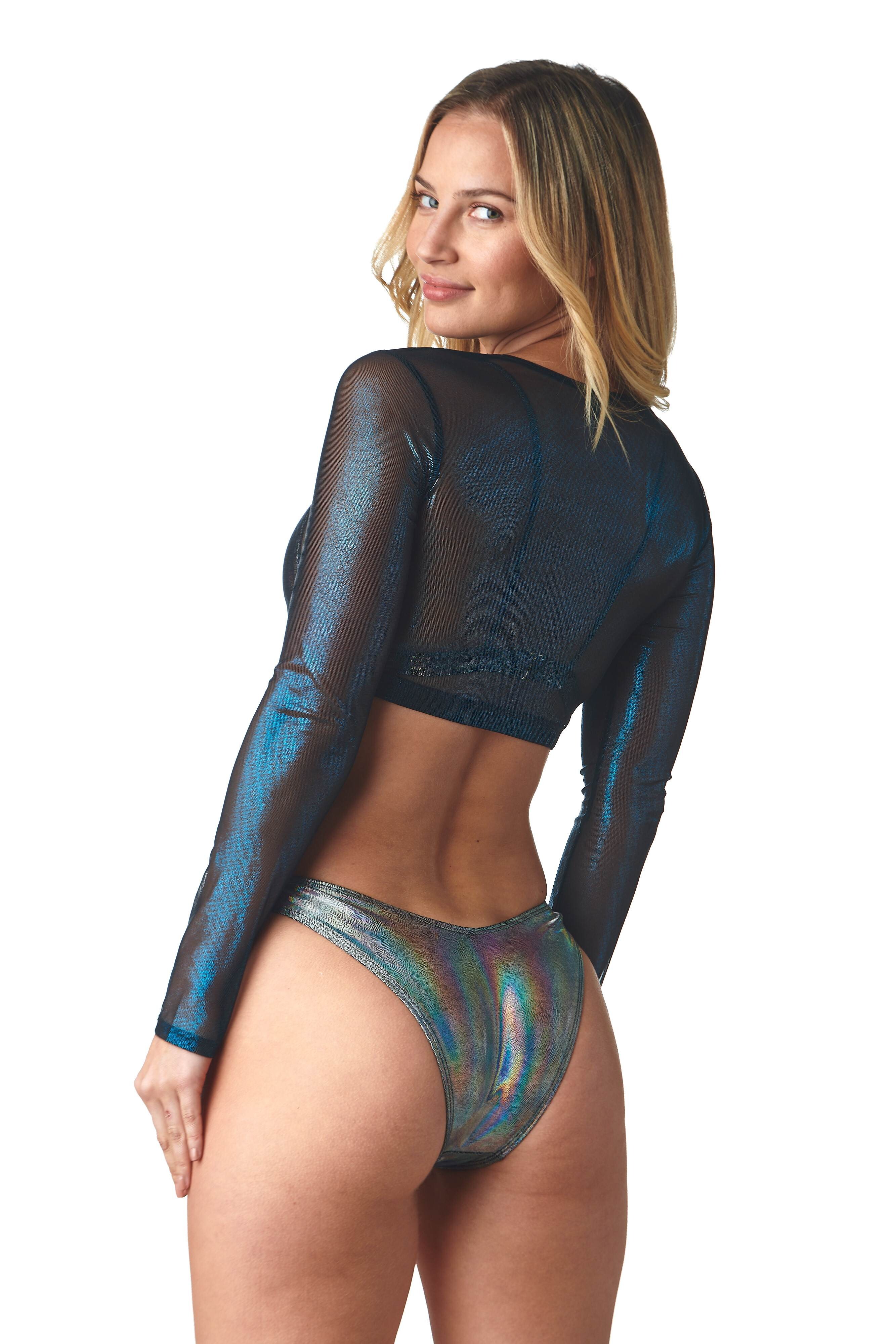

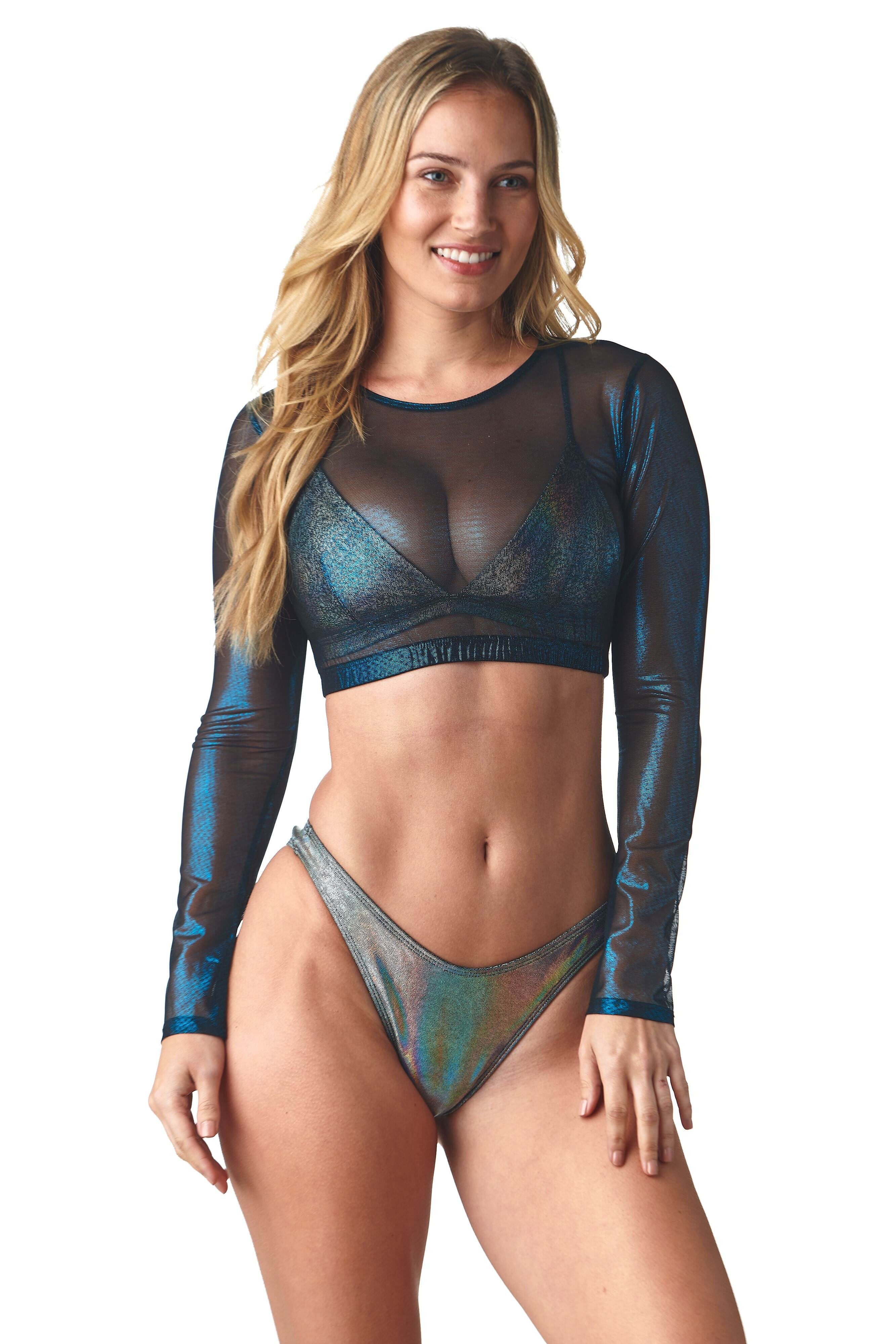


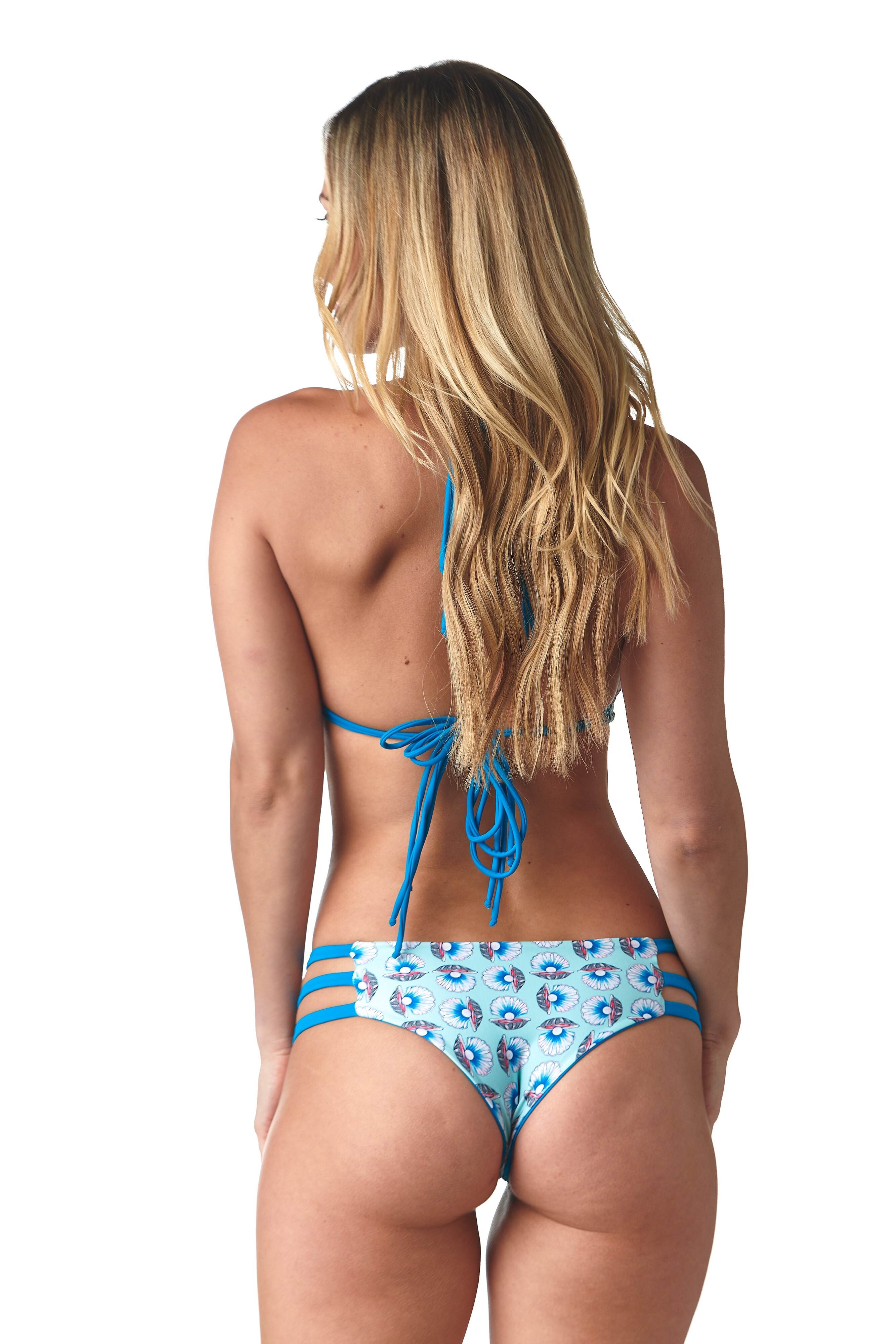
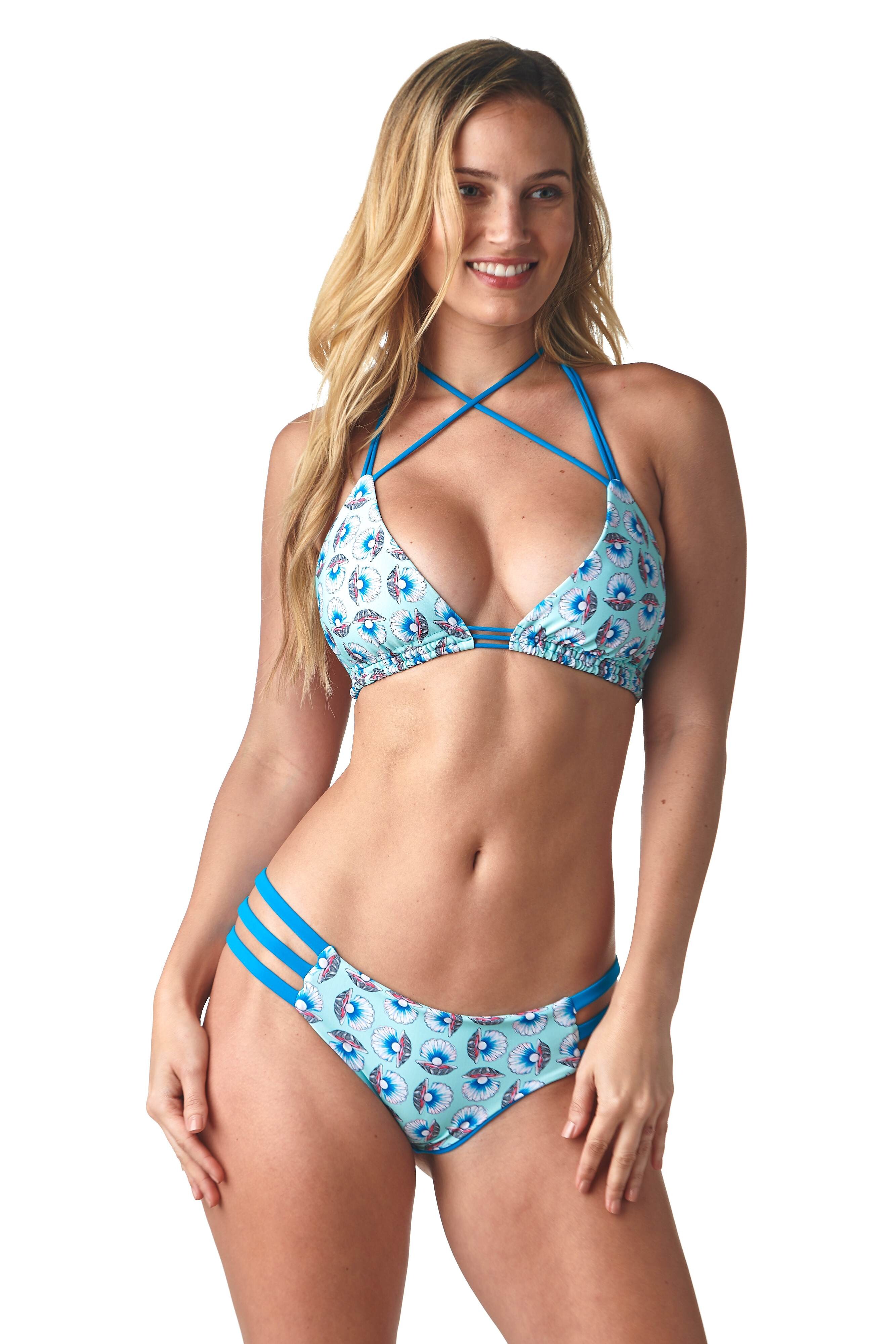

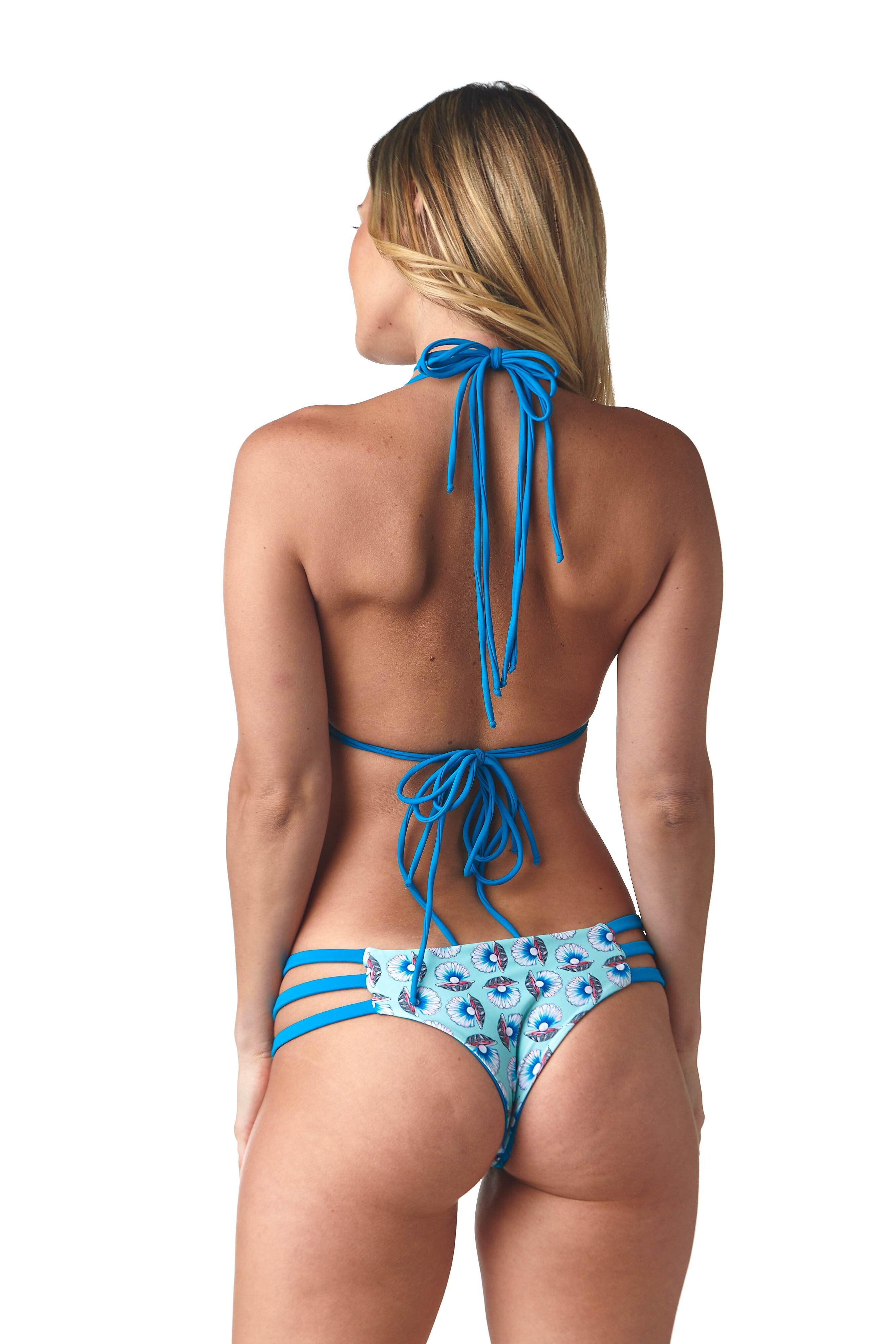
.jpg.607ec0533a487d11499fb8bb45915d35.jpg)
.jpg.1baa3a86b5c8e4f23ac3fb9947675fde.jpg)

.jpg.02815406d2f4d752c26058739ecbd7a7.jpg)


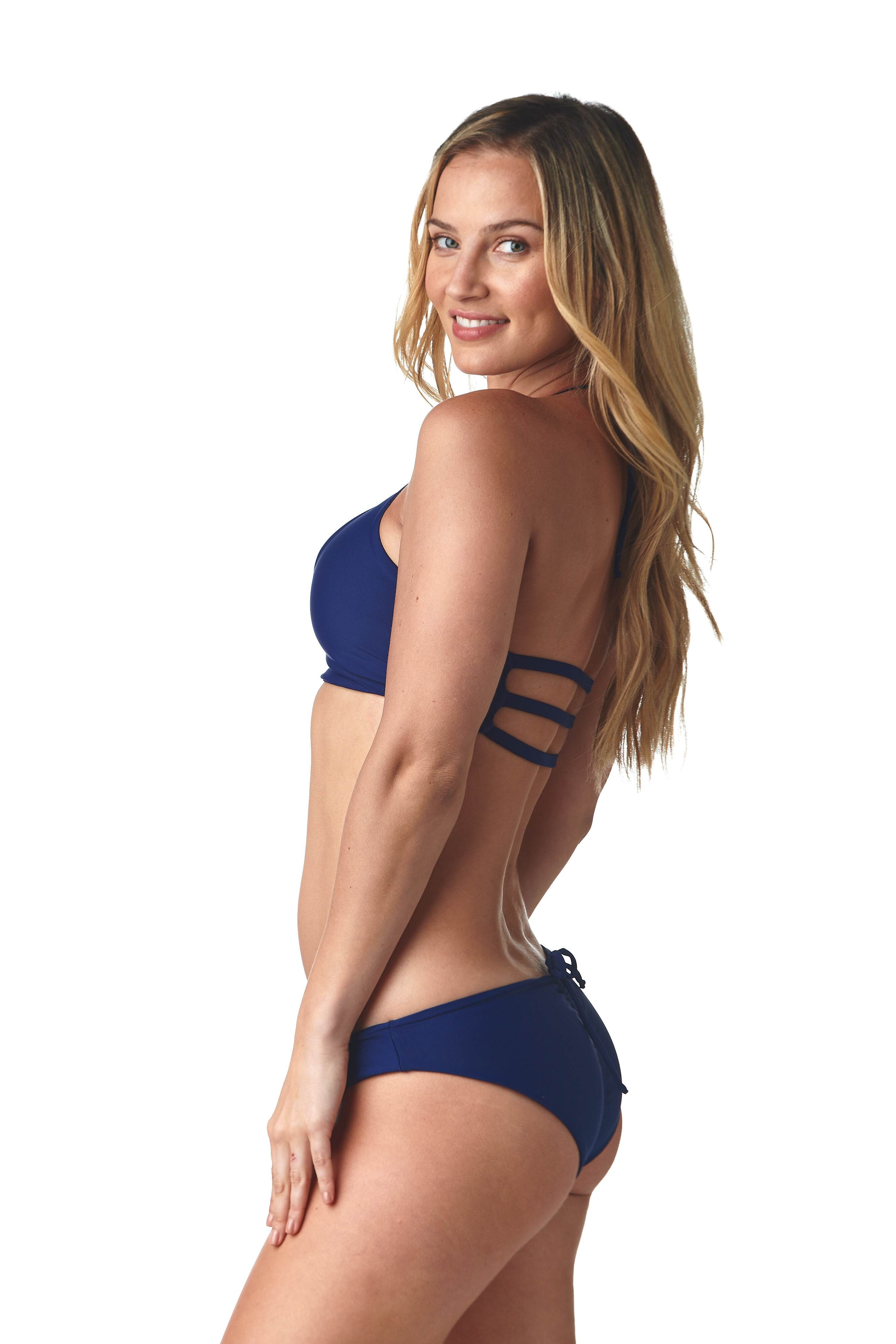
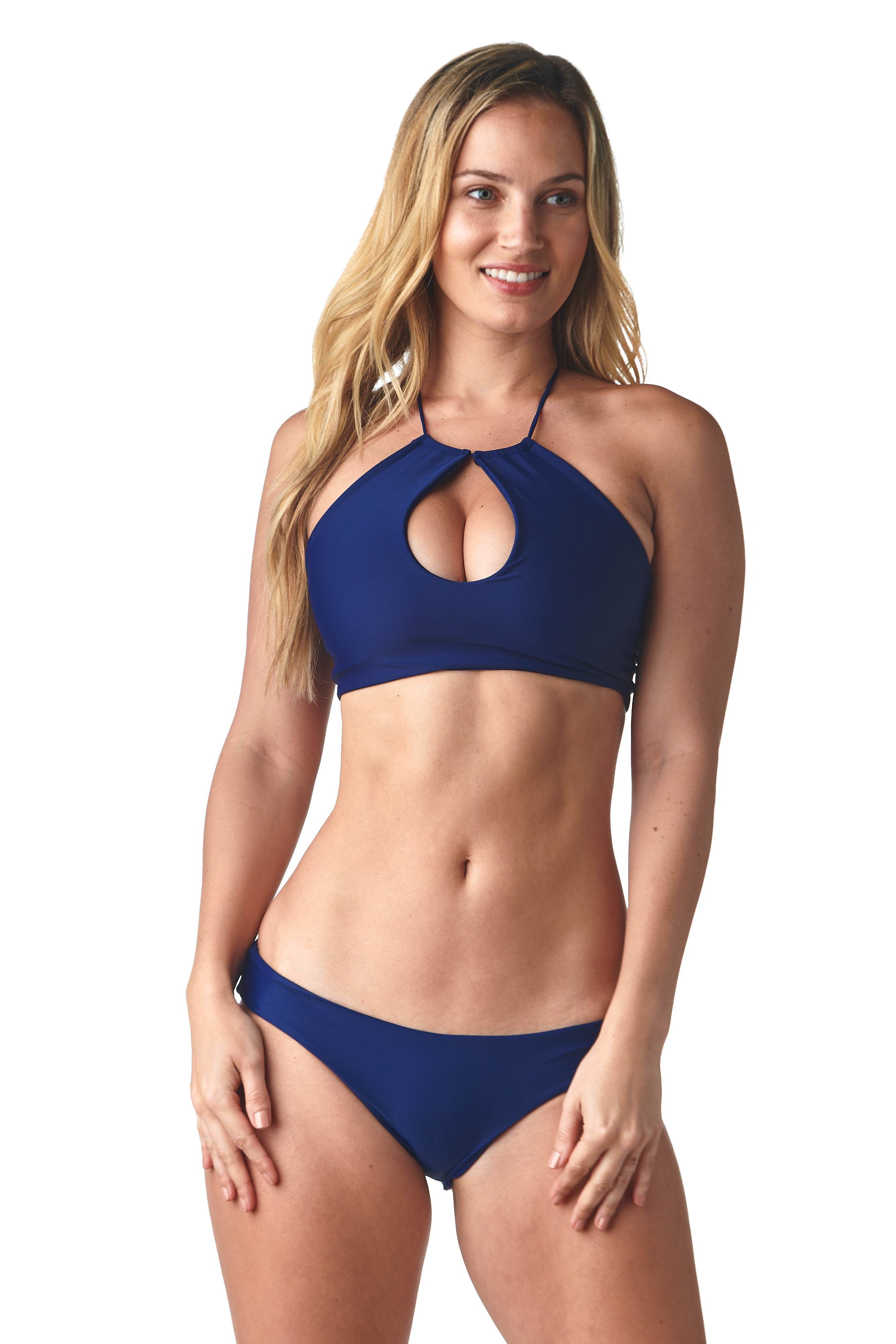
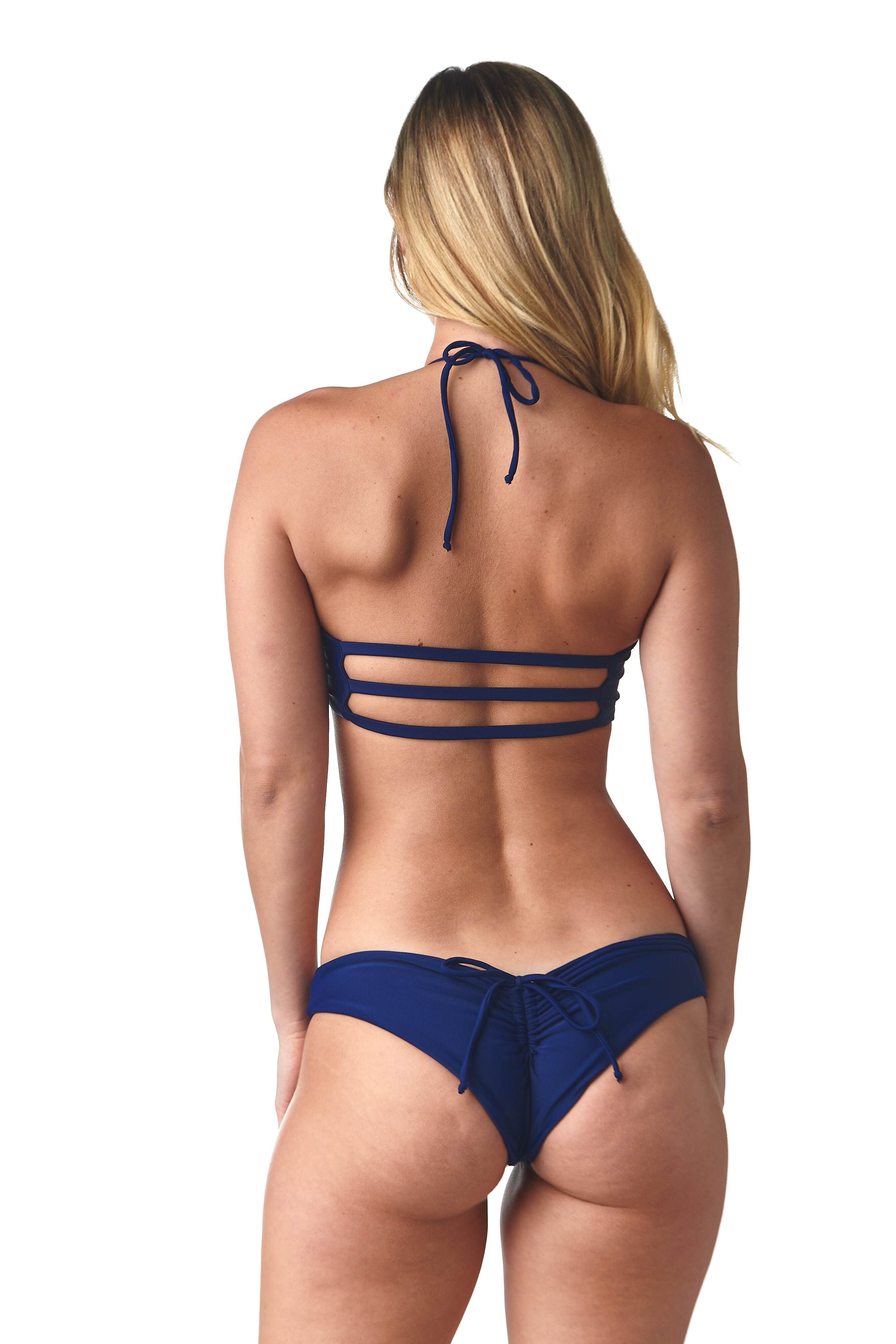
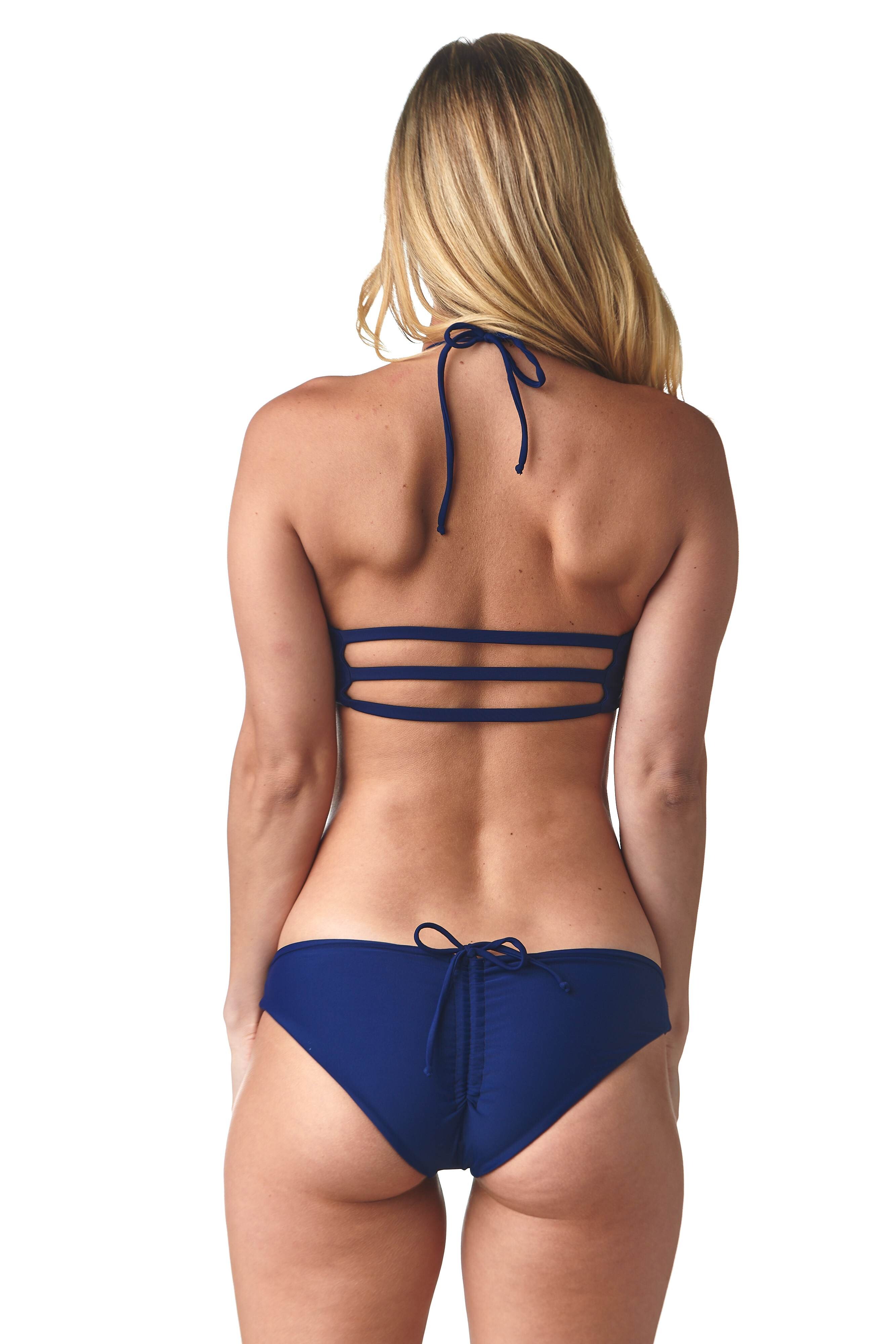

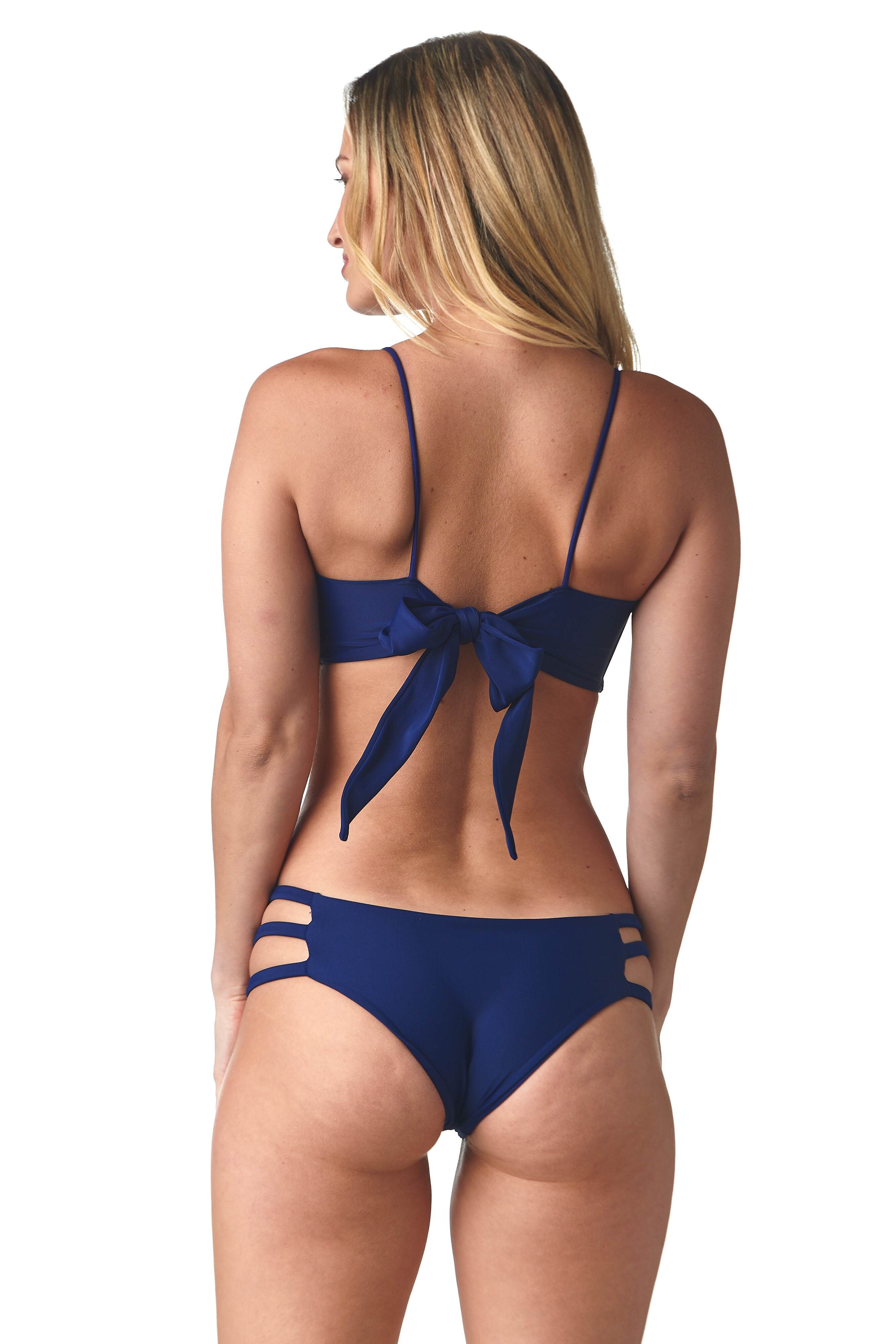
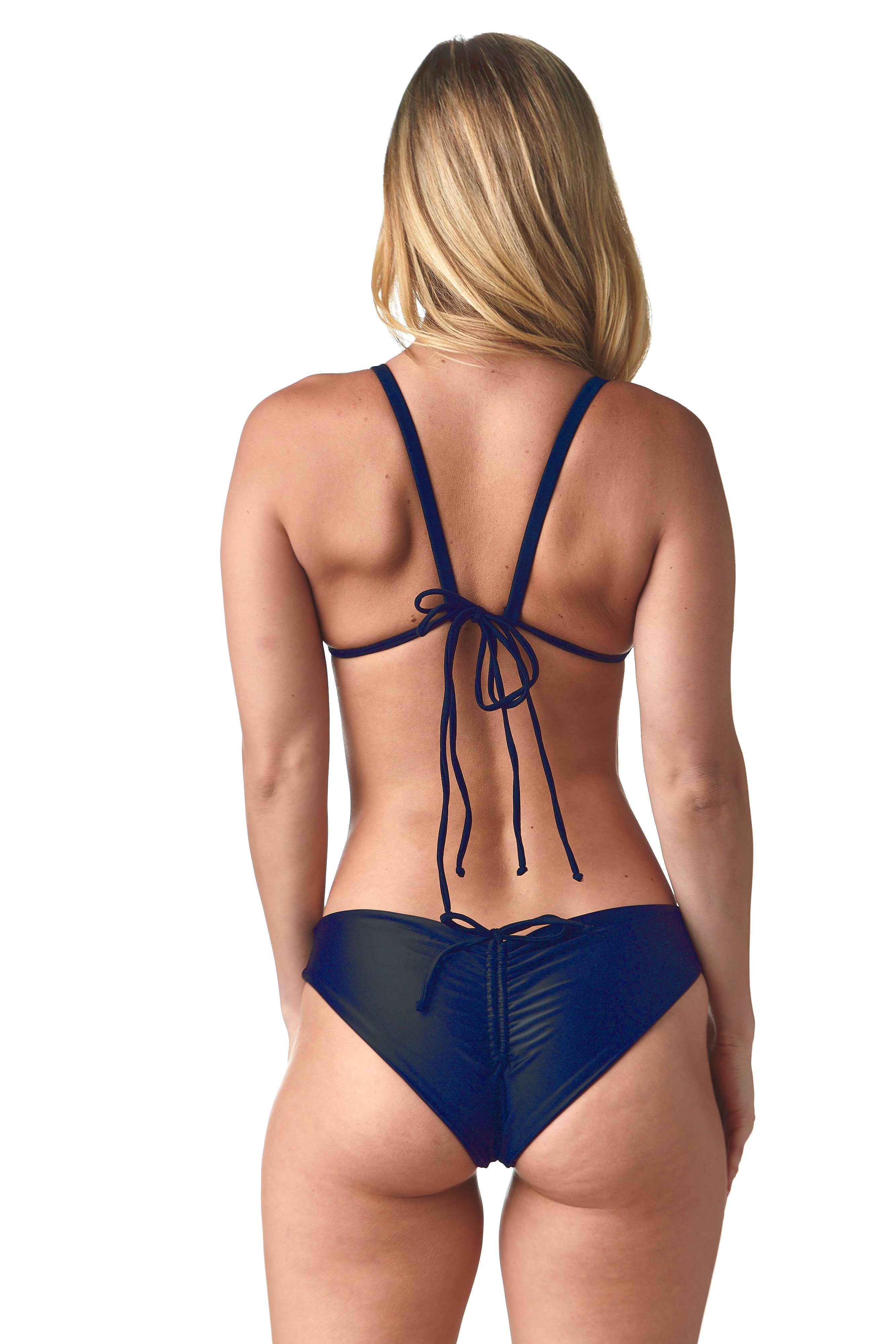

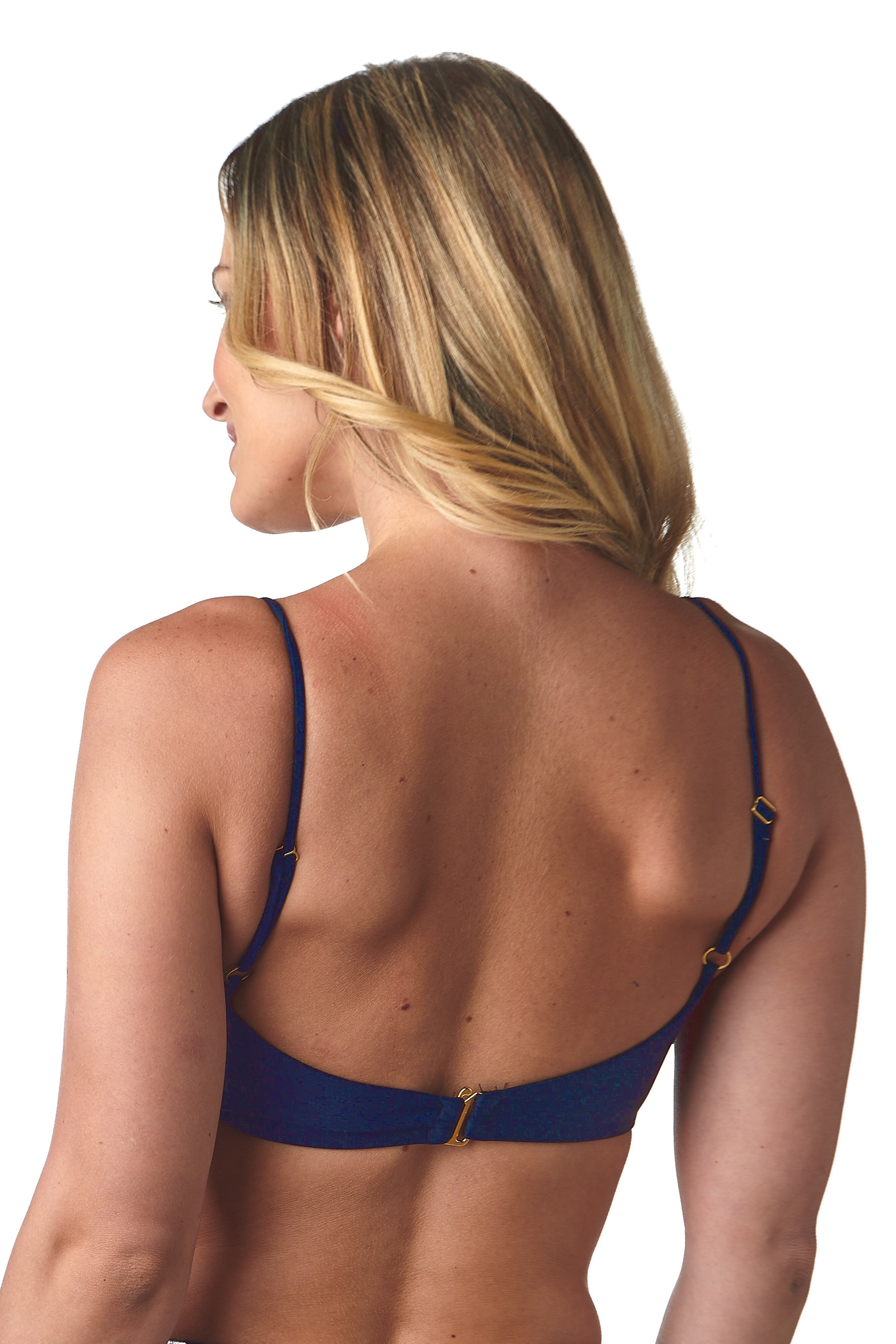




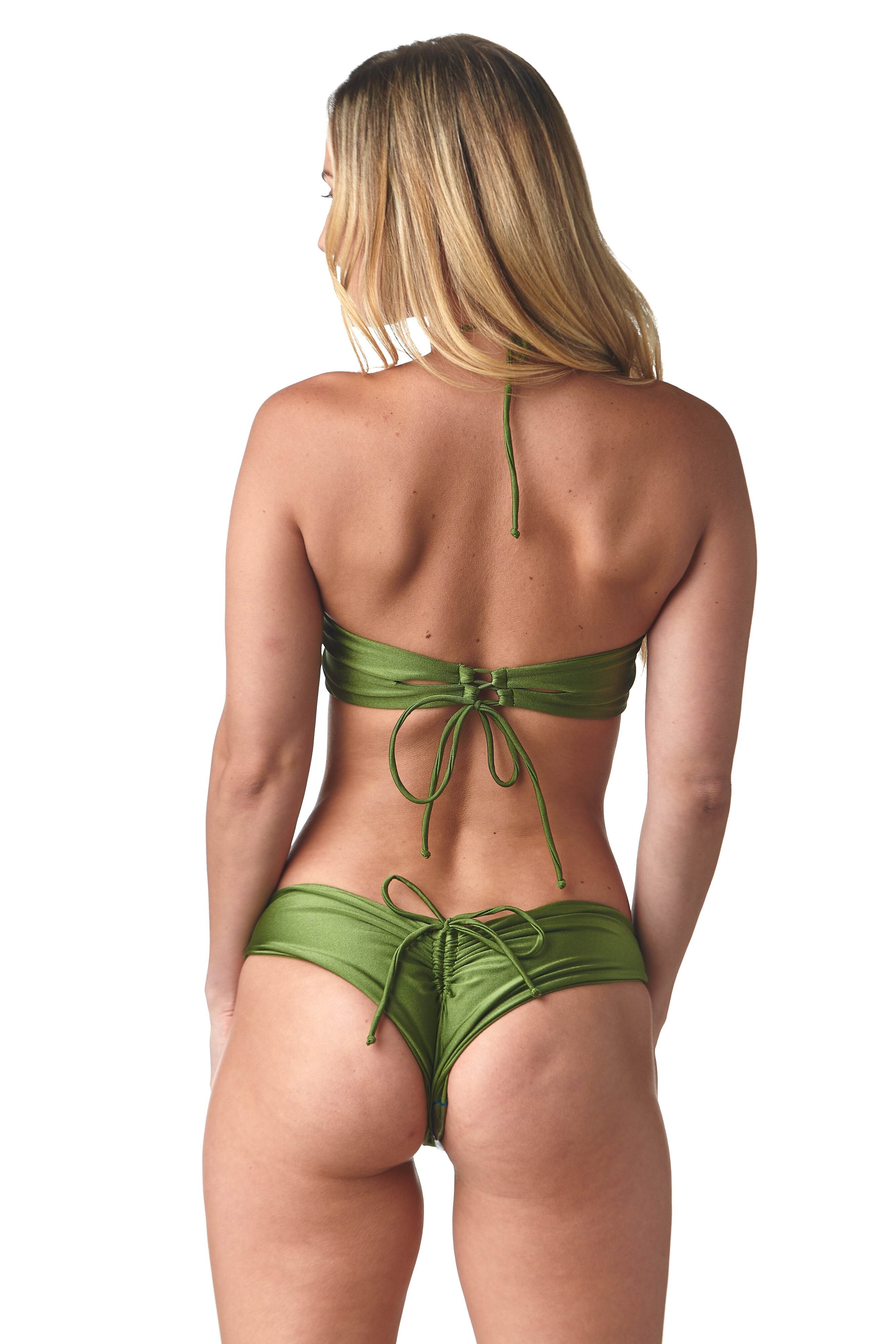
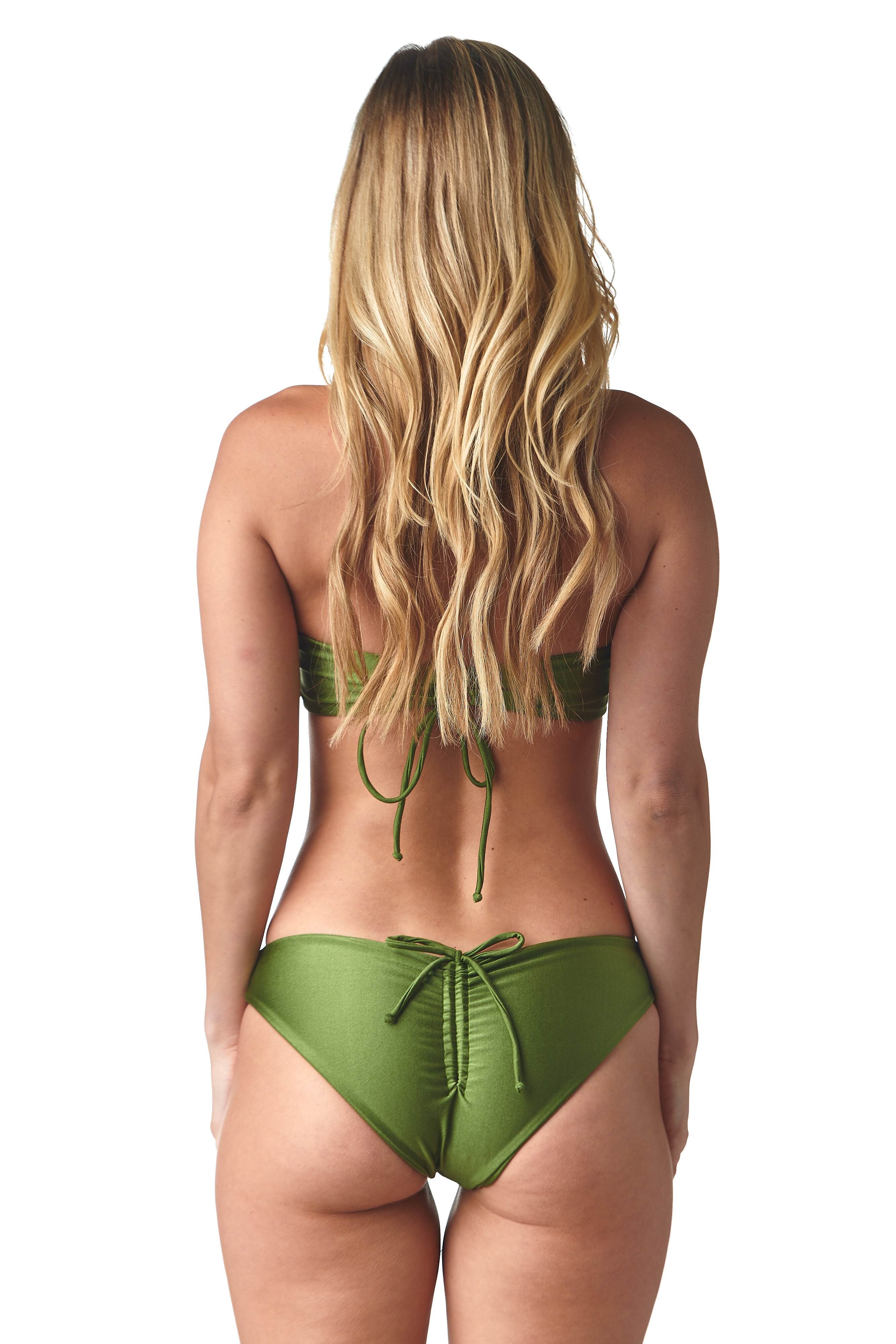


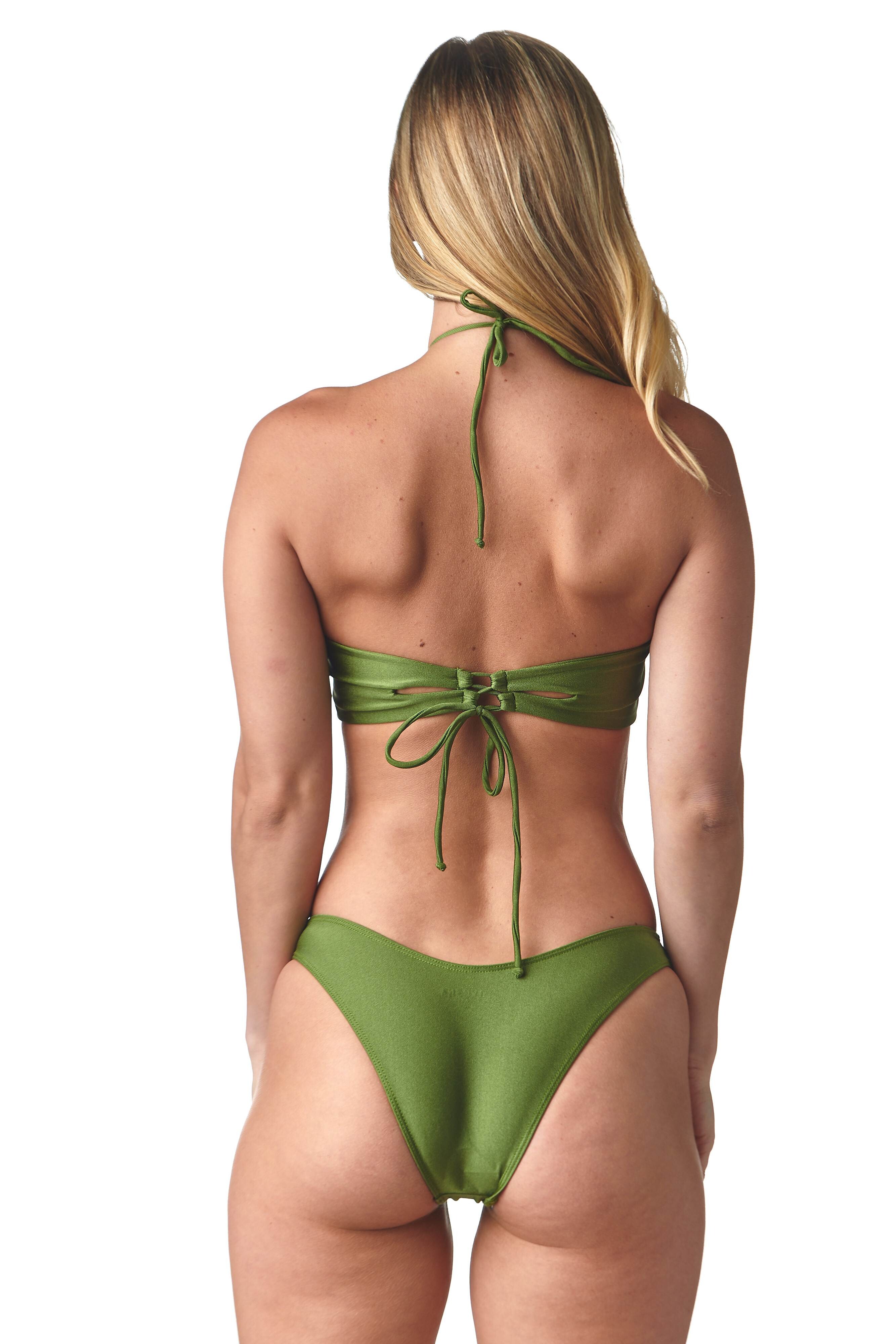
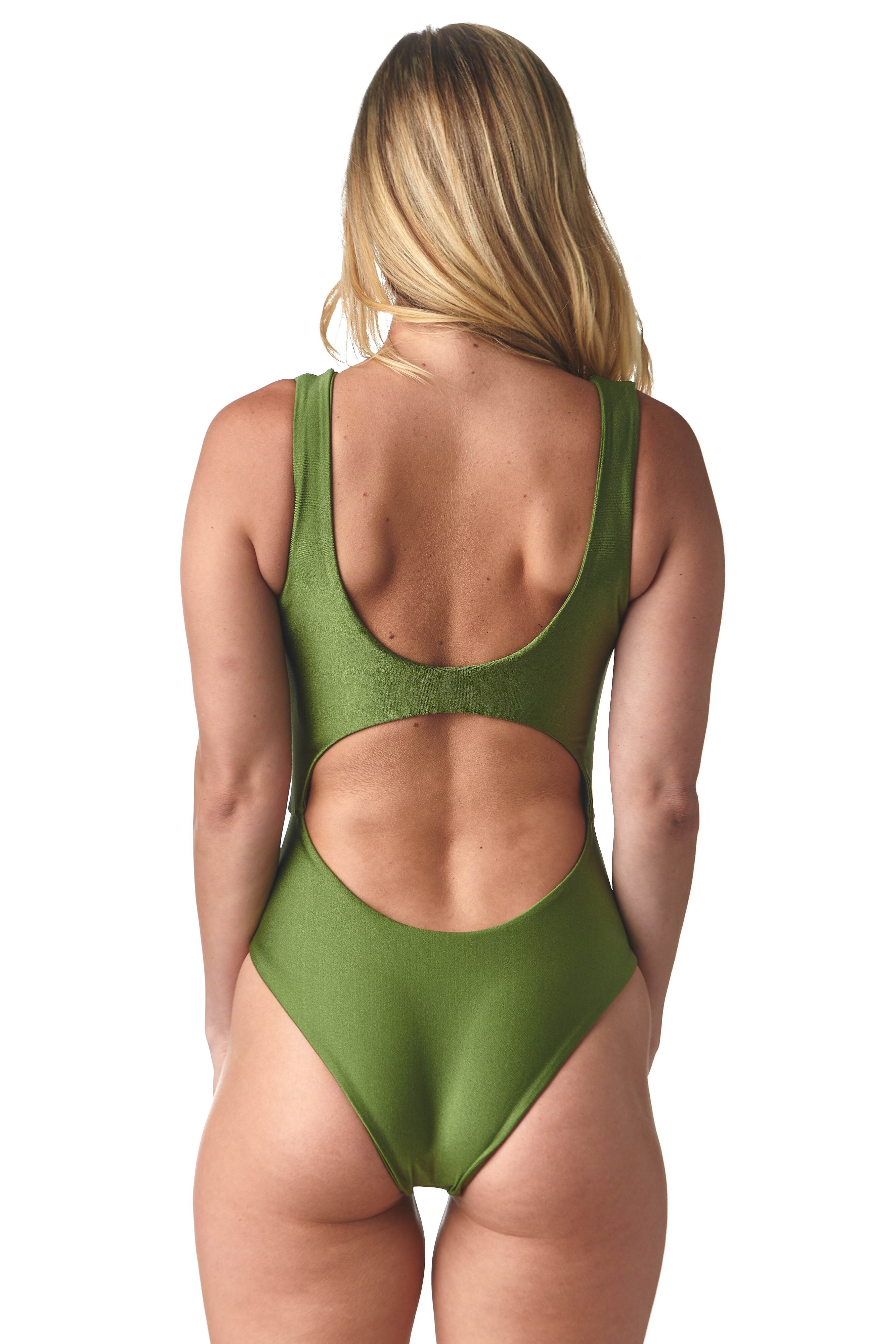
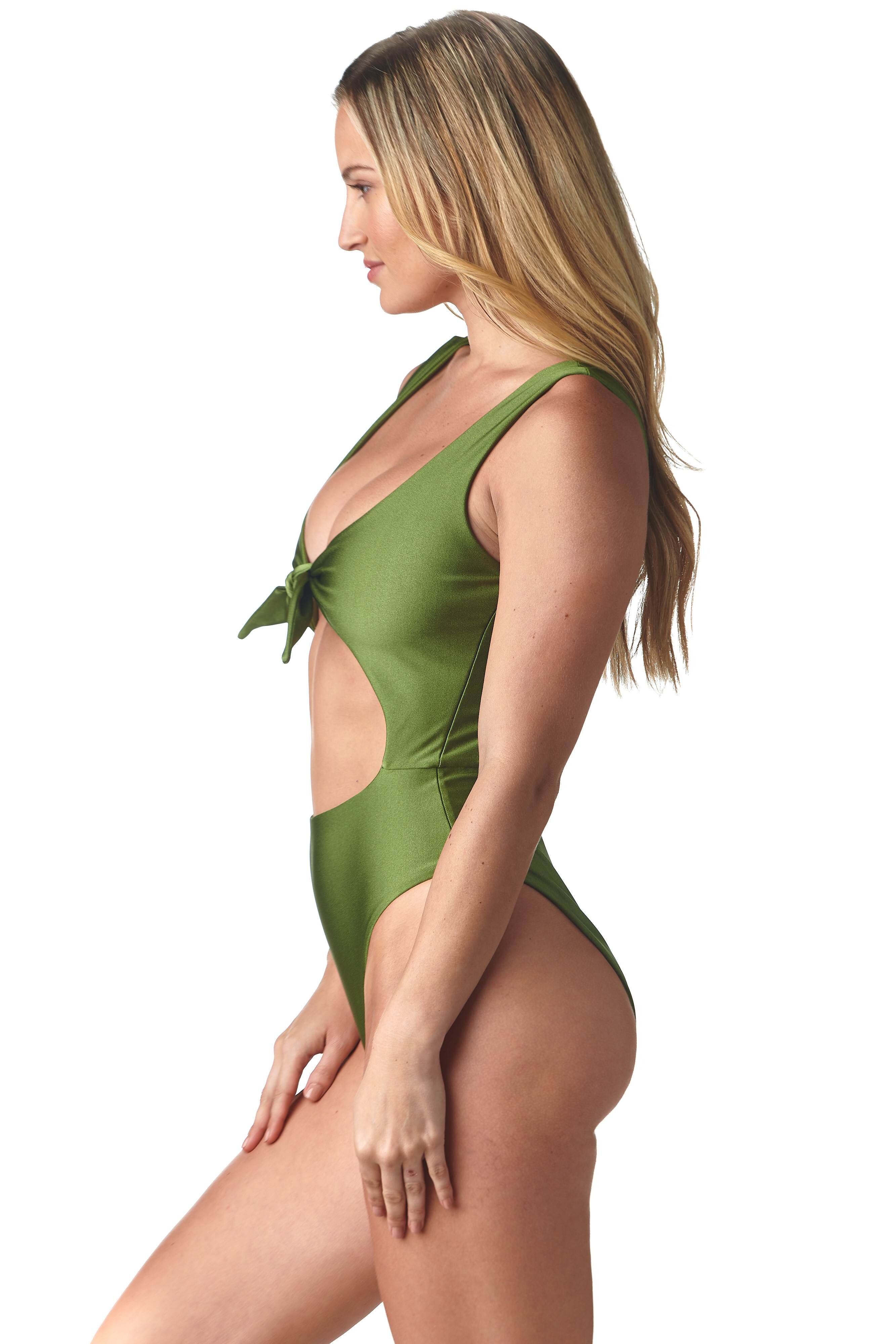
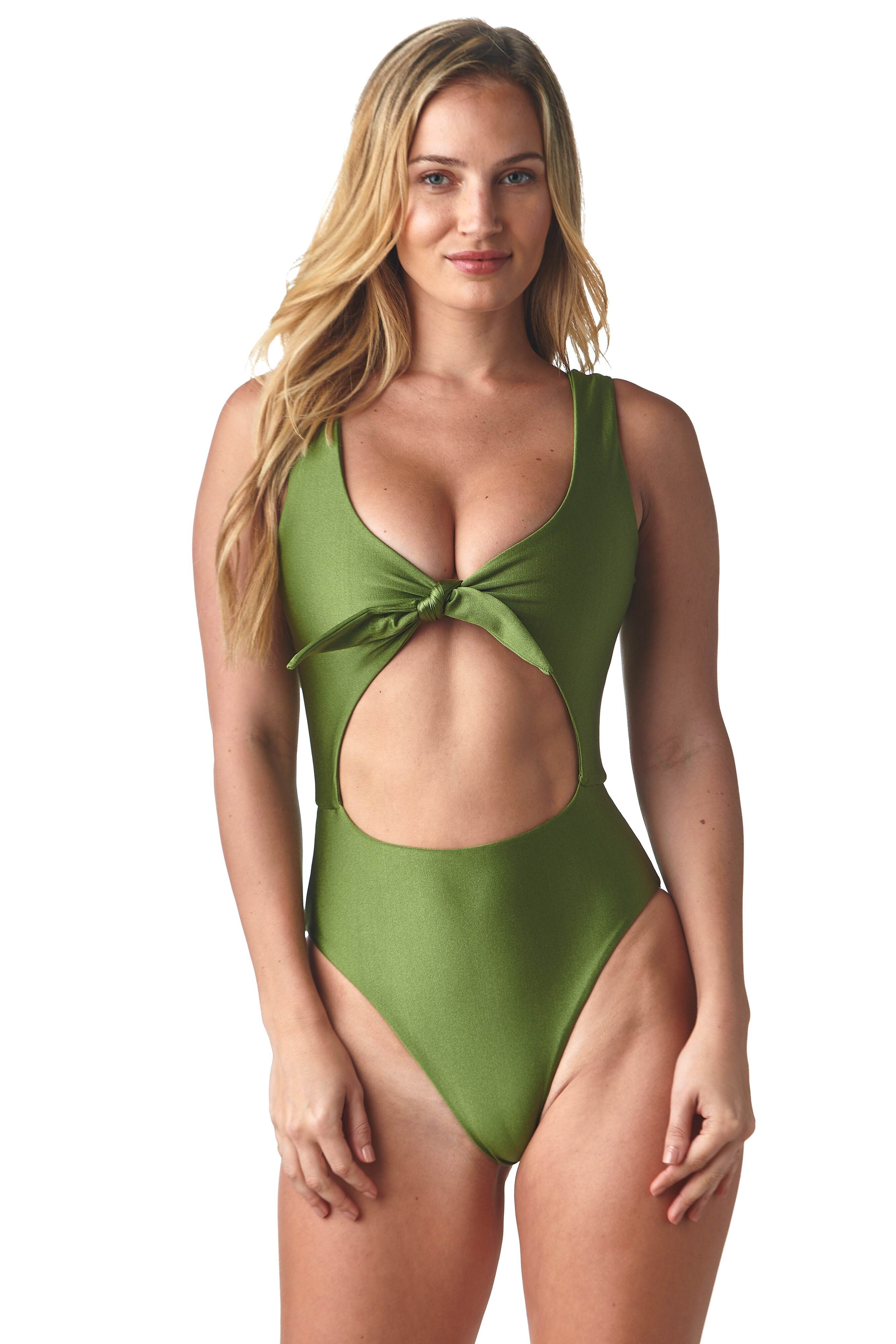

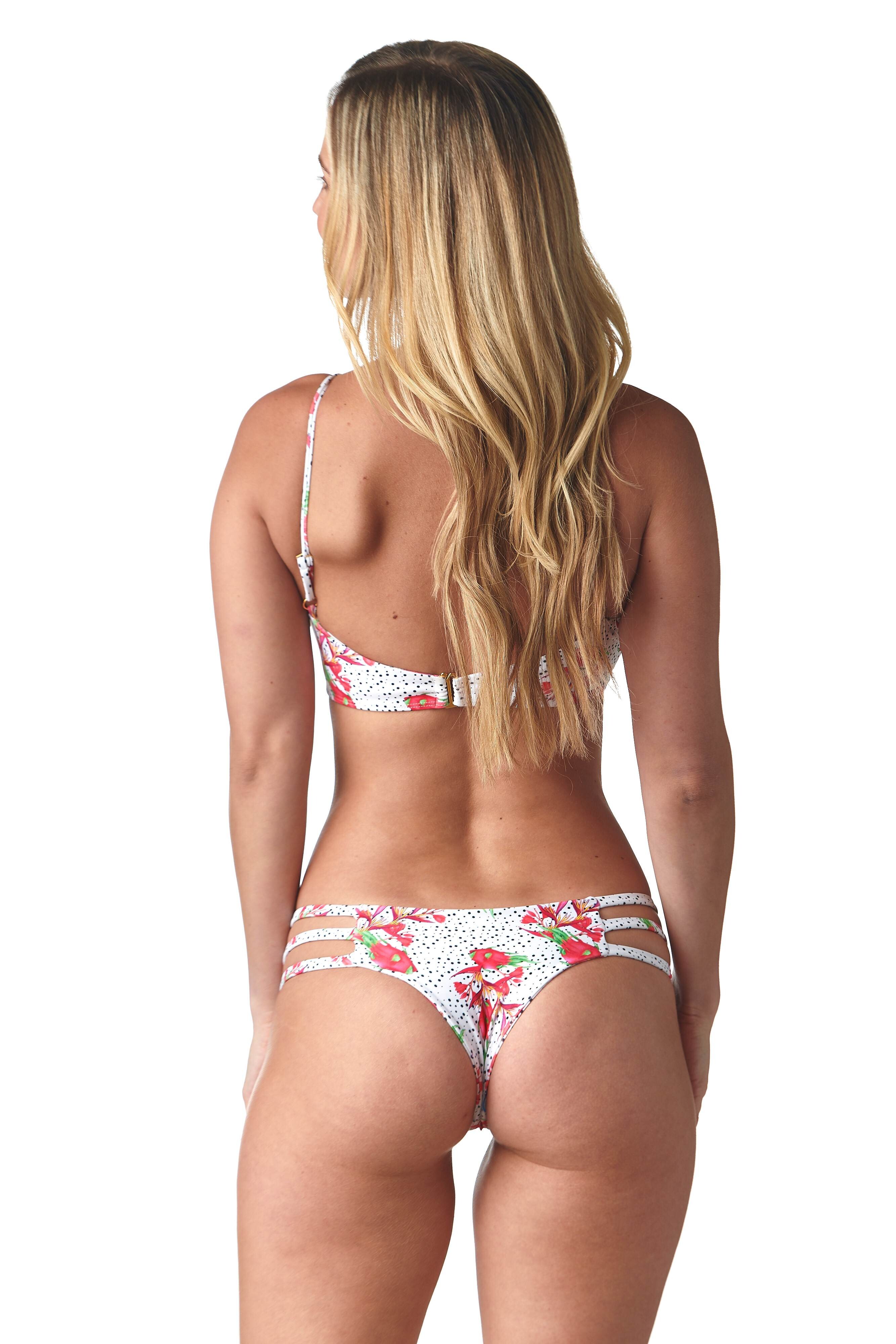

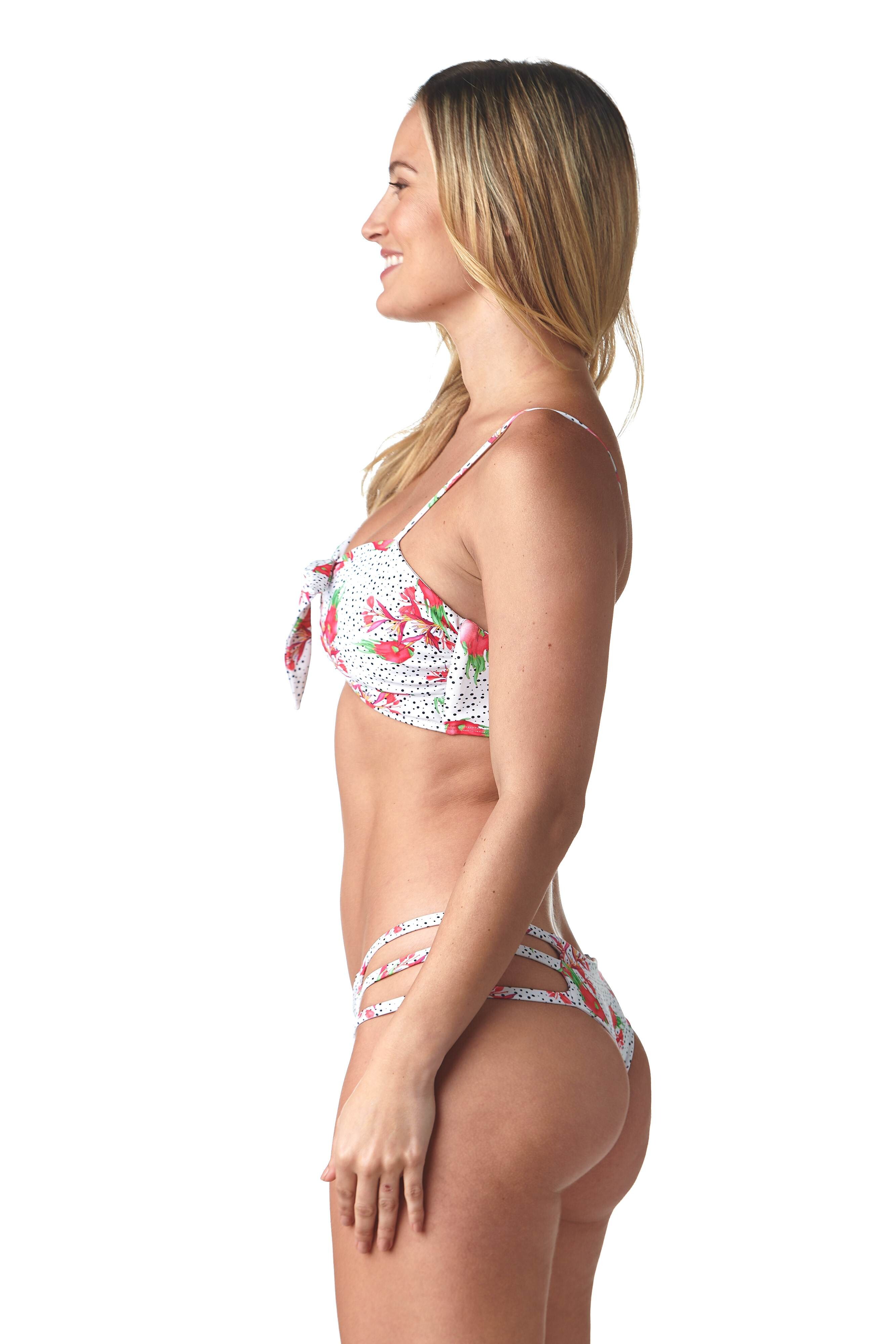

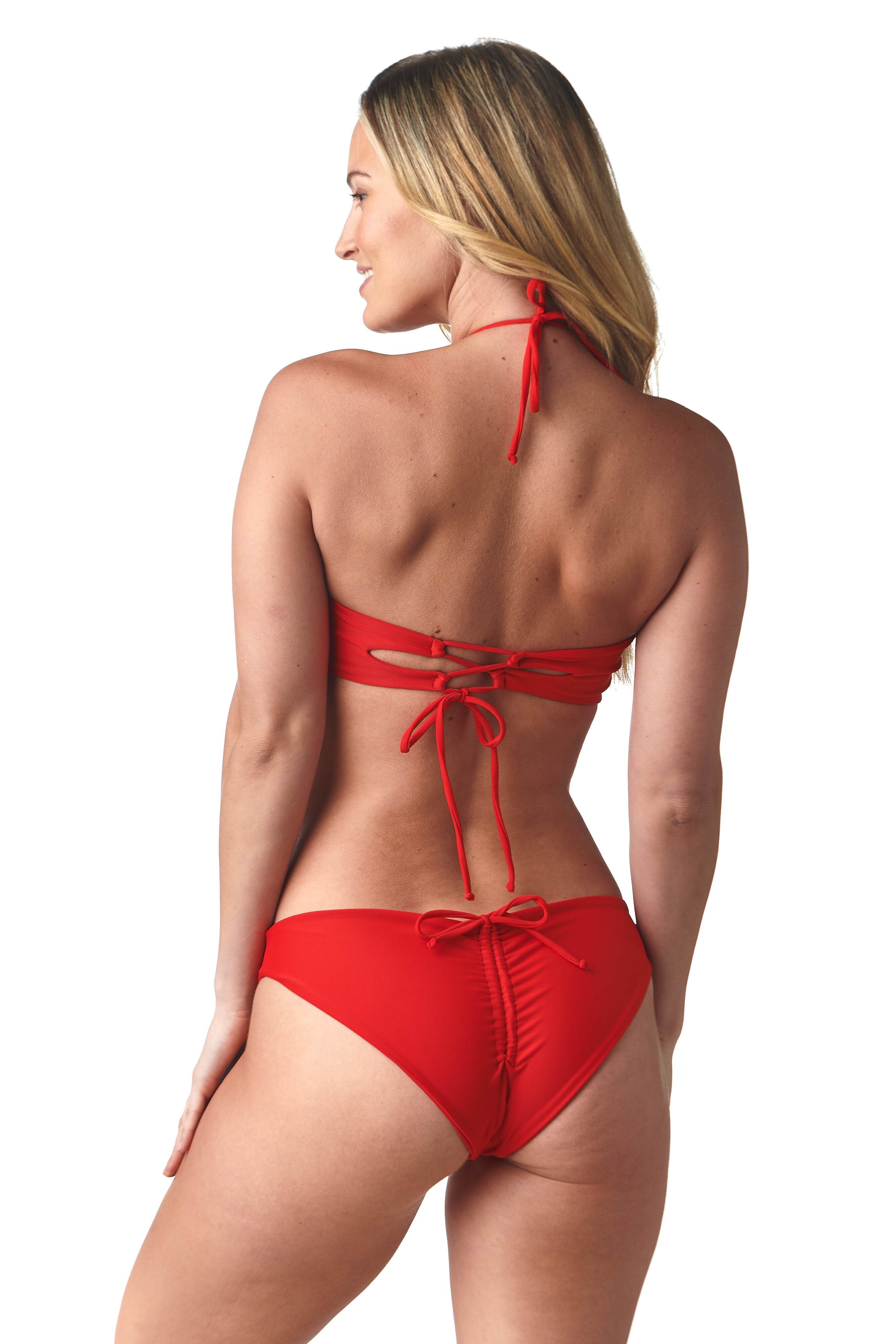






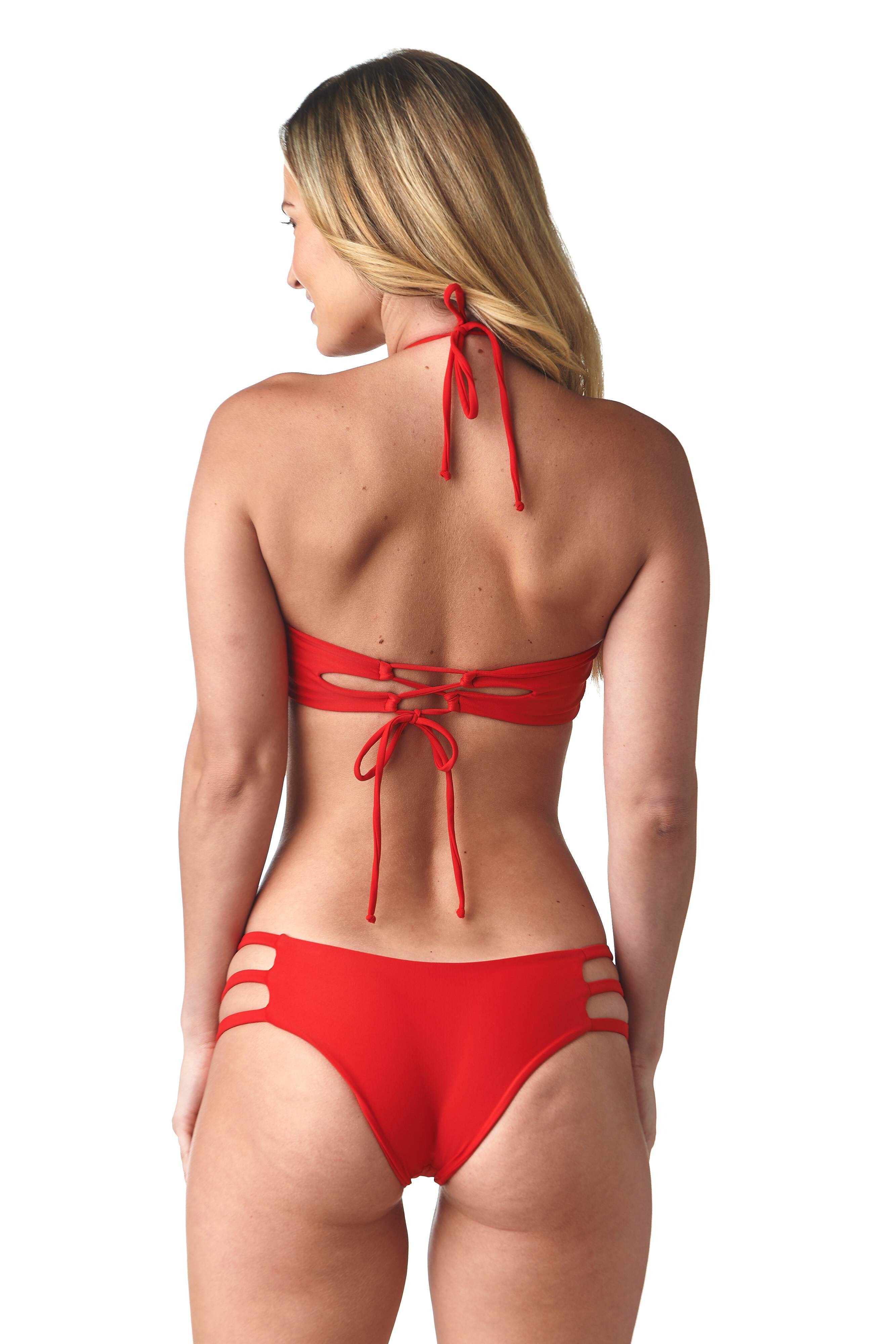



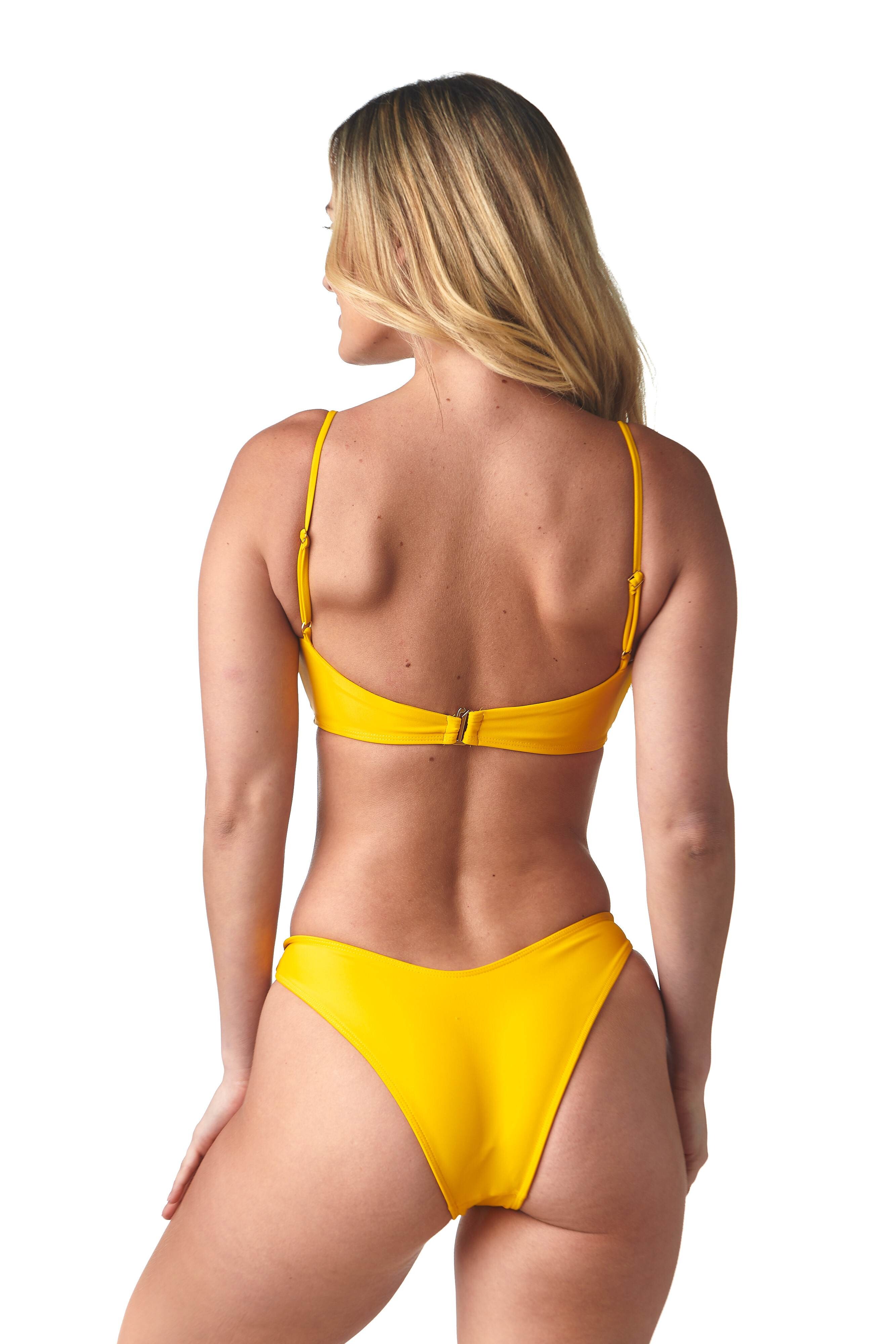


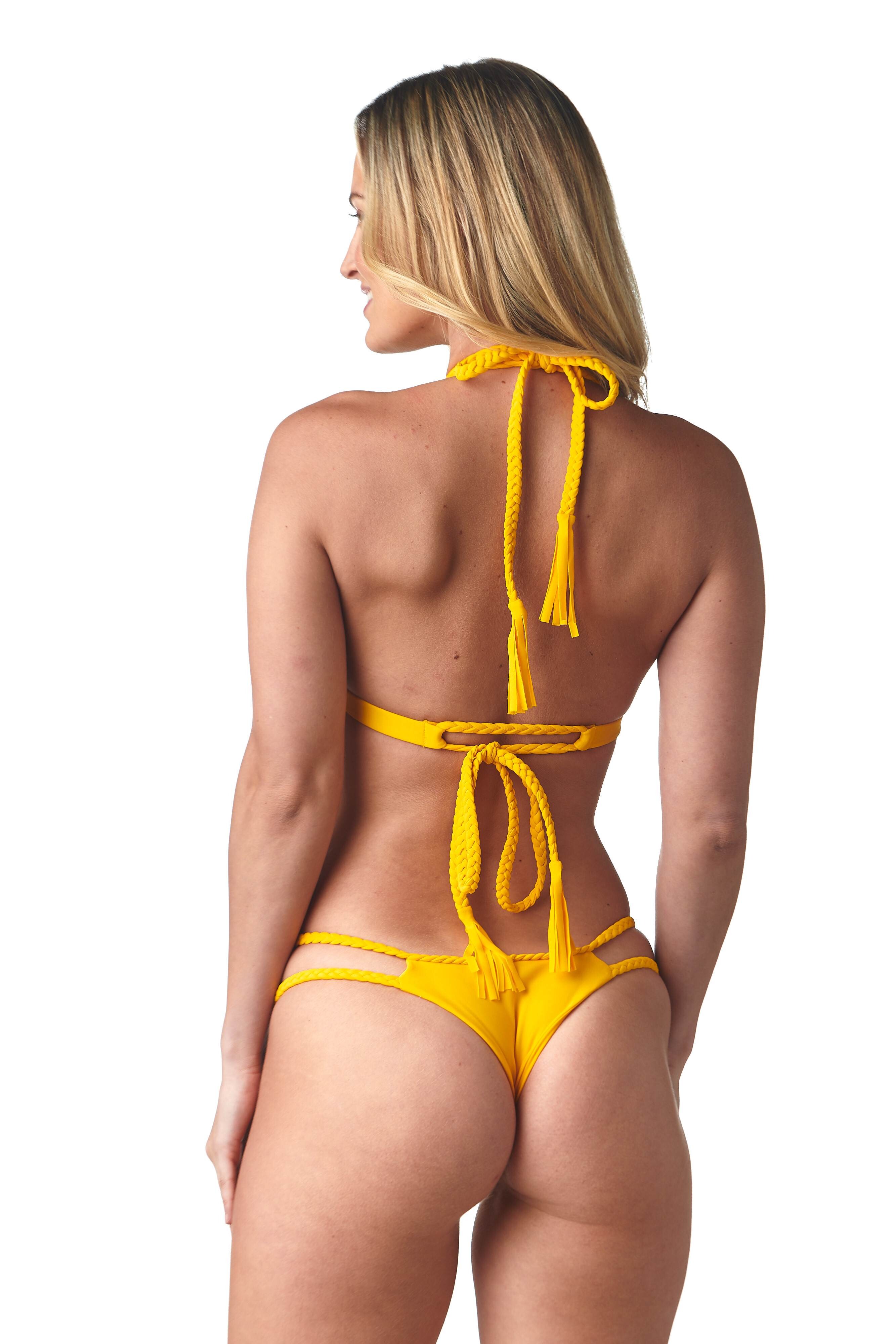


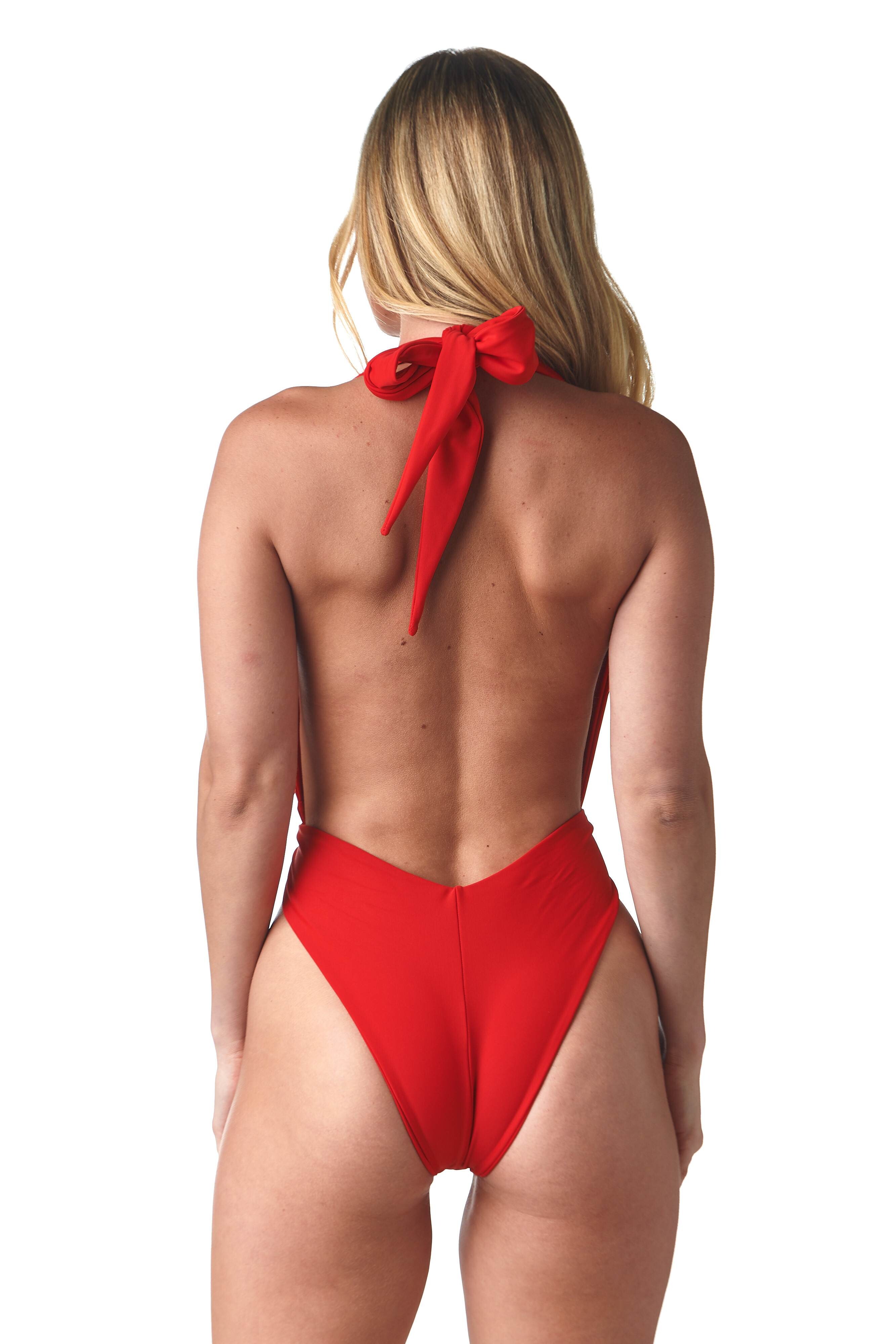







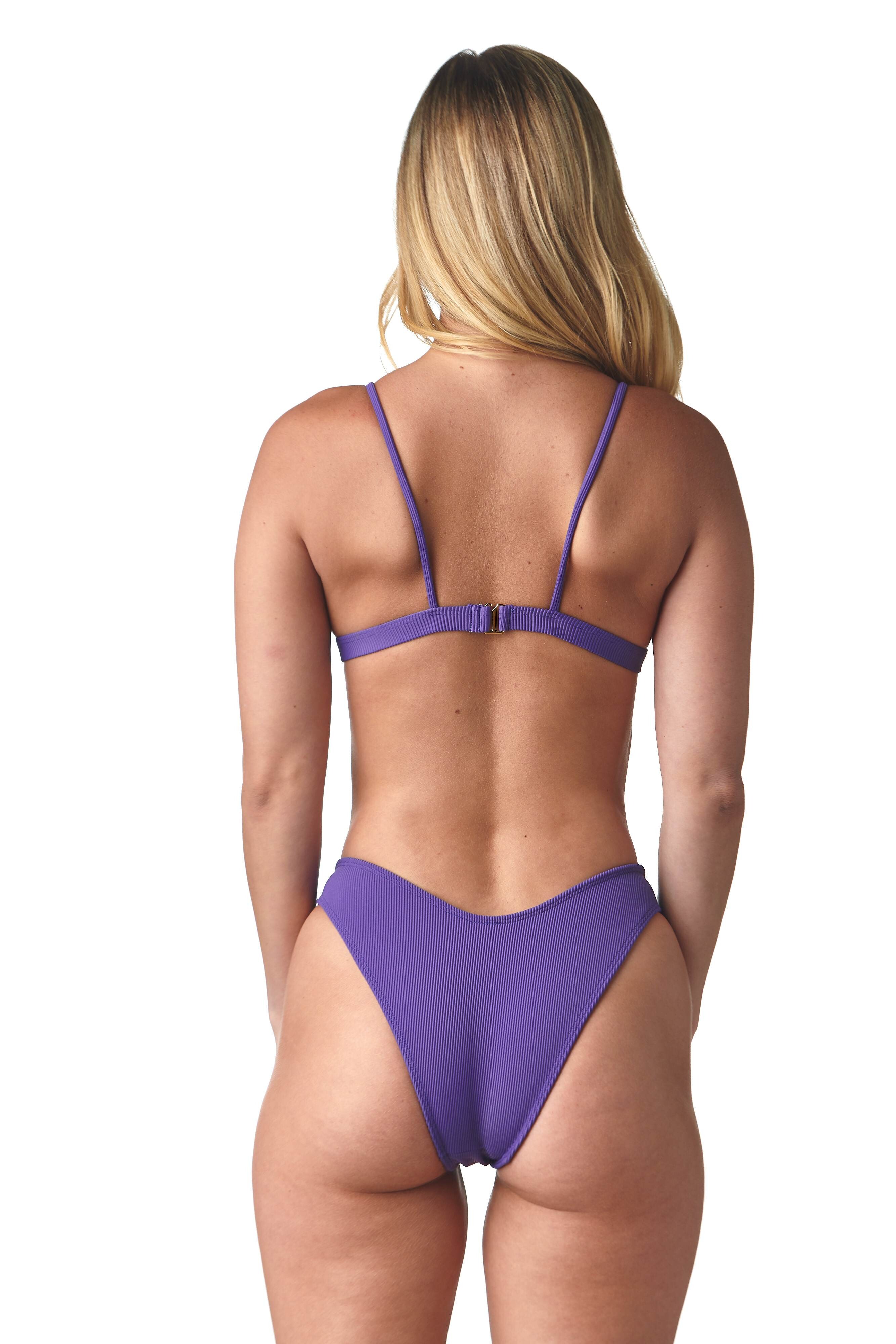
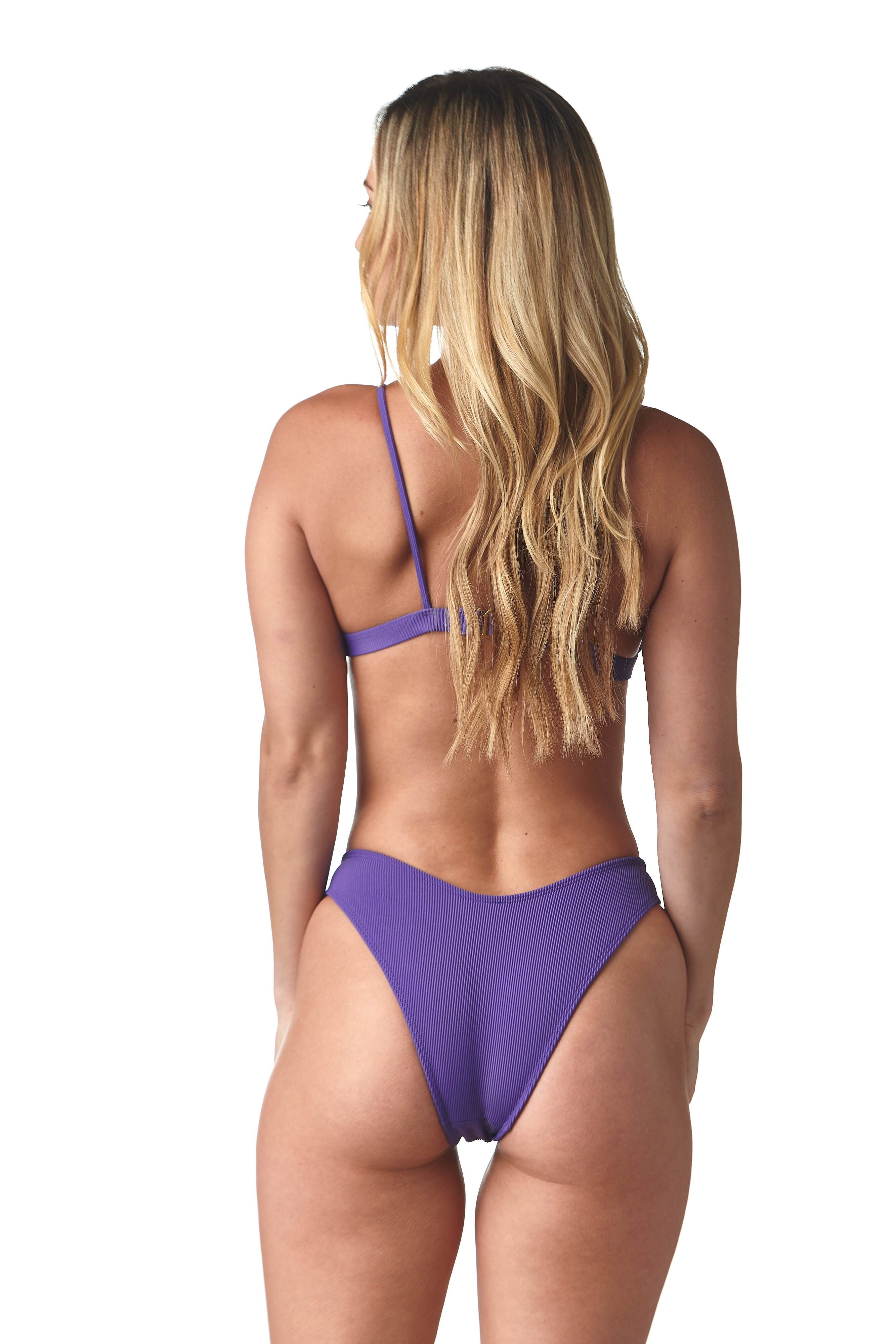


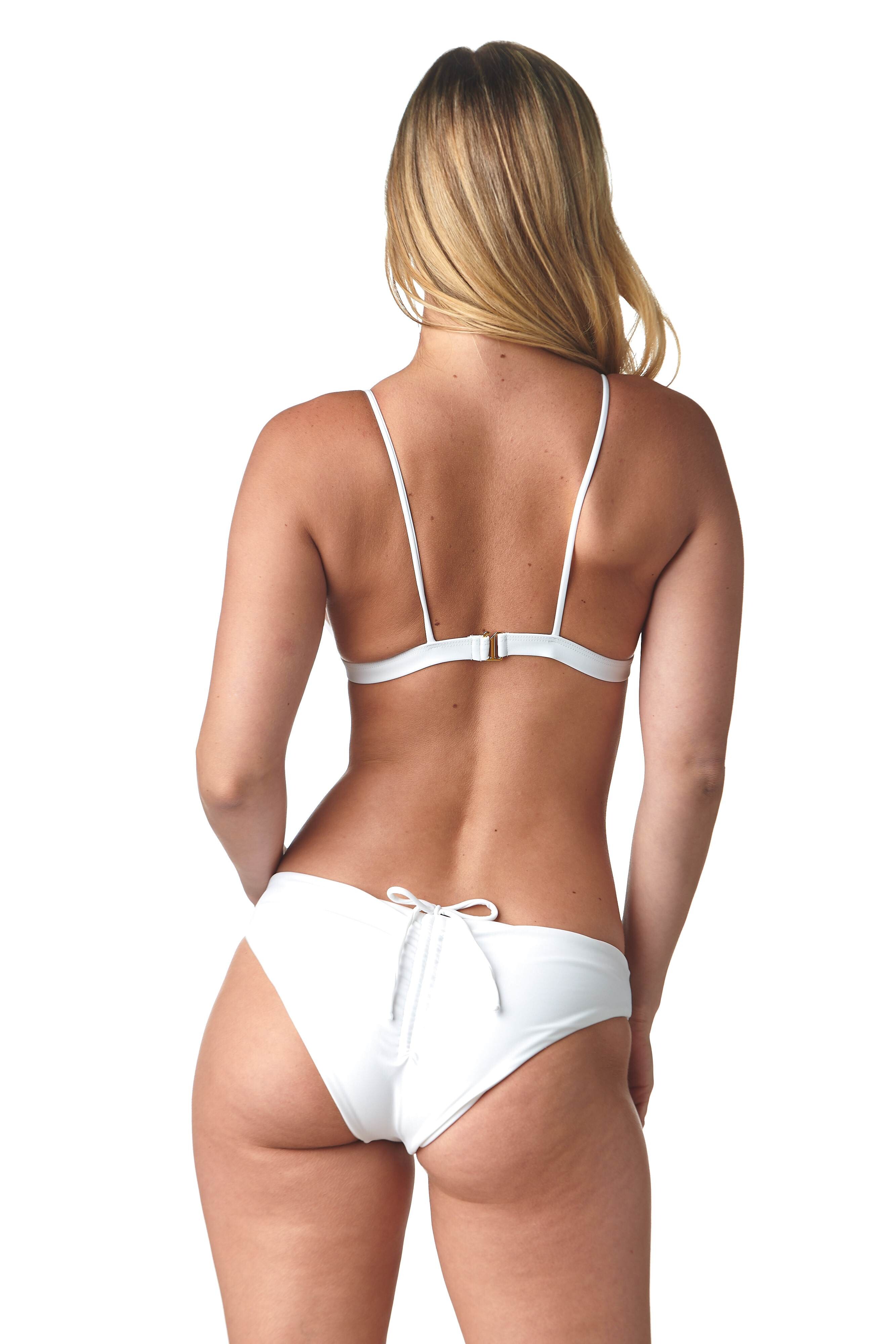

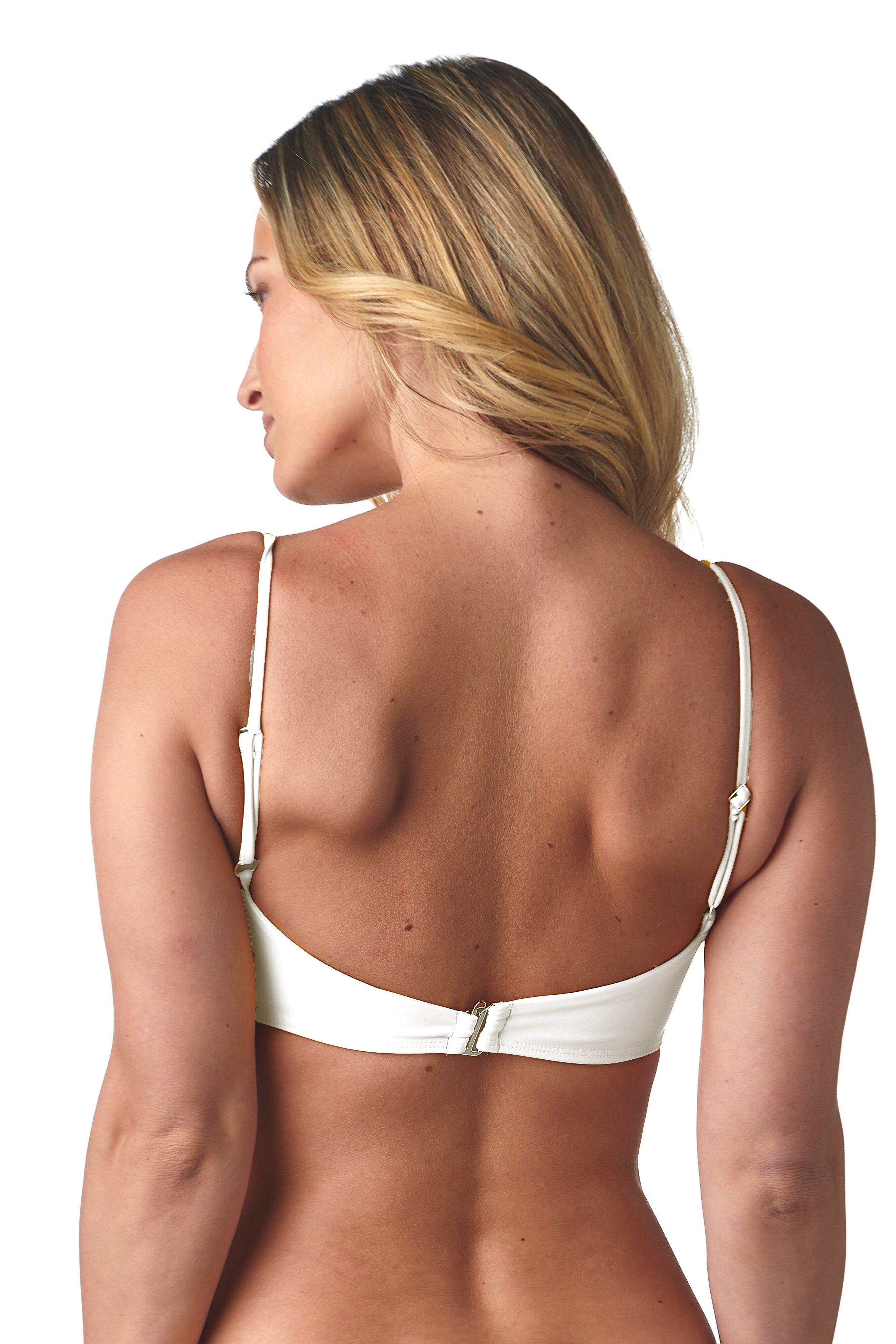

























Account
Navigation
Search
Configure browser push notifications
Chrome (Android)
- Tap the lock icon next to the address bar.
- Tap Permissions → Notifications.
- Adjust your preference.
Chrome (Desktop)
- Click the padlock icon in the address bar.
- Select Site settings.
- Find Notifications and adjust your preference.
Safari (iOS 16.4+)
- Ensure the site is installed via Add to Home Screen.
- Open Settings App → Notifications.
- Find your app name and adjust your preference.
Safari (macOS)
- Go to Safari → Preferences.
- Click the Websites tab.
- Select Notifications in the sidebar.
- Find this website and adjust your preference.
Edge (Android)
- Tap the lock icon next to the address bar.
- Tap Permissions.
- Find Notifications and adjust your preference.
Edge (Desktop)
- Click the padlock icon in the address bar.
- Click Permissions for this site.
- Find Notifications and adjust your preference.
Firefox (Android)
- Go to Settings → Site permissions.
- Tap Notifications.
- Find this site in the list and adjust your preference.
Firefox (Desktop)
- Open Firefox Settings.
- Search for Notifications.
- Find this site in the list and adjust your preference.