All Activity
- Past hour
-
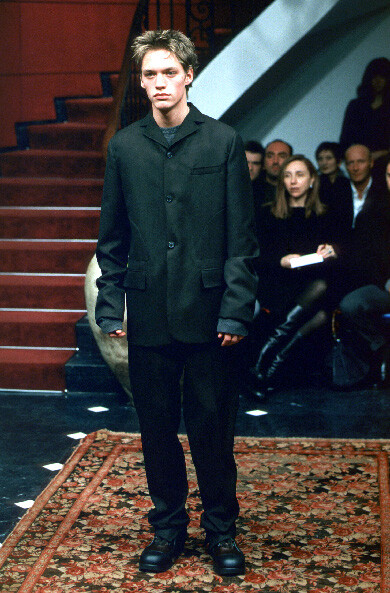
 dolce & gabbana menswear ss1999

-
dolce & gabbana menswear ss99

-
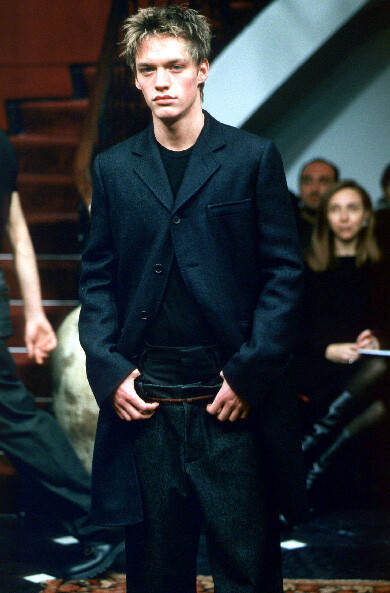
dolce & gabbana menswear fw1999
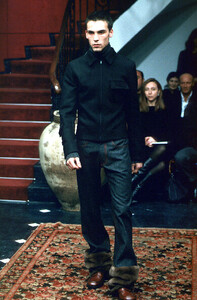
-
 dolce & gabbana menswear fw1999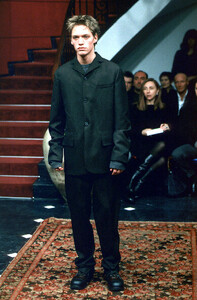
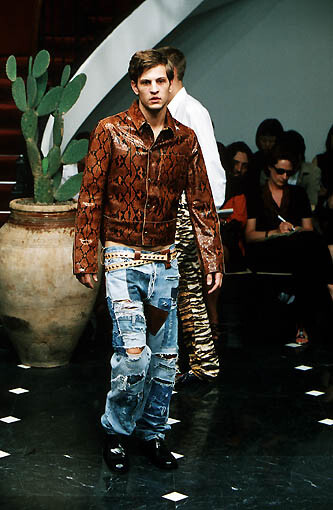
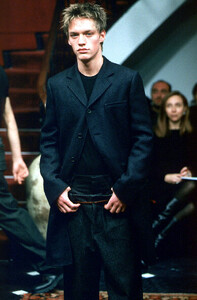 dolce & gabbana menswear ss2000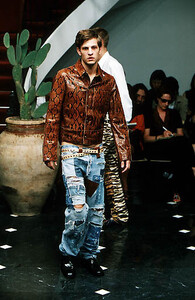
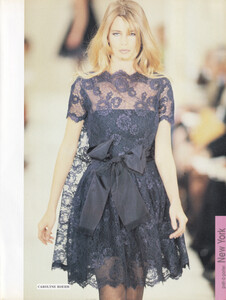
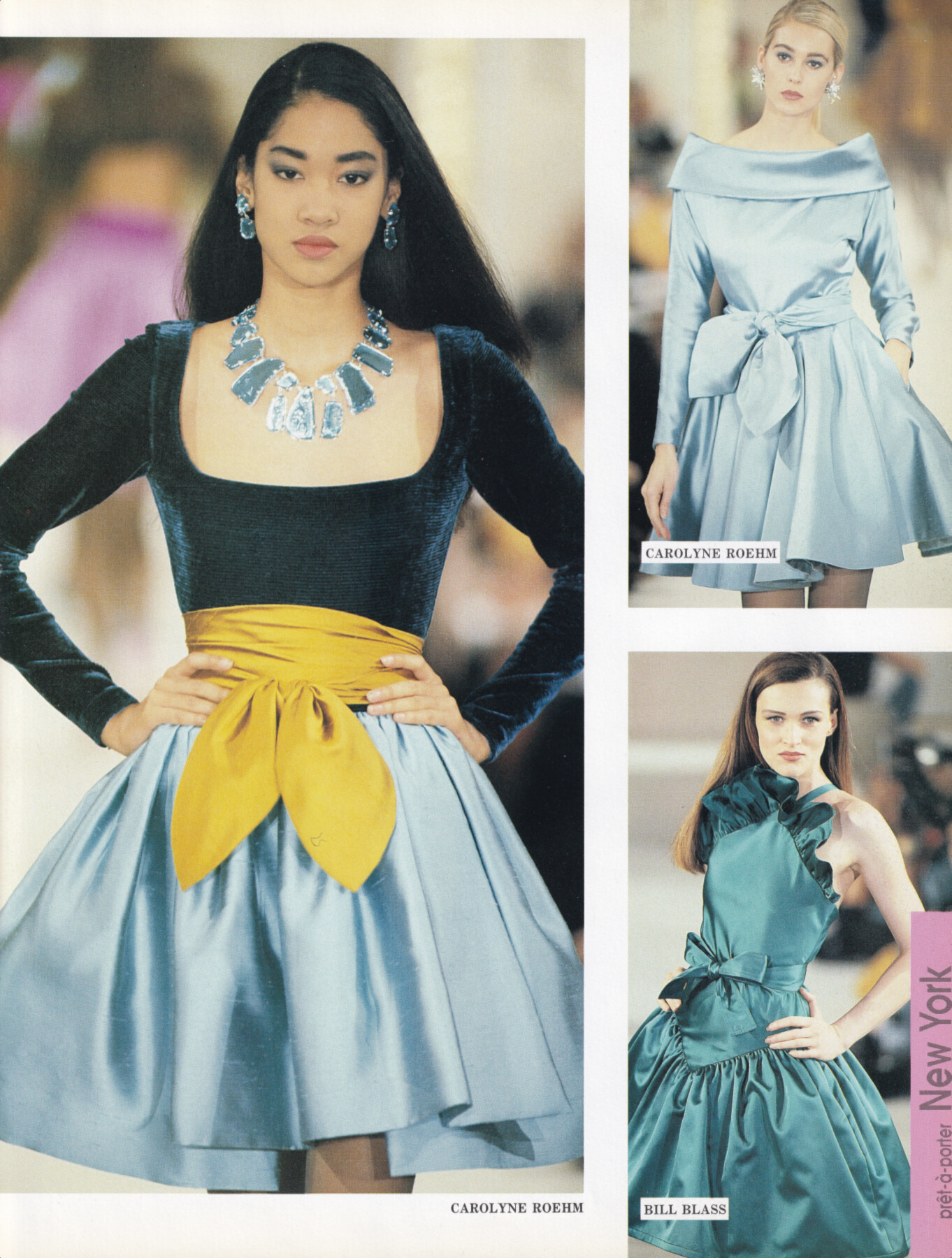
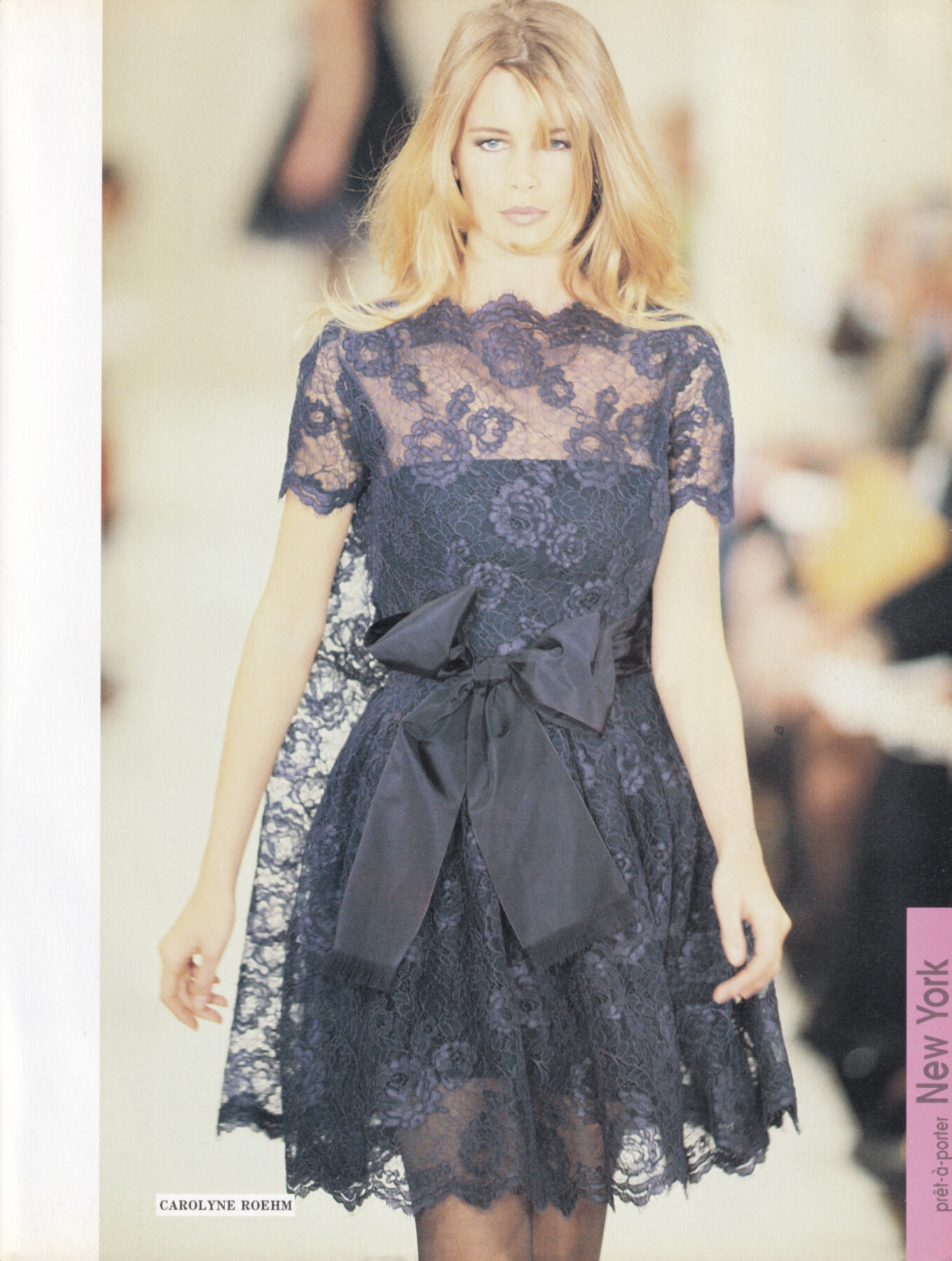
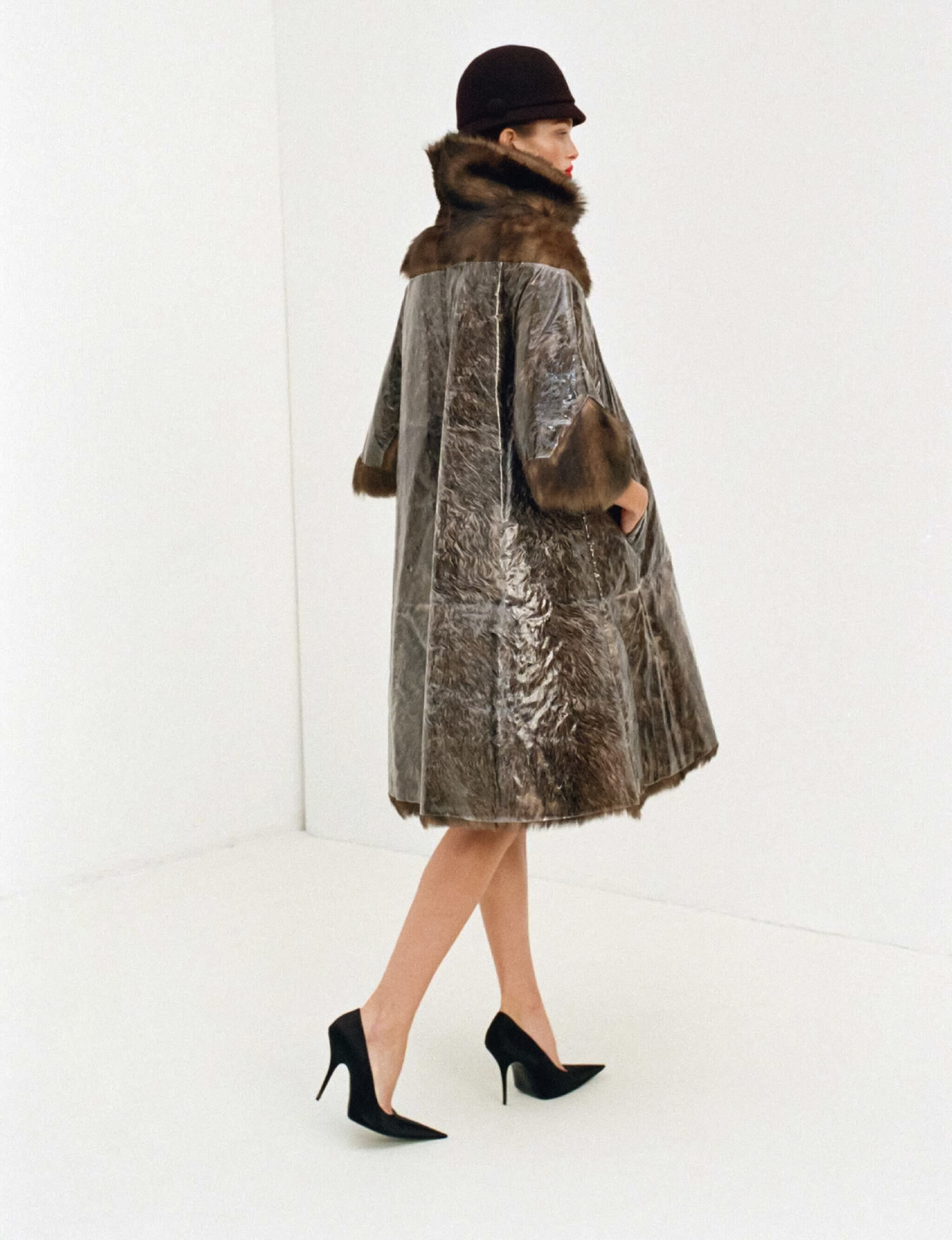
 Kimora Lee for Carolyne Roehm, ready-to-wear, fall/winter 1991 my scan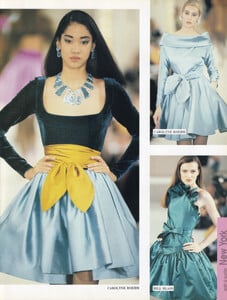
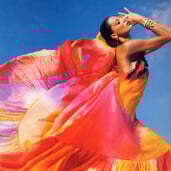 dolce & gabbana fw2001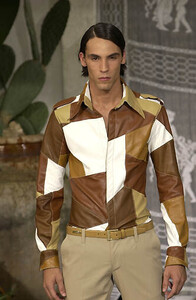
 1726237393-33942e4ba963b4026214d2df4d64639b.mp4
dolce & gabbana menswear fw2001
1726237393-33942e4ba963b4026214d2df4d64639b.mp4
dolce & gabbana menswear fw2001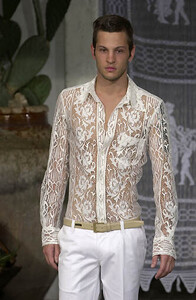
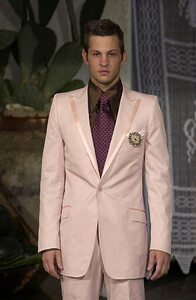
 same as above
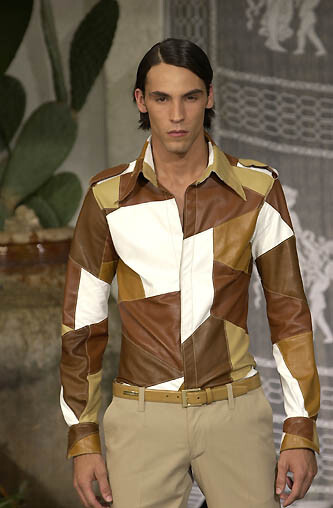
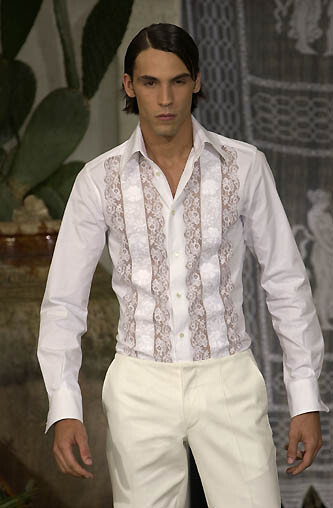
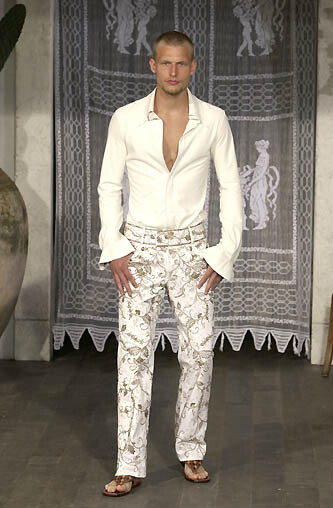
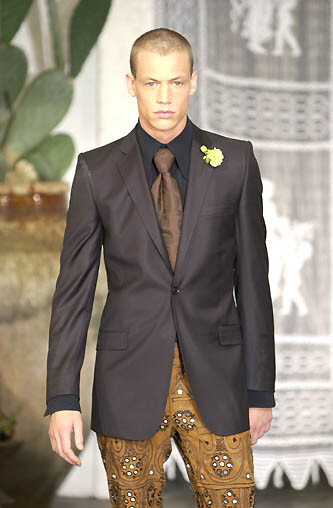
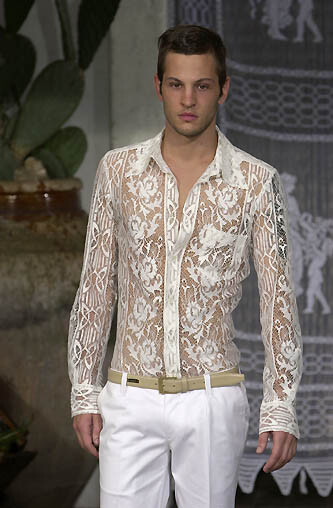
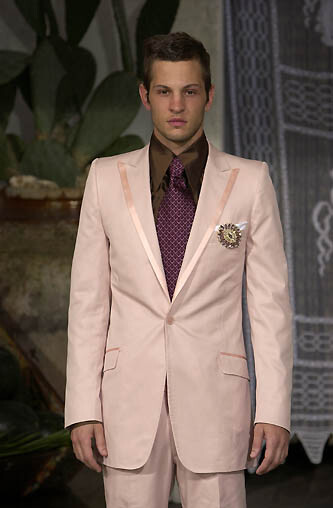
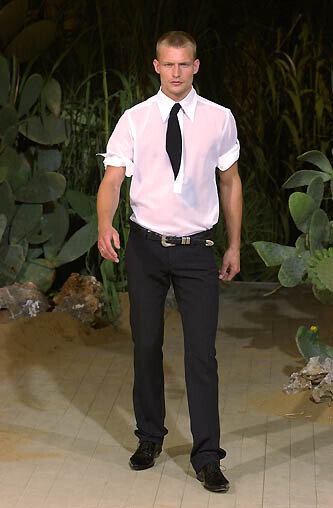
 dolce & gabbana menswear ss2003
 dolce & gabbana menswear s/s 2003
 dolce & gabbana menswear ss2003
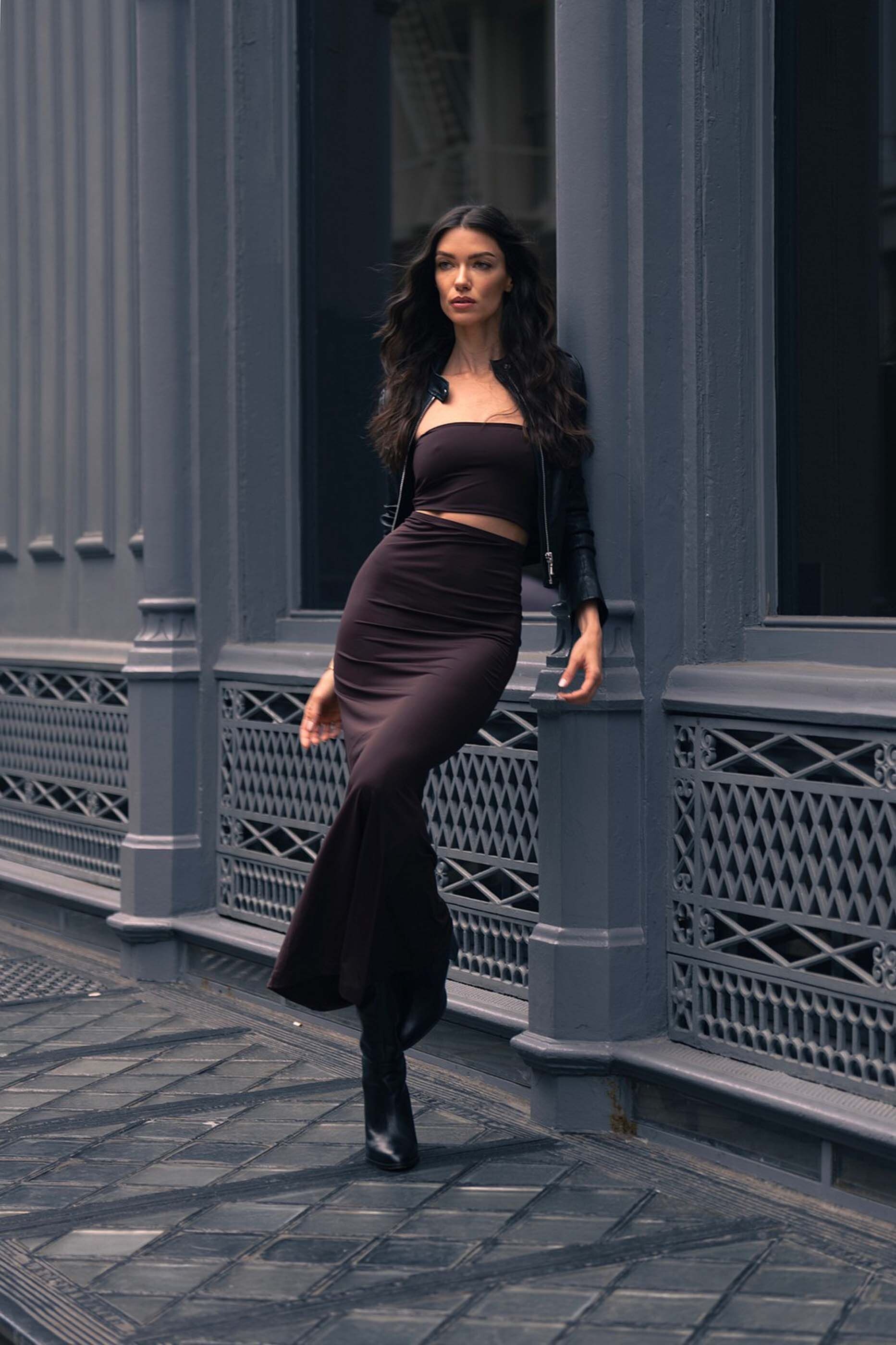
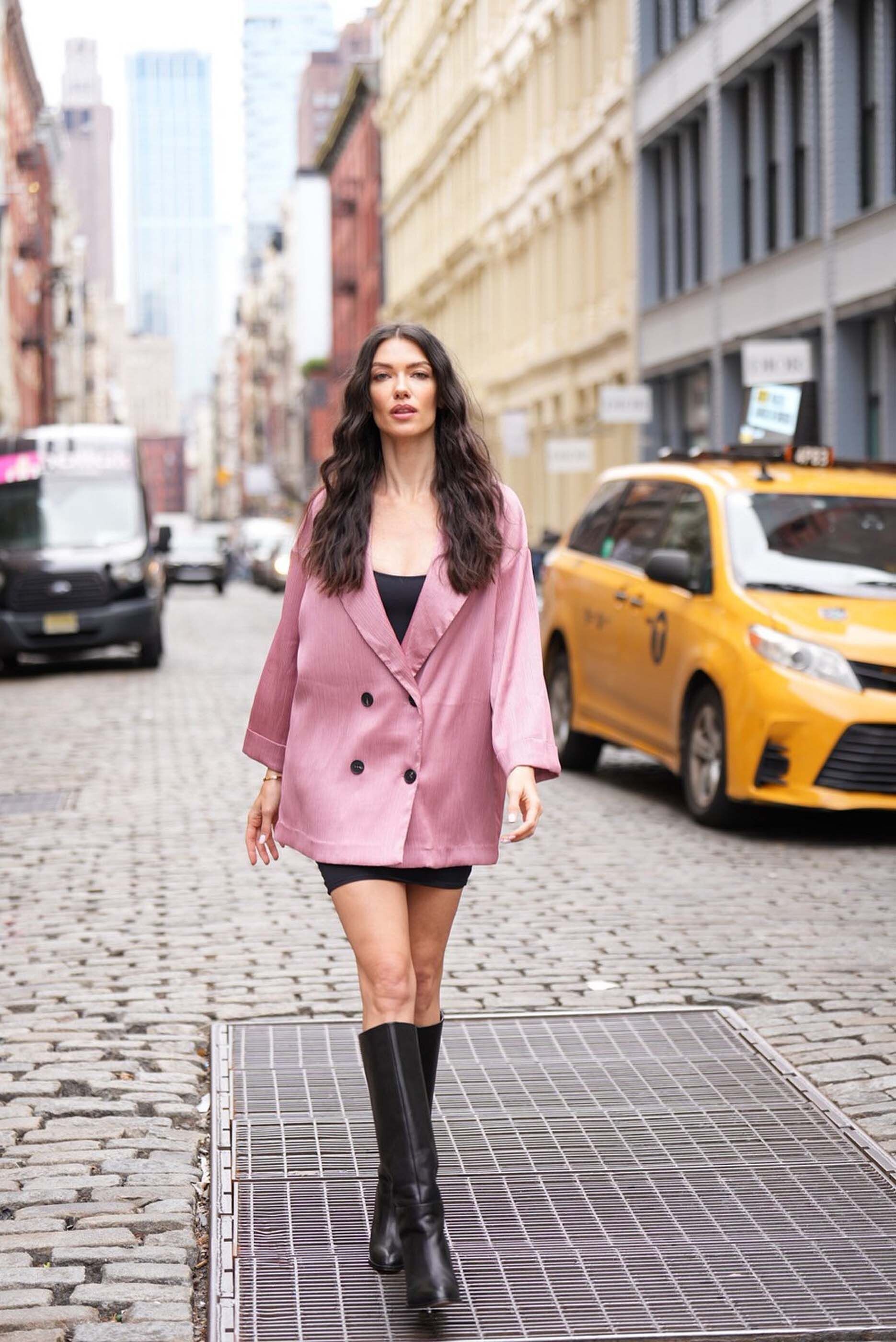
 coffeecameranyc photography


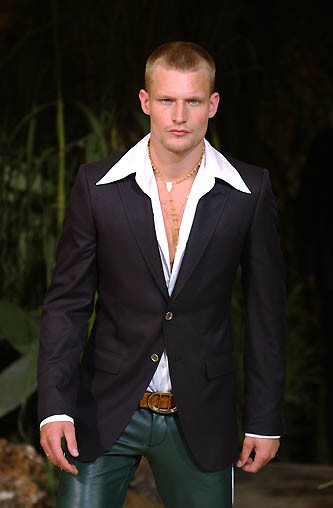
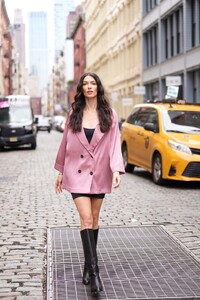 dolce & gabbana menswear ss2003
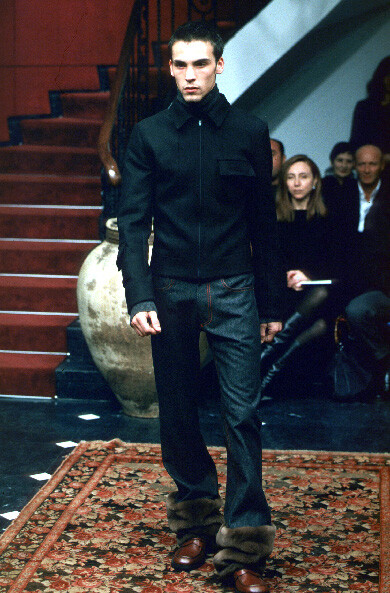
 dolce & gabbana menswear s/s 2003






















Account
Navigation
Search
Configure browser push notifications
Chrome (Android)
- Tap the lock icon next to the address bar.
- Tap Permissions → Notifications.
- Adjust your preference.
Chrome (Desktop)
- Click the padlock icon in the address bar.
- Select Site settings.
- Find Notifications and adjust your preference.
Safari (iOS 16.4+)
- Ensure the site is installed via Add to Home Screen.
- Open Settings App → Notifications.
- Find your app name and adjust your preference.
Safari (macOS)
- Go to Safari → Preferences.
- Click the Websites tab.
- Select Notifications in the sidebar.
- Find this website and adjust your preference.
Edge (Android)
- Tap the lock icon next to the address bar.
- Tap Permissions.
- Find Notifications and adjust your preference.
Edge (Desktop)
- Click the padlock icon in the address bar.
- Click Permissions for this site.
- Find Notifications and adjust your preference.
Firefox (Android)
- Go to Settings → Site permissions.
- Tap Notifications.
- Find this site in the list and adjust your preference.
Firefox (Desktop)
- Open Firefox Settings.
- Search for Notifications.
- Find this site in the list and adjust your preference.