

Everything posted by PrettyDeadThings
-
 @Clauds stenography, greatest thing ever. Basically, it allows me to encrypt text into images which no one can see without... 1. My password. 2. The exact decoder I'm using to encode the pictures. Makes finding people who aren't crediting the forum a hell of a lot easier. 🖕
 -
No problem guys
-
PLEASE do not quote entire posts of pictures. One or two is fine, 20 leads to excessive amounts of scrolling in the thread.
-
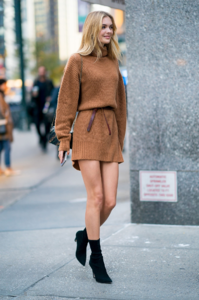
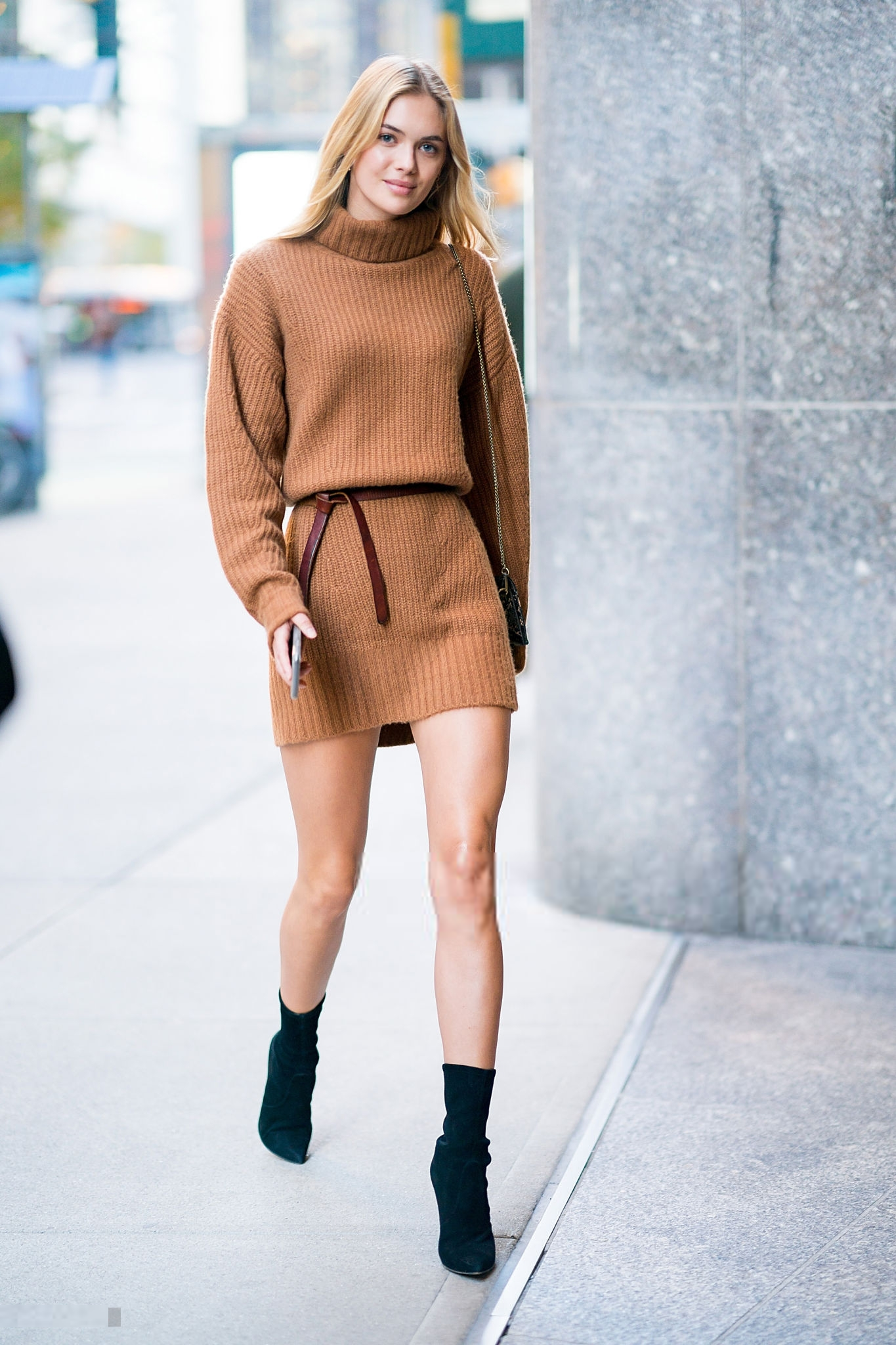
Megan - UHQ (if posting elsewhere, please credit BZ, thanks)




-
Megan - UHQ (if posting elsewhere, please credit BZ, thanks)
-
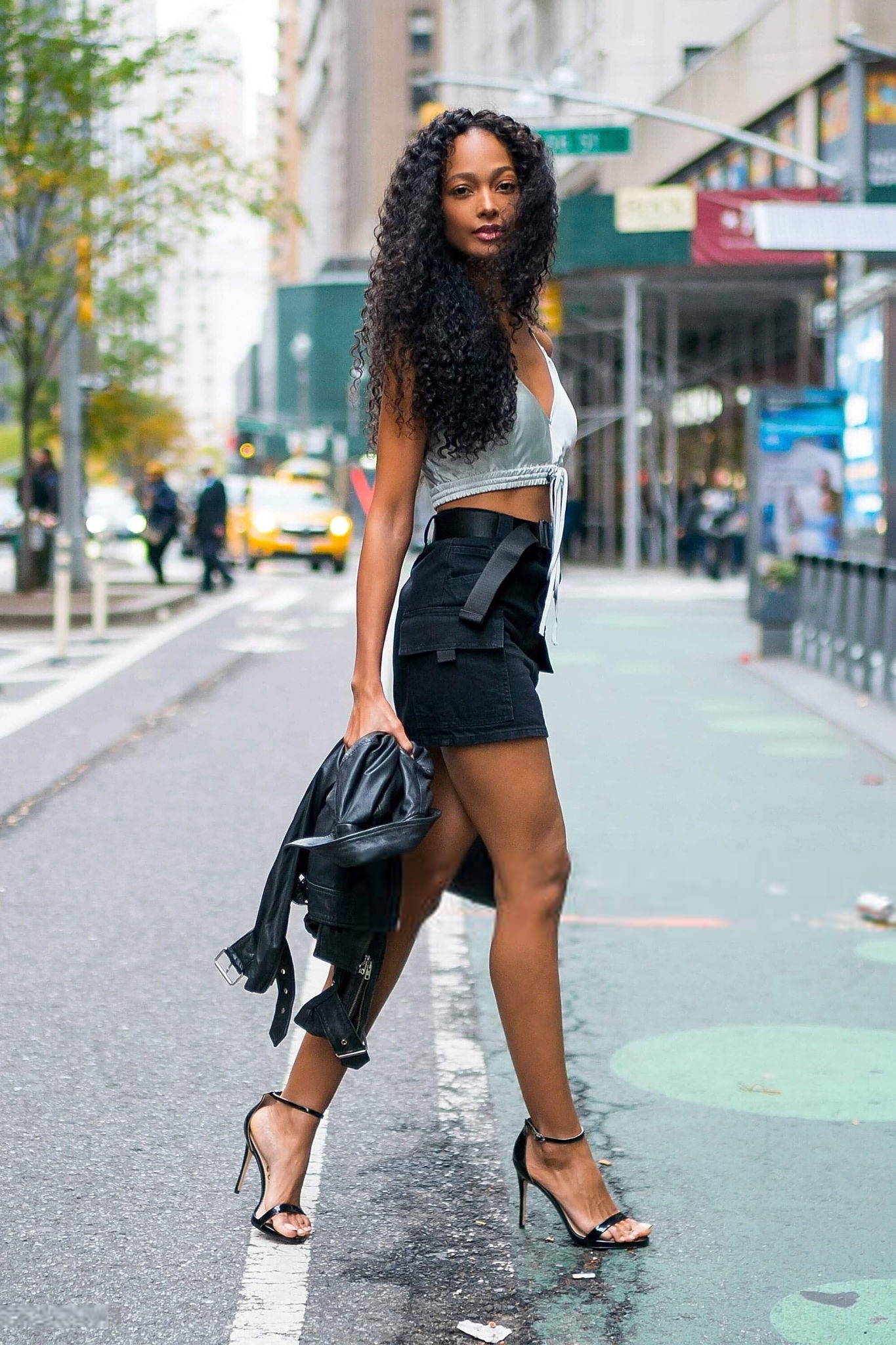
Melie Tiacoh - UHQ





















-
Melie Tiacoh - UHQ
-
Myrthe












-
-
-
Grace ❤️ - UHQ (if posting elsewhere, please credit Bellazon. Thanks!)










-
Grace ❤️ - UHQ (if posting elsewhere, please credit Bellazon. Thanks!)
-
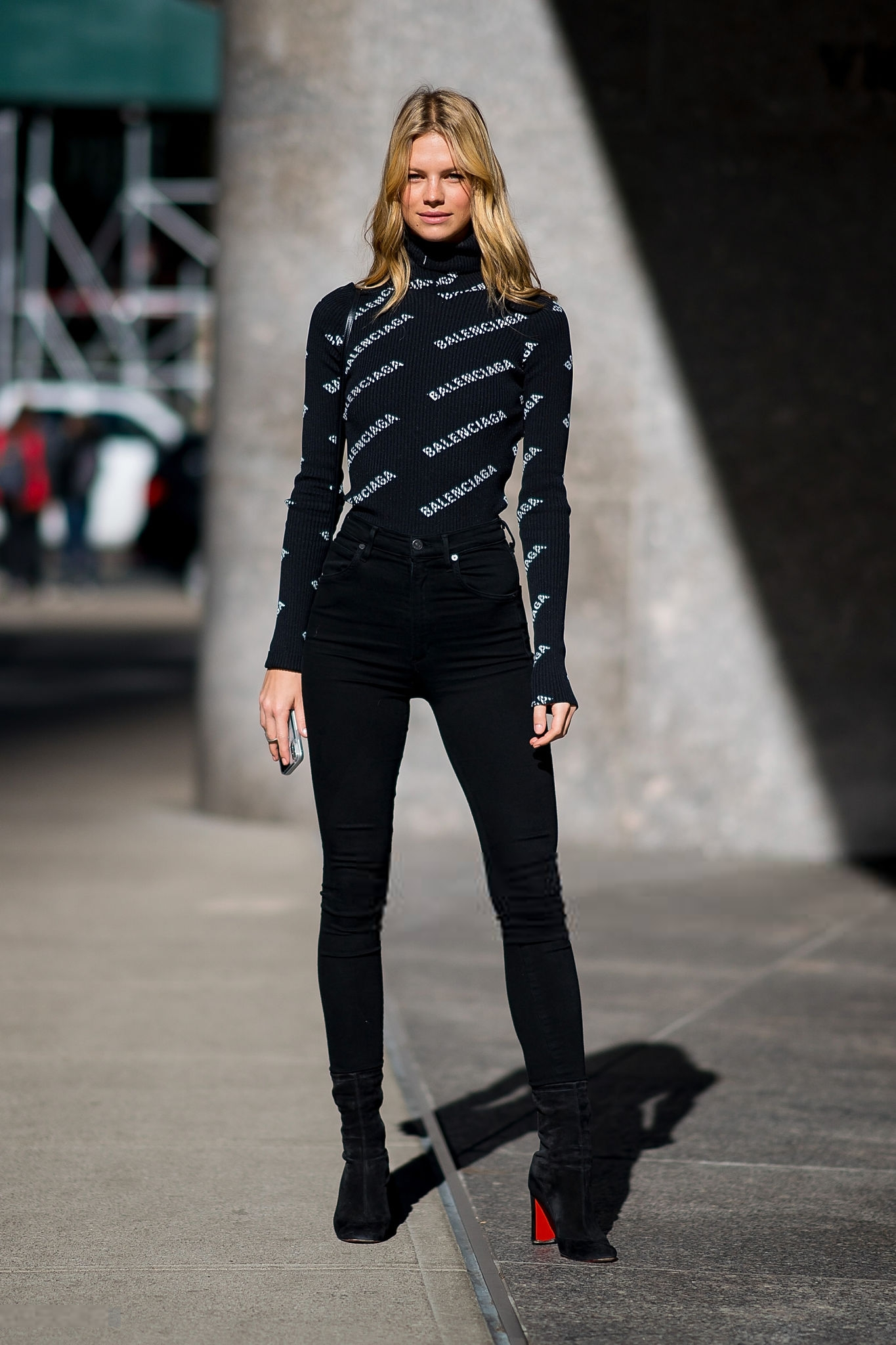
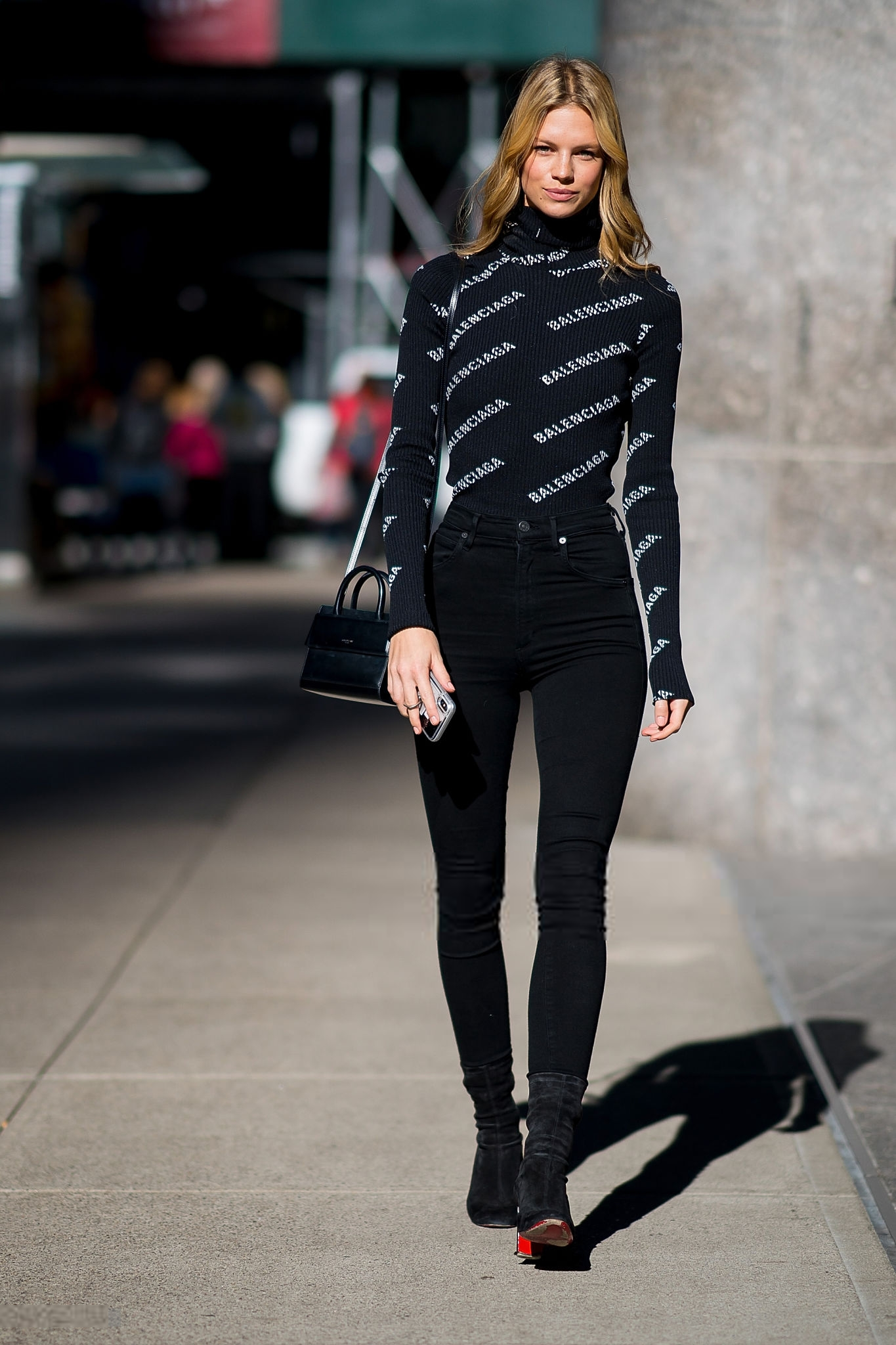
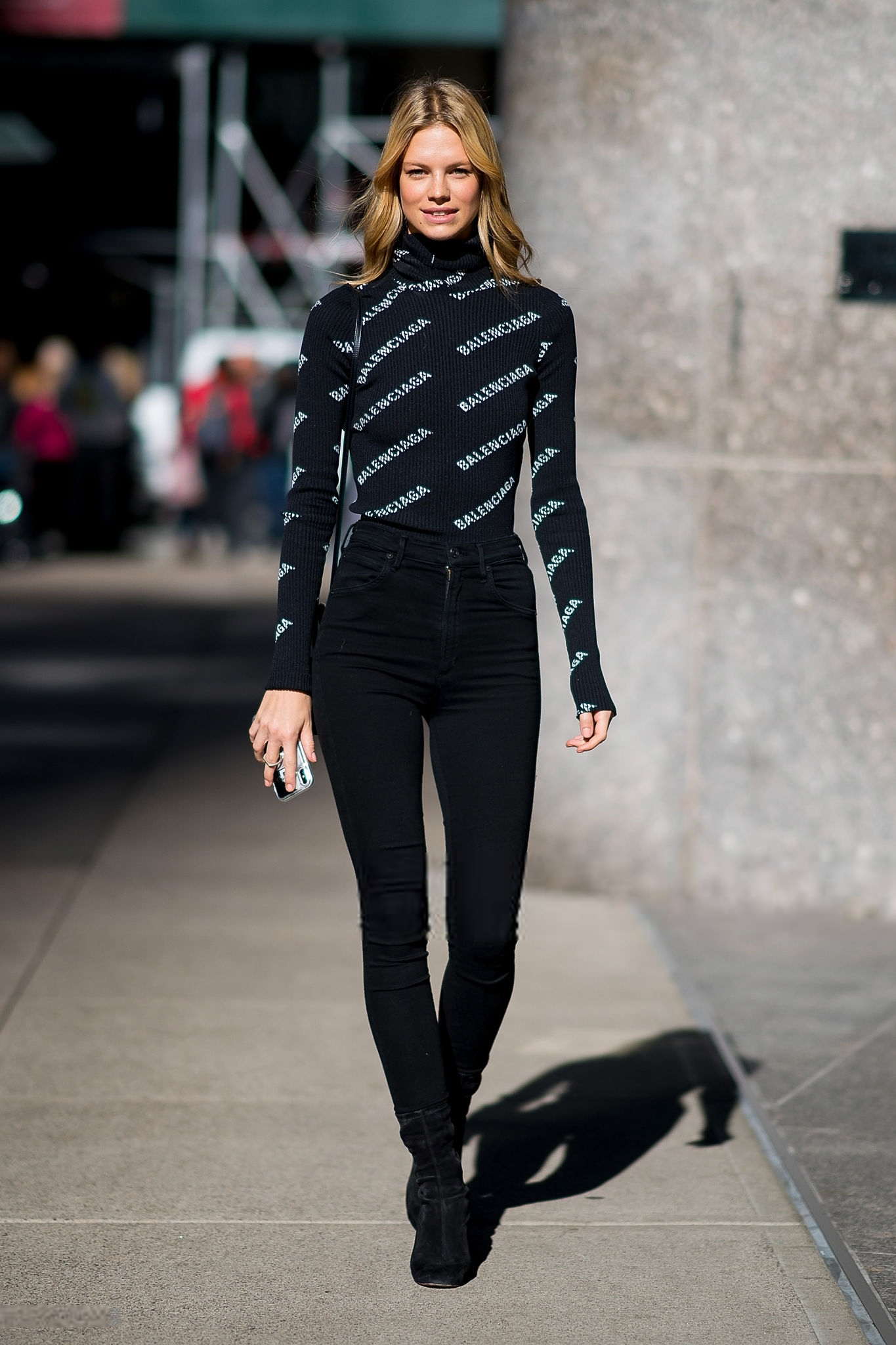
Nadine



























-
Alexina - UHQ (if posting elsewhere, please credit Bellazon. Thanks)



















-
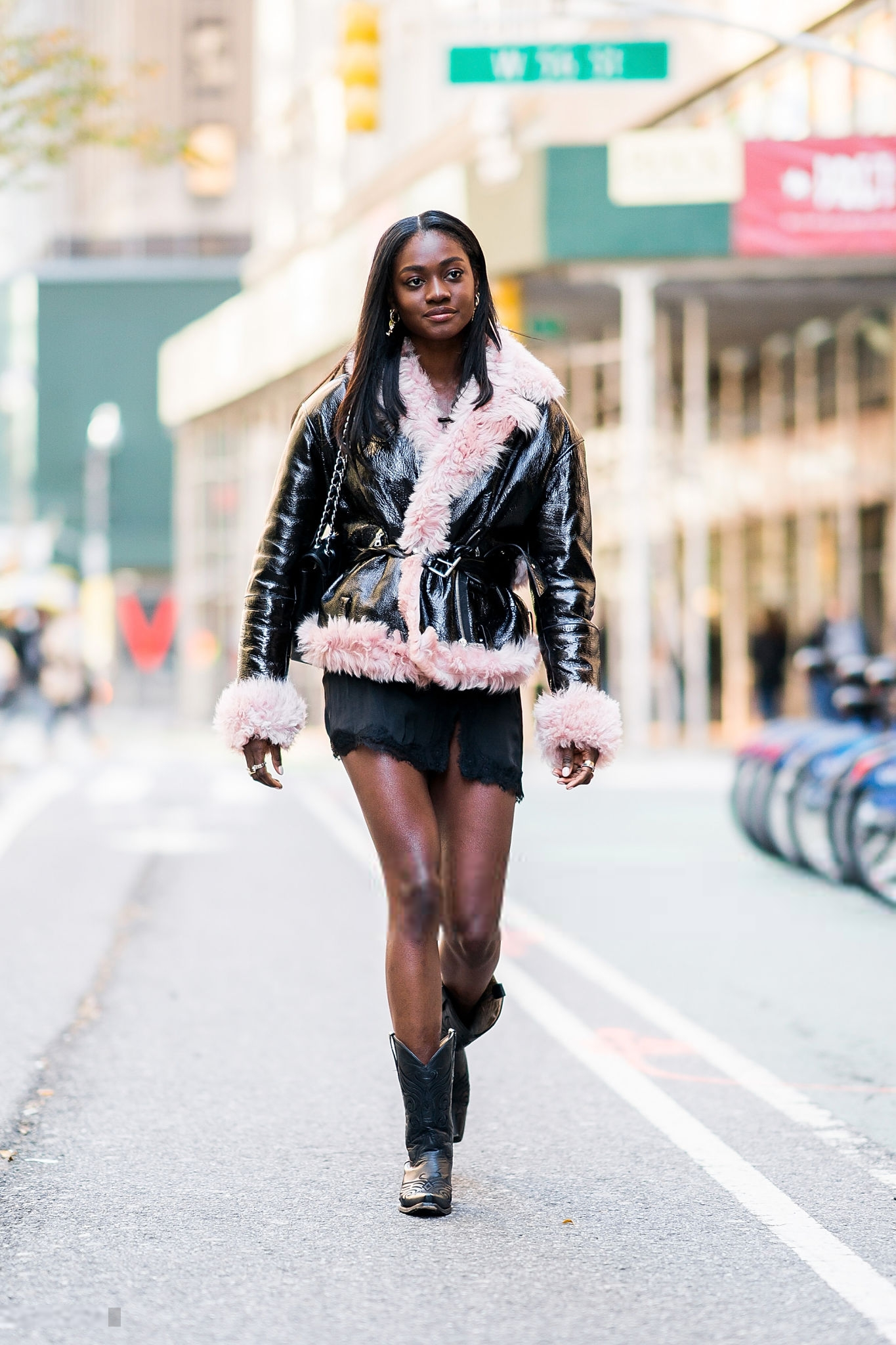
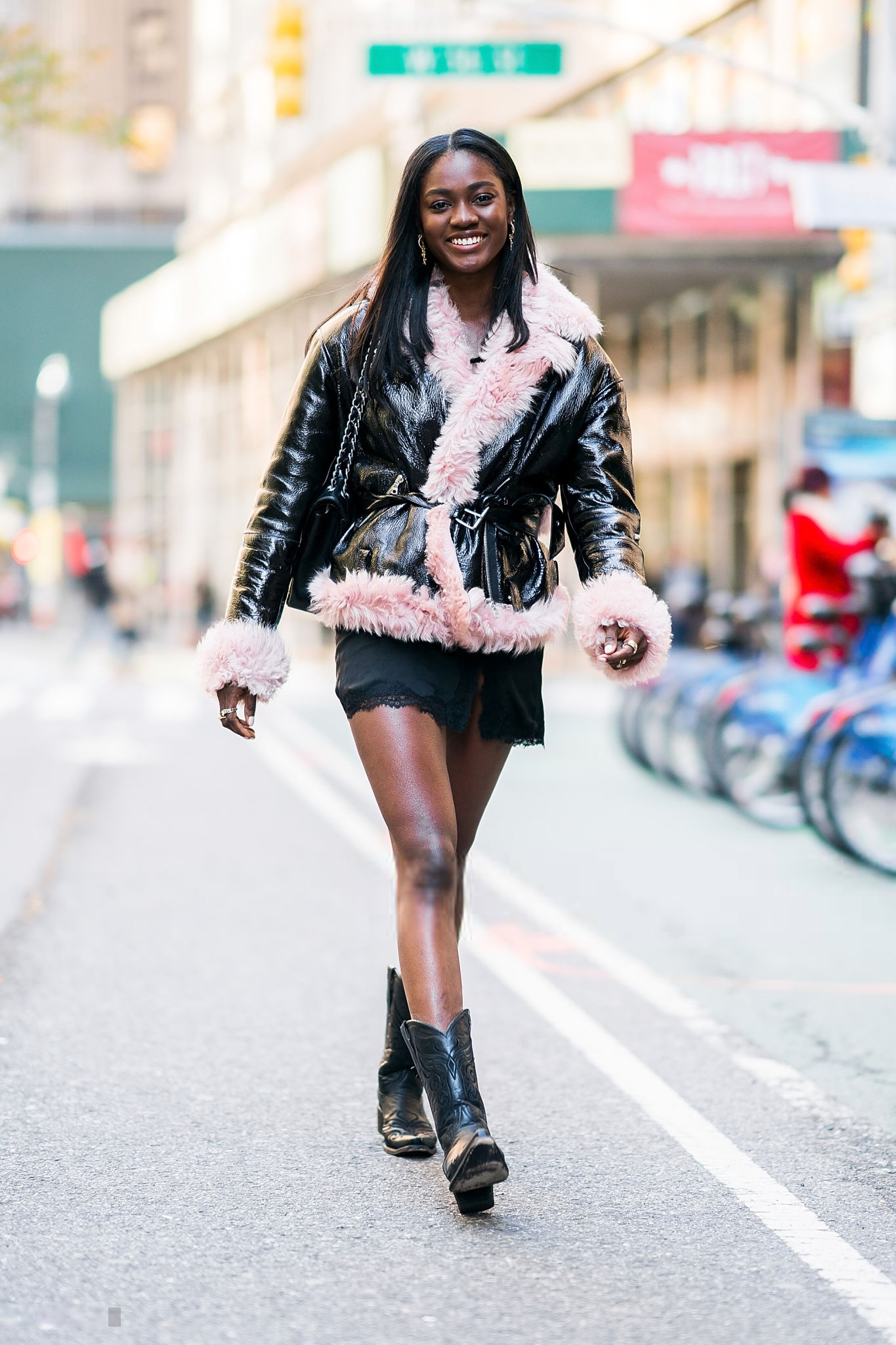
Zuri










-
-
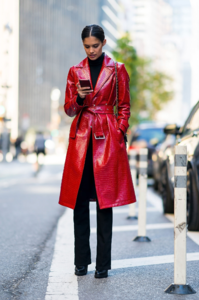
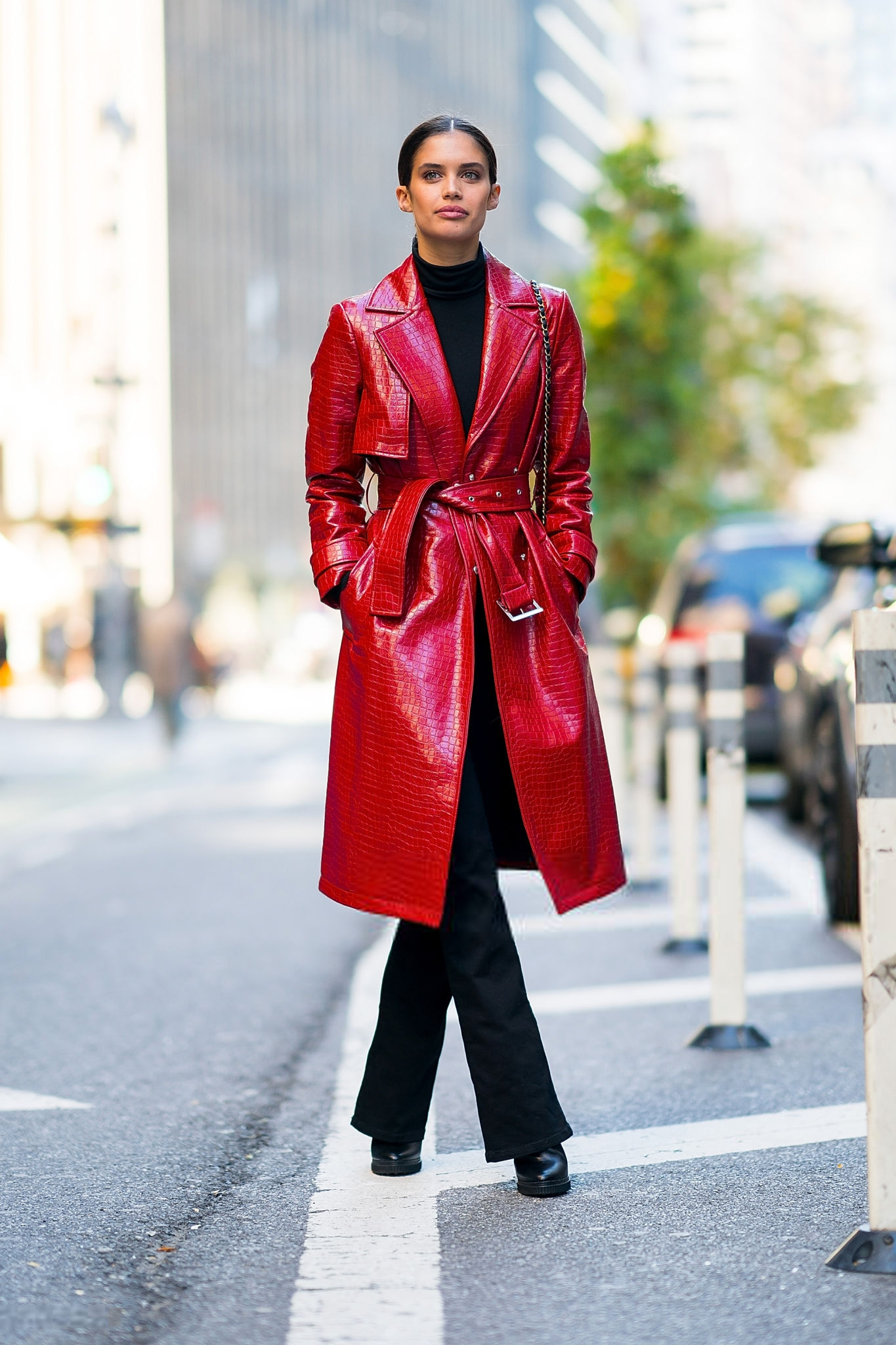
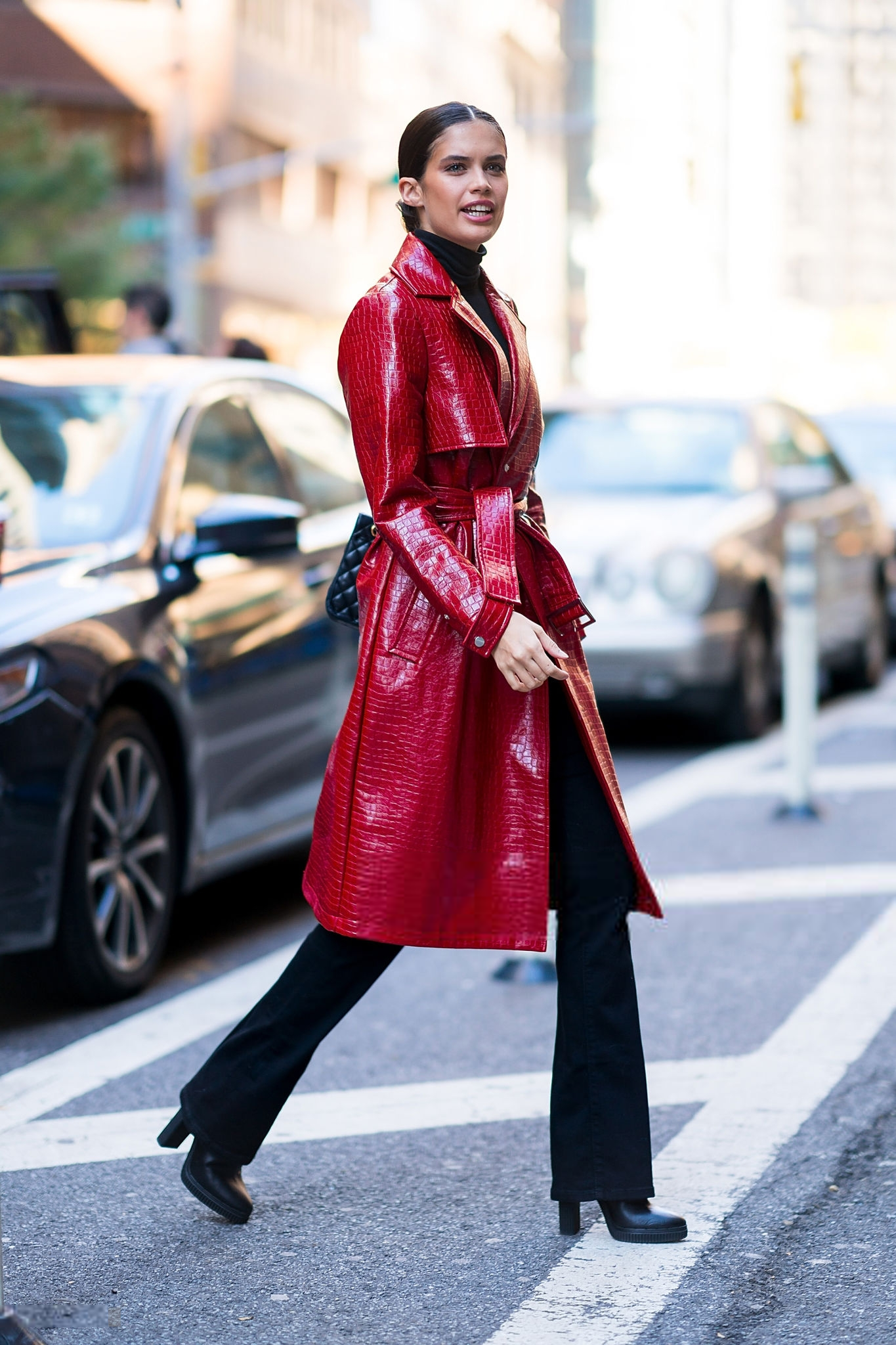
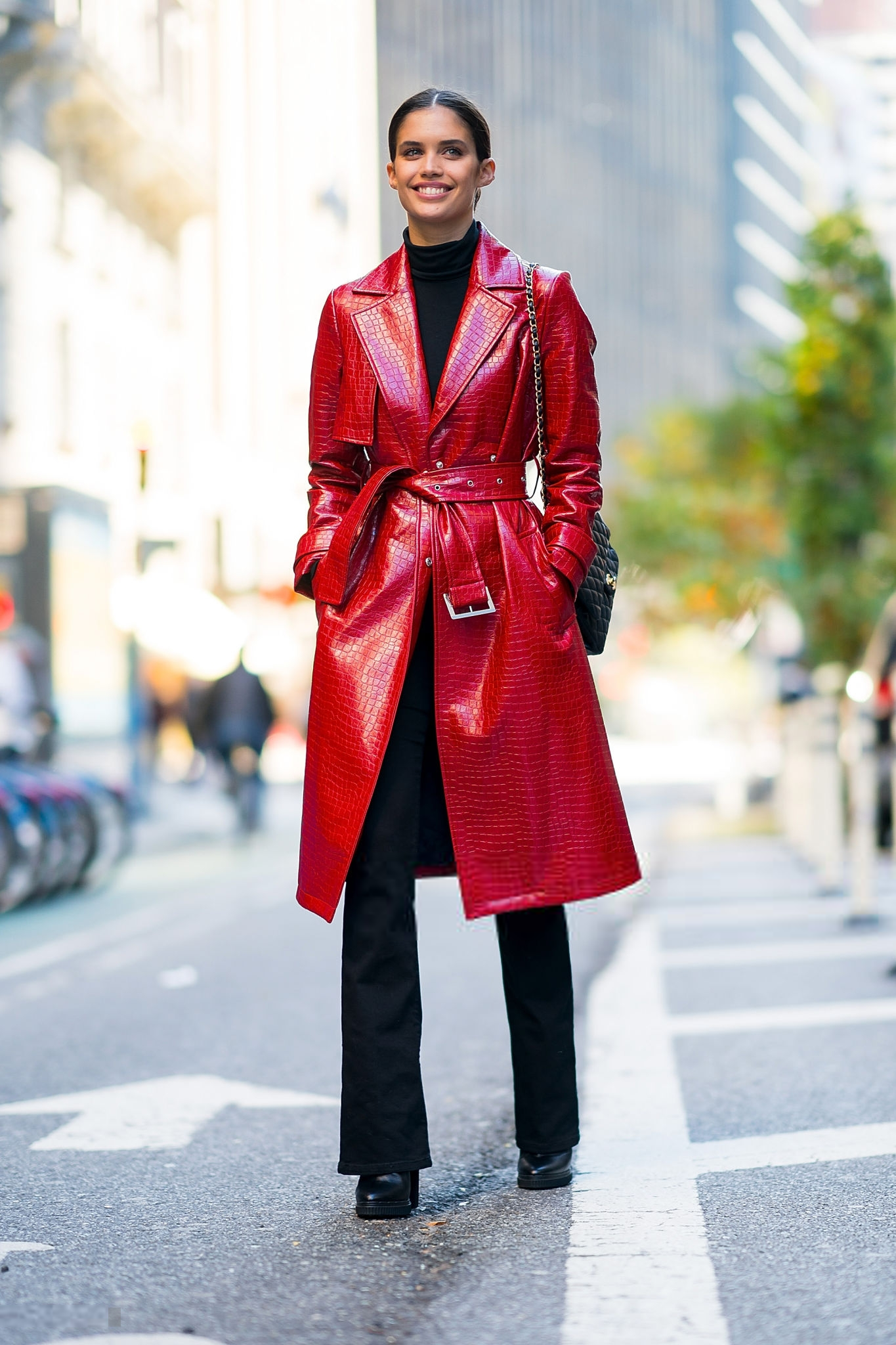
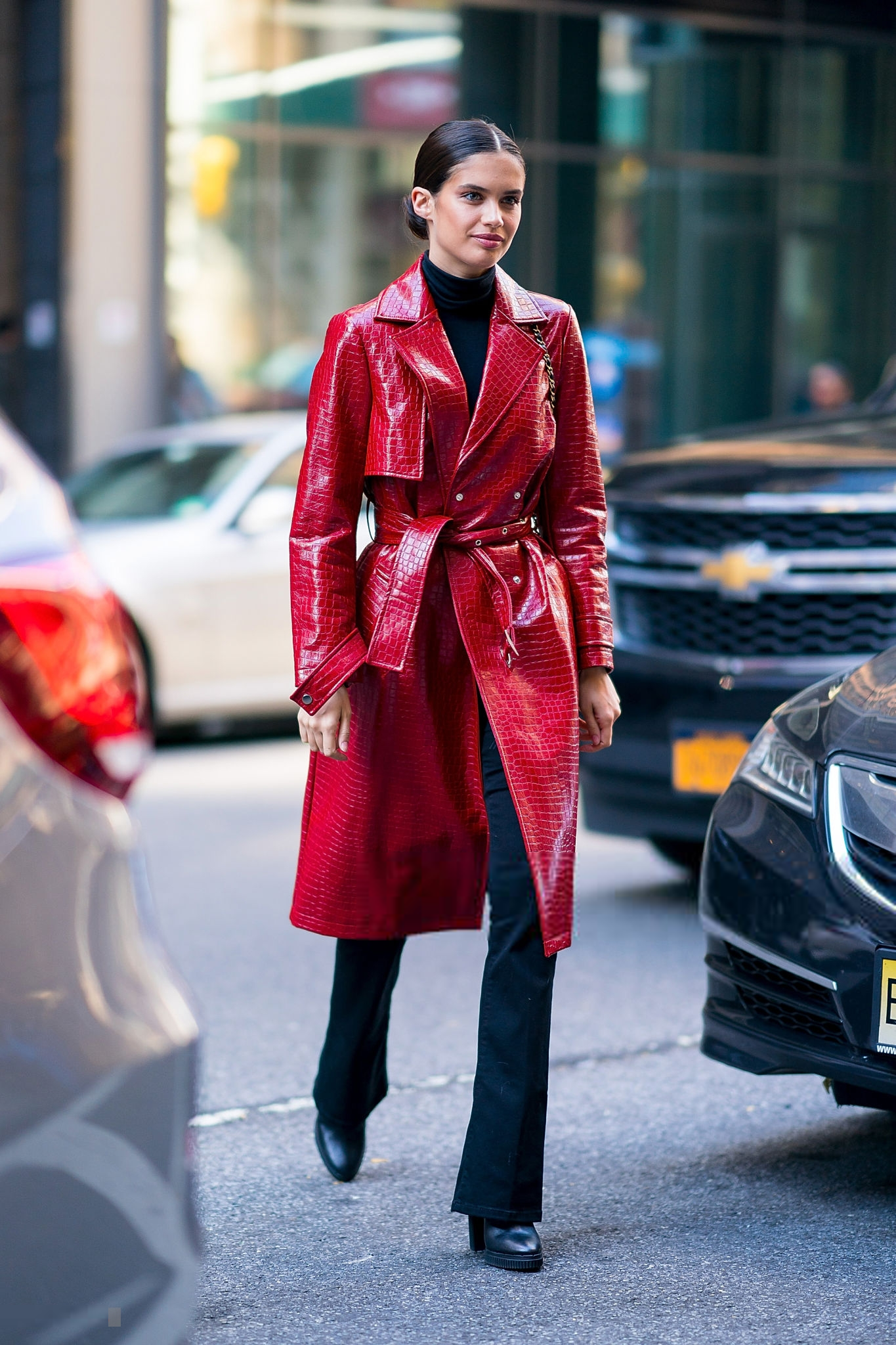
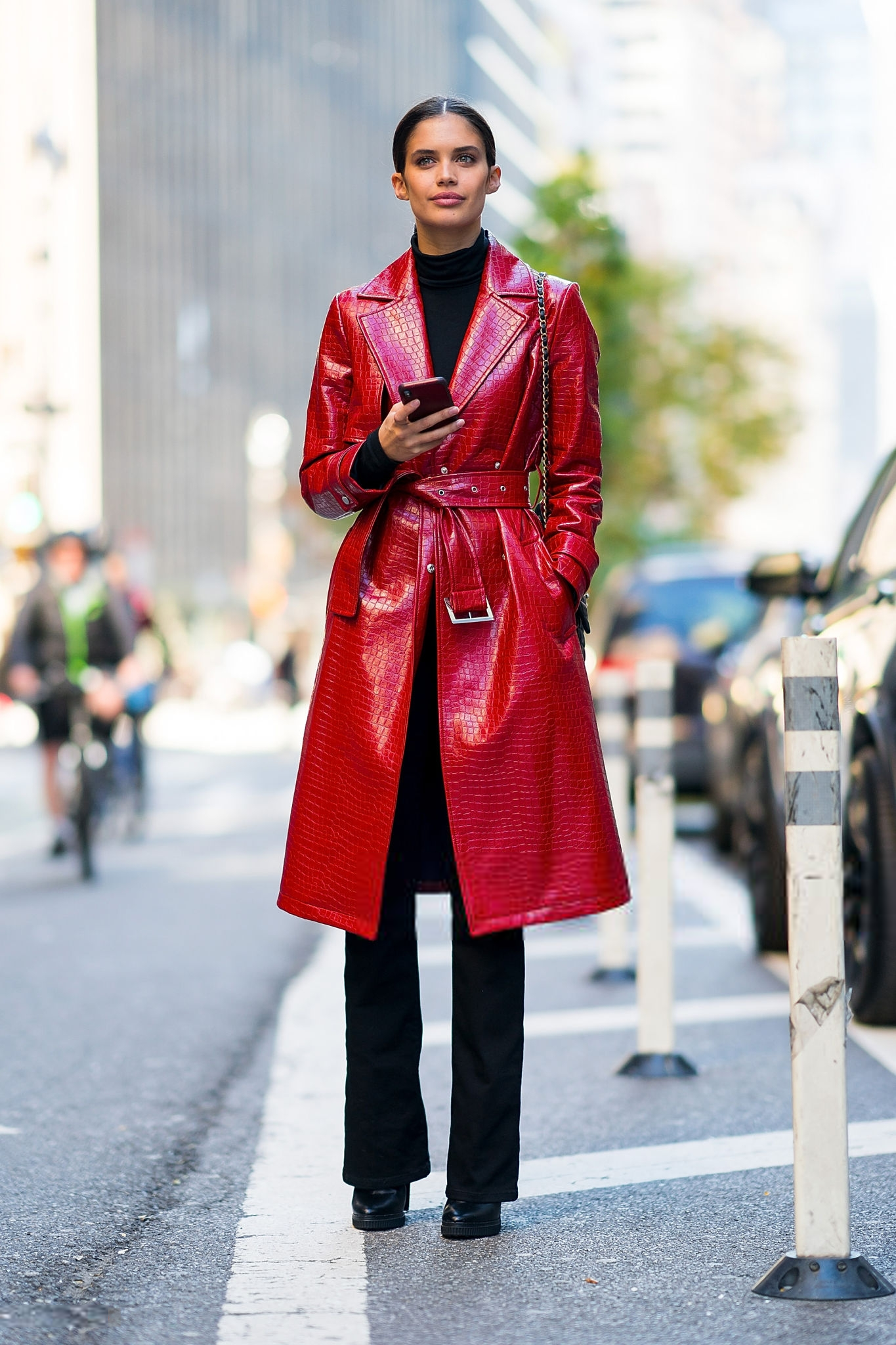
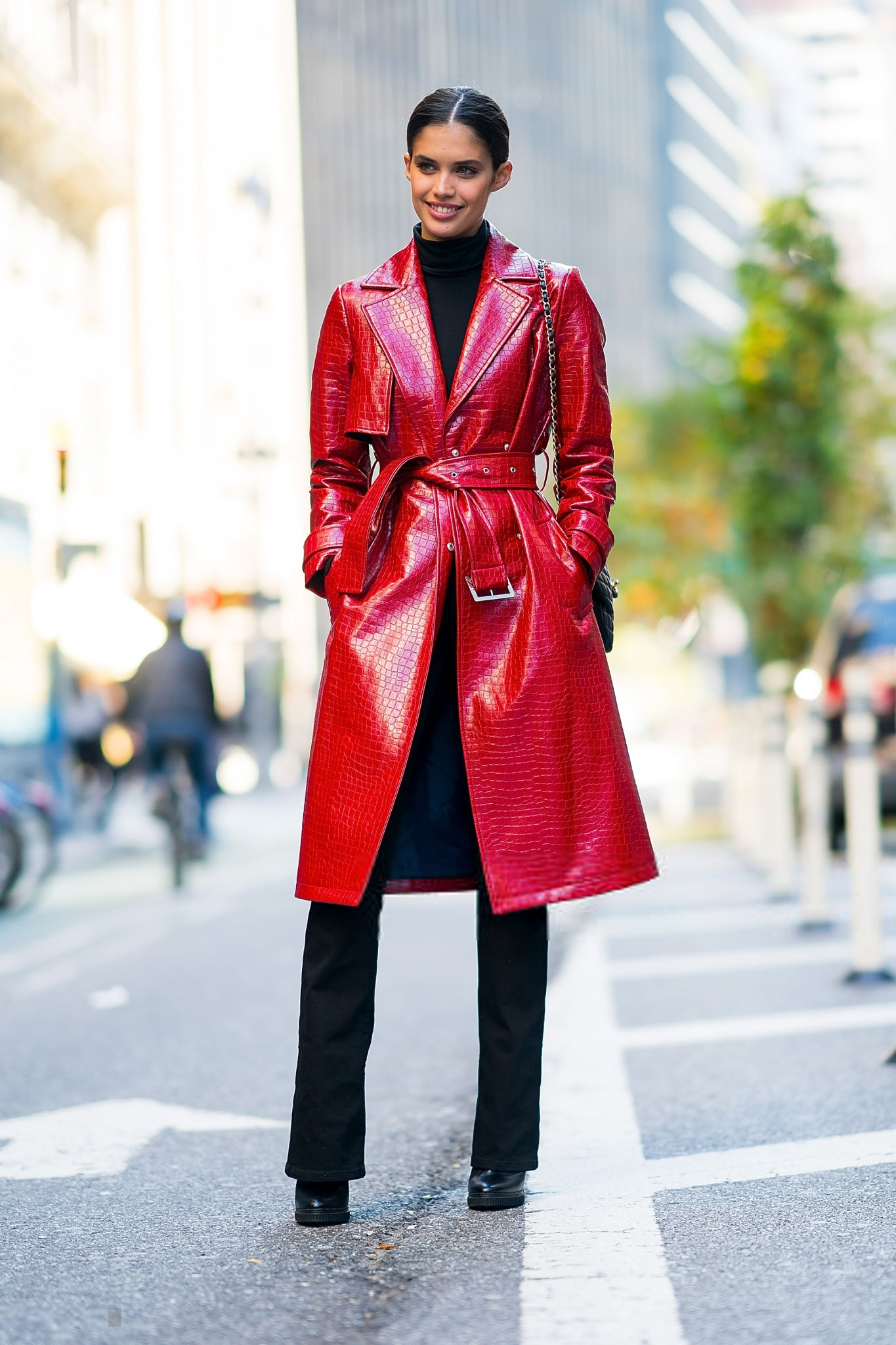
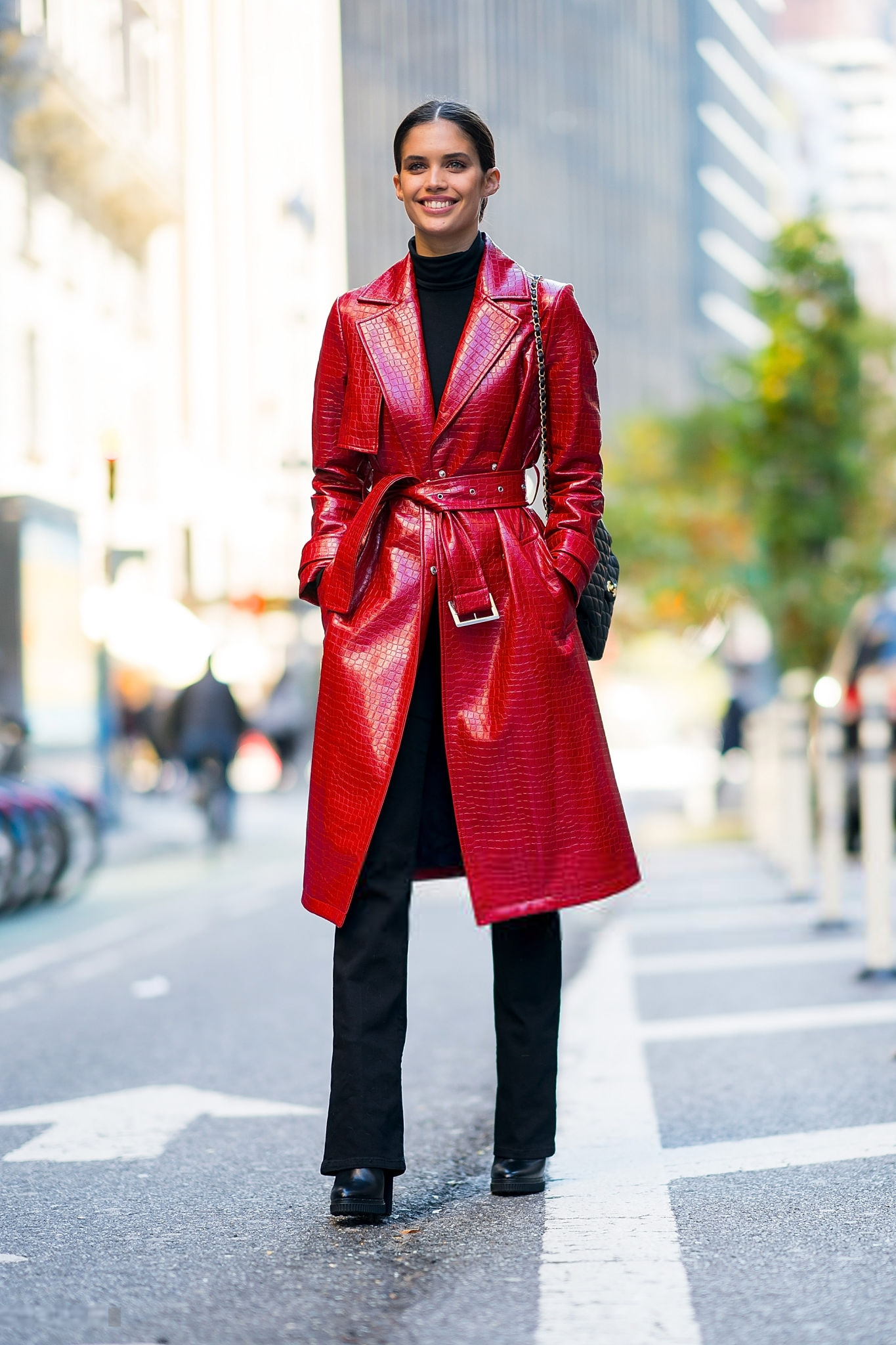
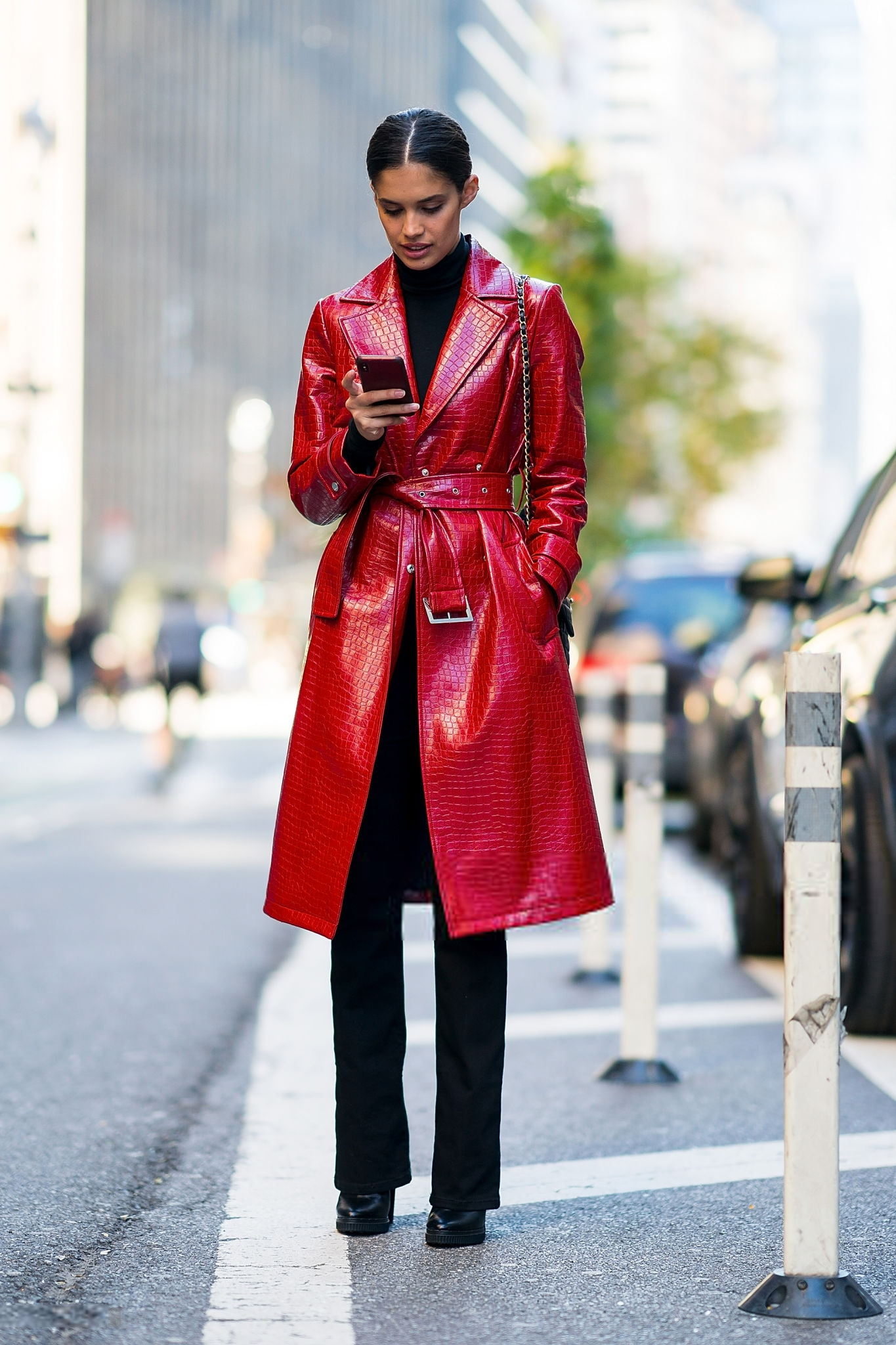
Sara - UHQ




















-
-
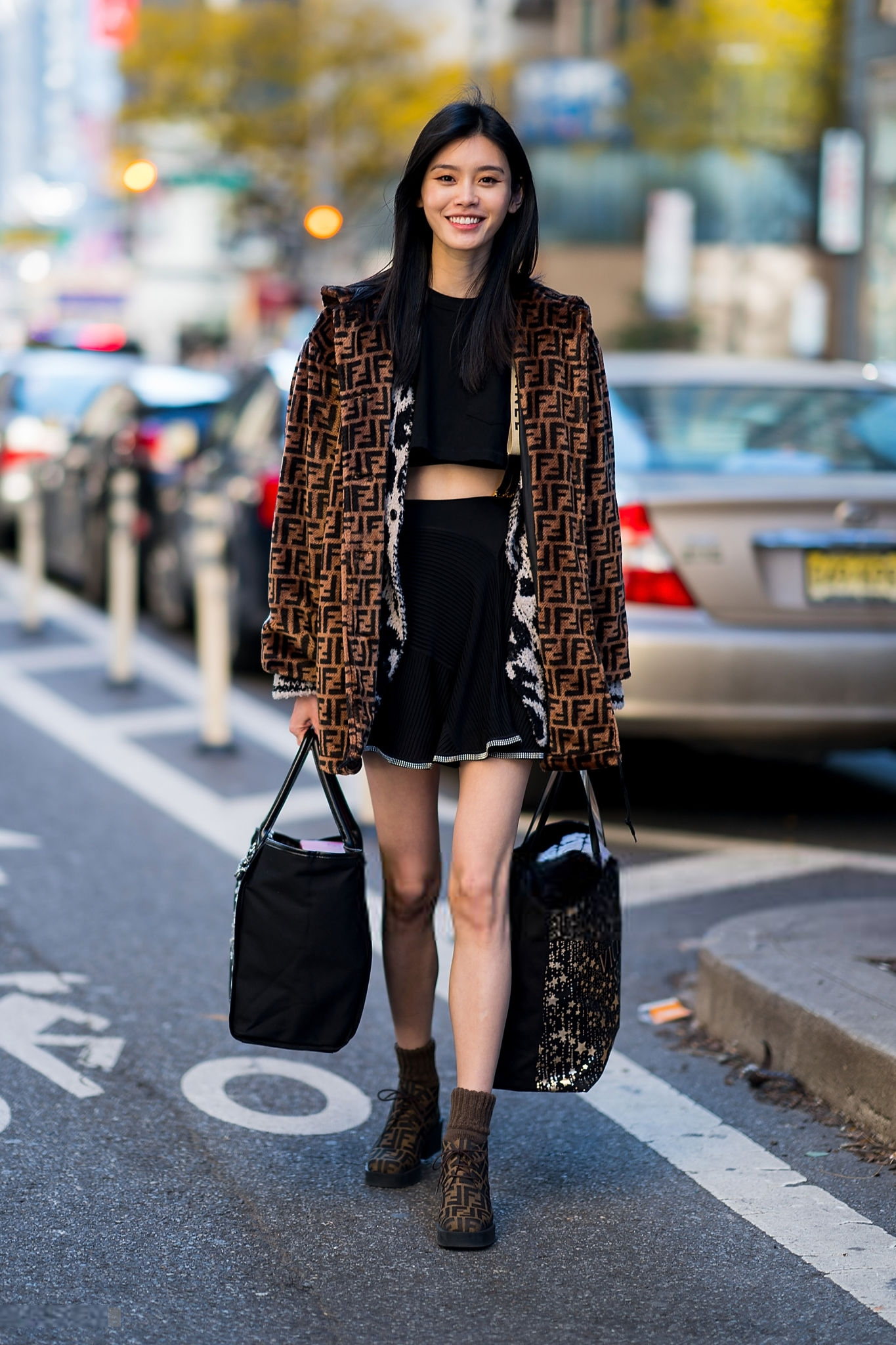
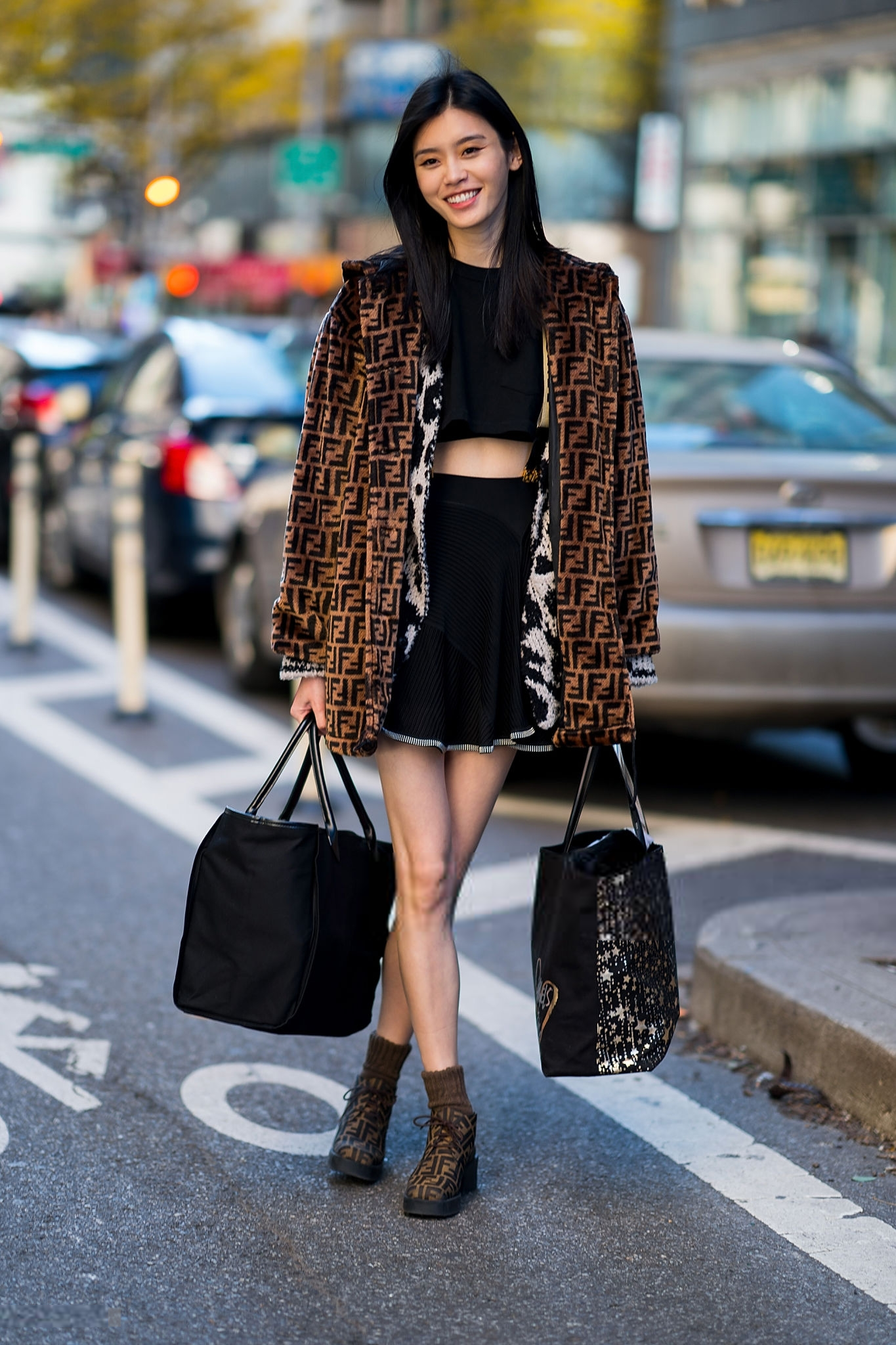
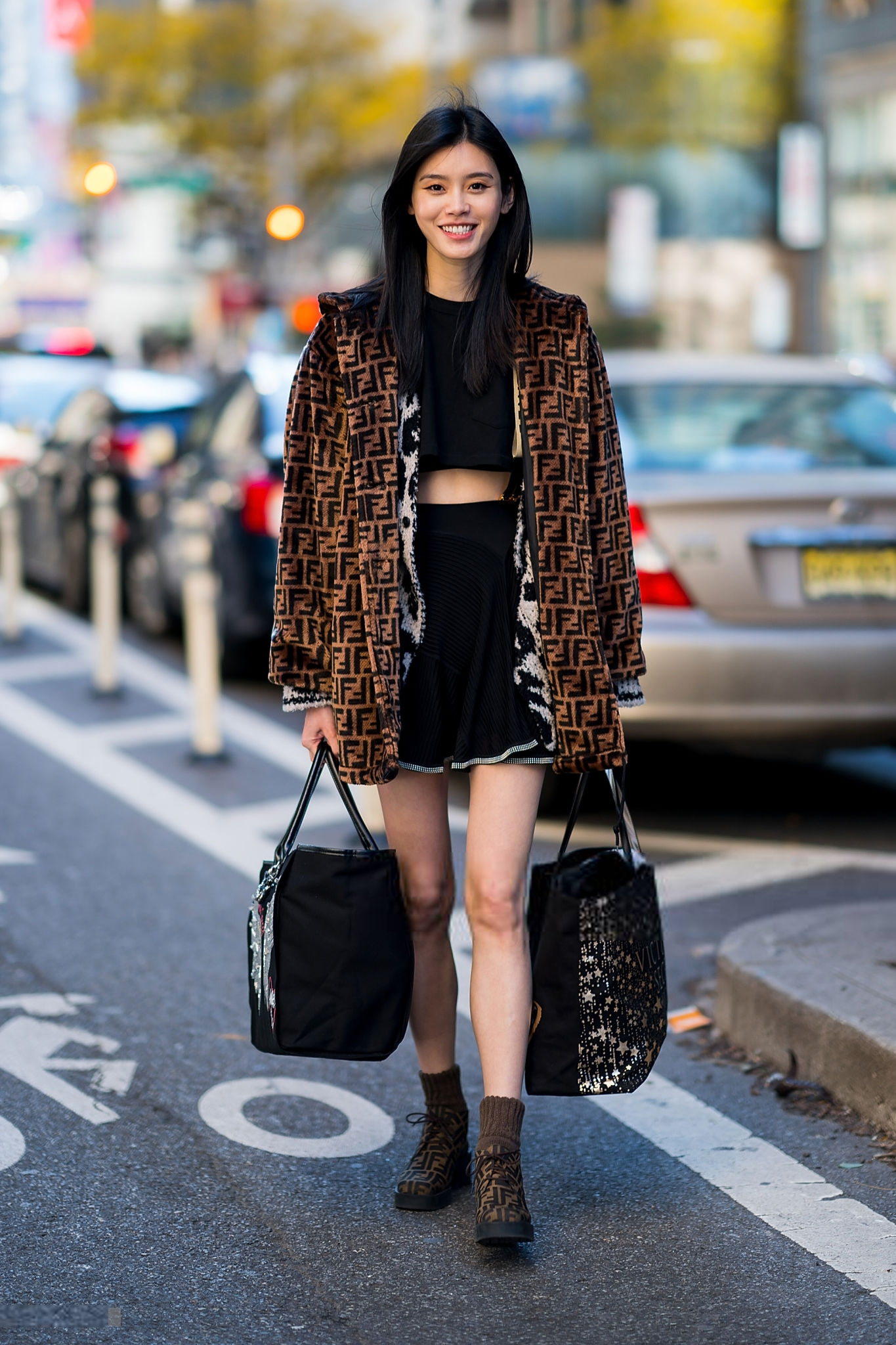
Ming









-
-
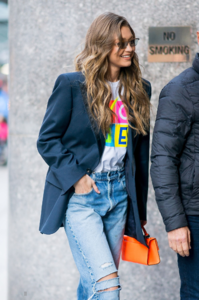
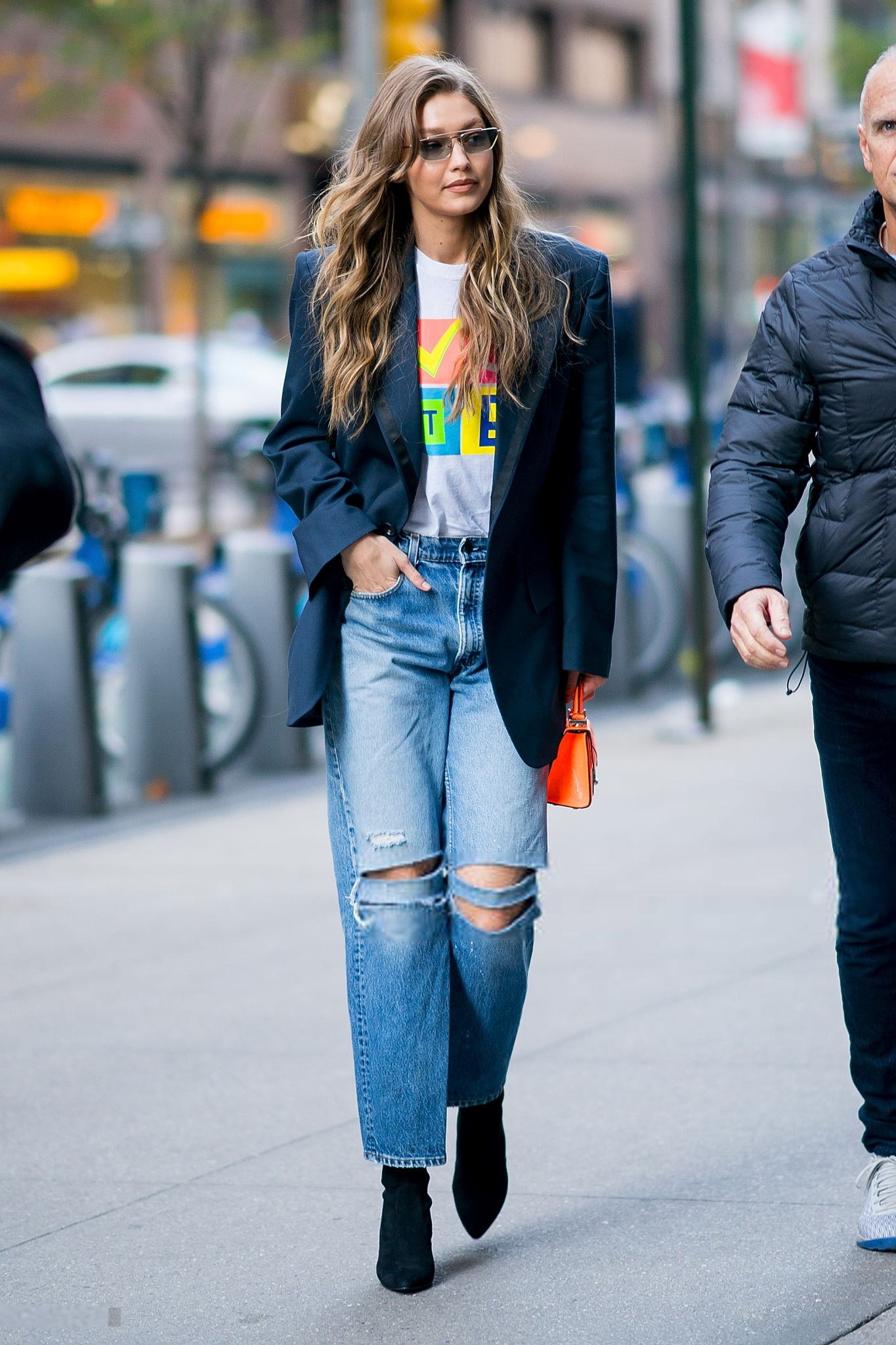
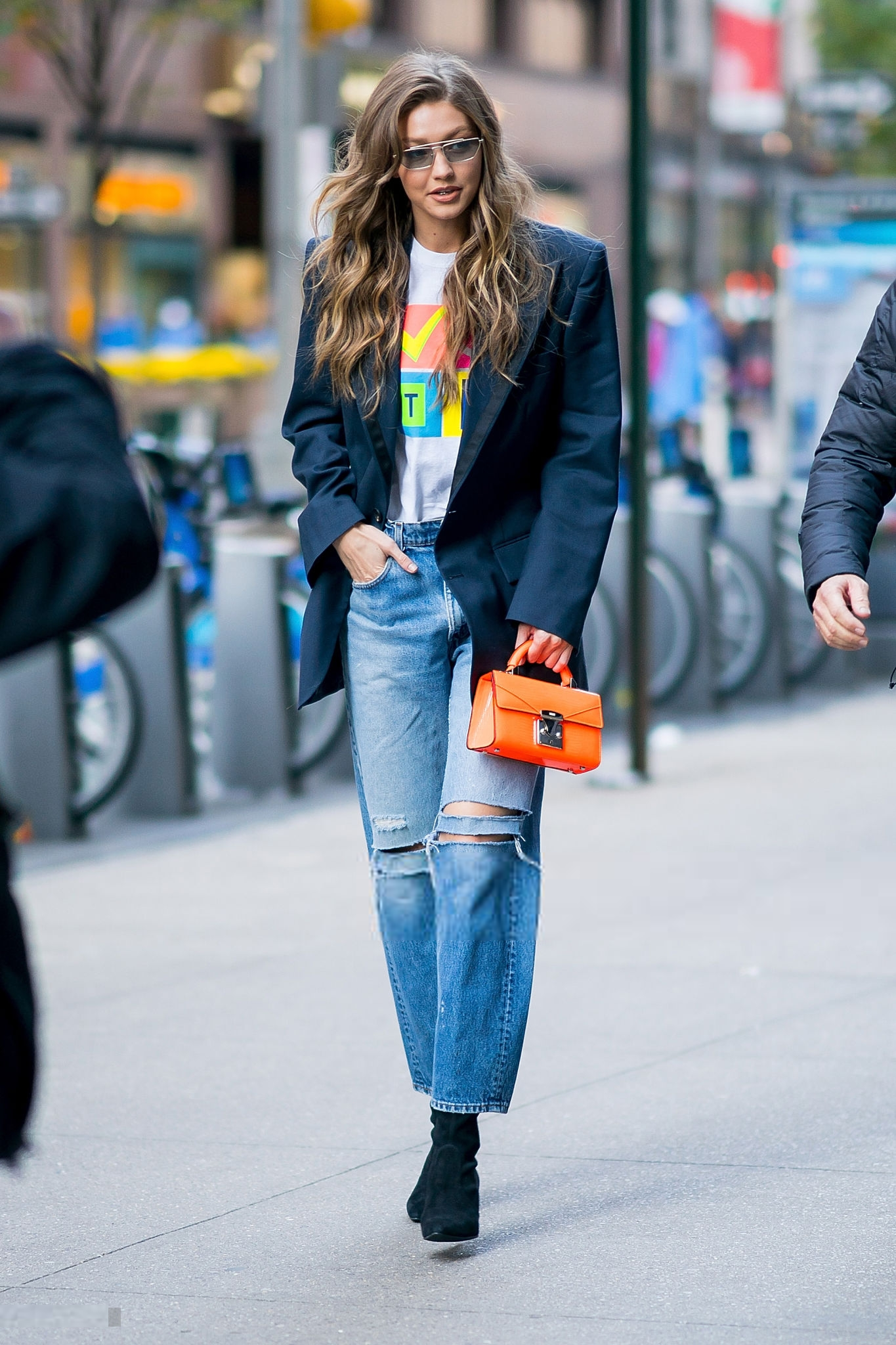
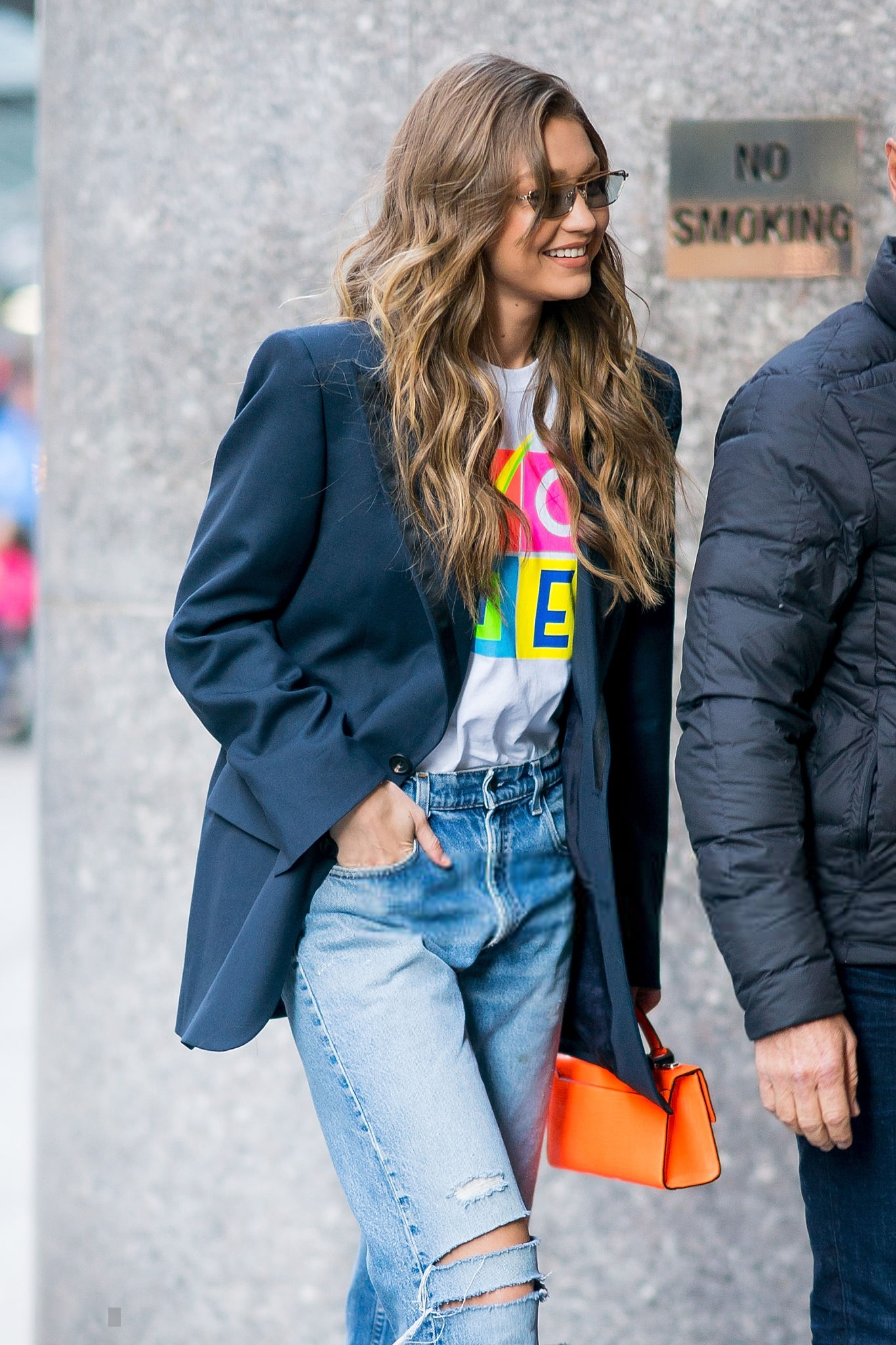
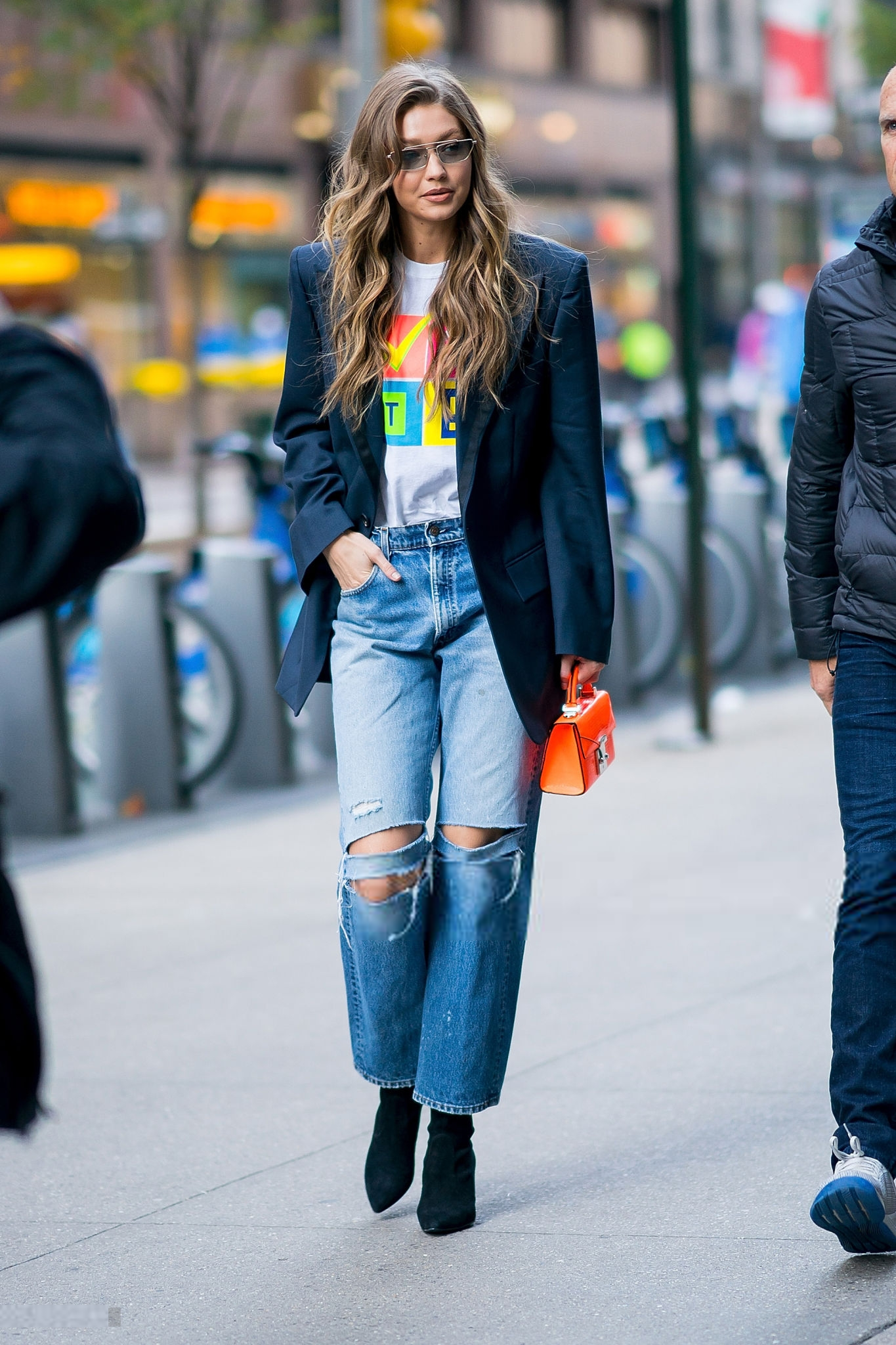
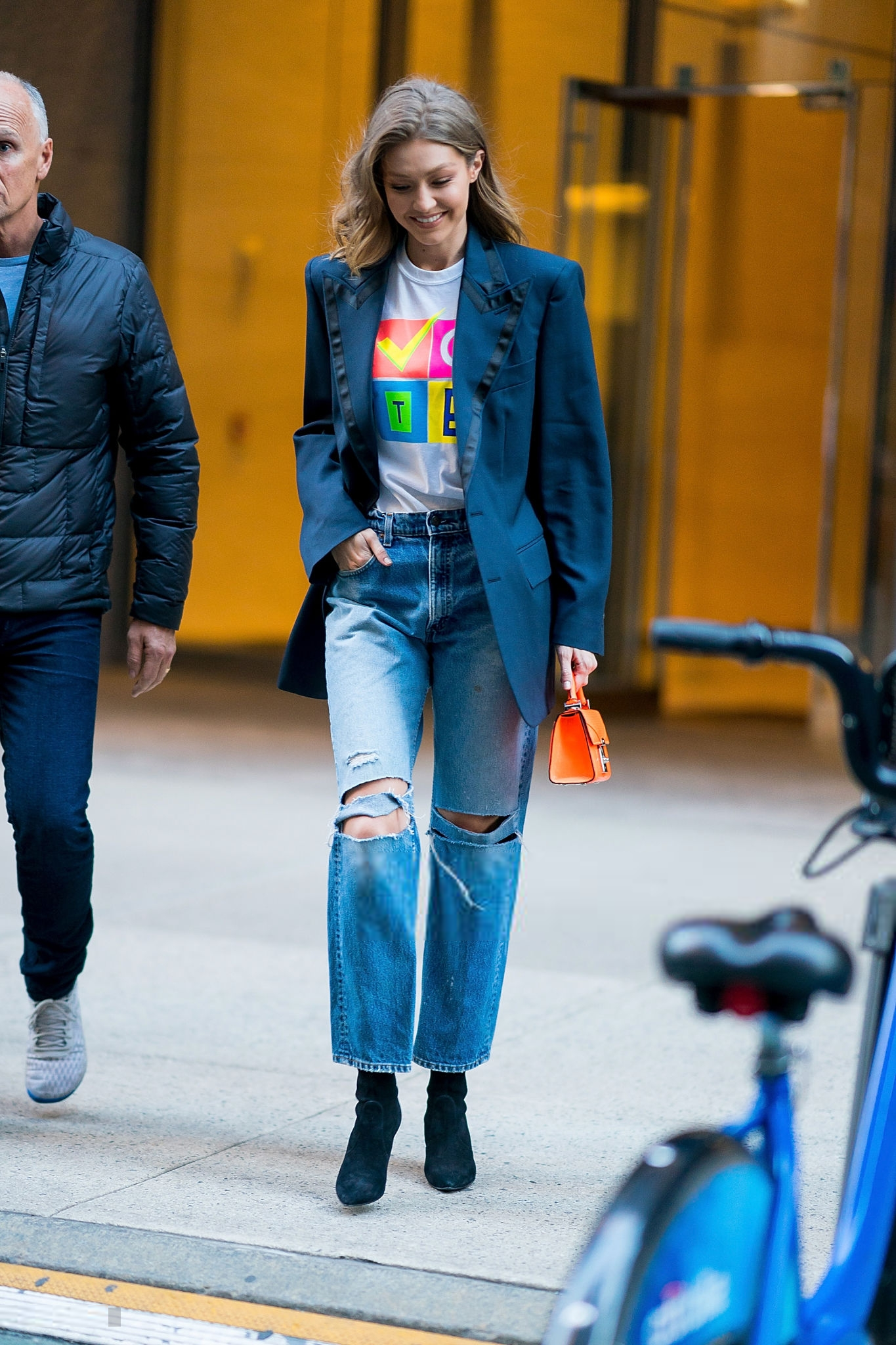
Gigi - UHQ (if posting elsewhere, please credit Bellazon, thanks)

















-
Gigi - UHQ (if posting elsewhere, please credit Bellazon, thanks)
-




























































































































Account
Navigation
Search
Configure browser push notifications
Chrome (Android)
- Tap the lock icon next to the address bar.
- Tap Permissions → Notifications.
- Adjust your preference.
Chrome (Desktop)
- Click the padlock icon in the address bar.
- Select Site settings.
- Find Notifications and adjust your preference.
Safari (iOS 16.4+)
- Ensure the site is installed via Add to Home Screen.
- Open Settings App → Notifications.
- Find your app name and adjust your preference.
Safari (macOS)
- Go to Safari → Preferences.
- Click the Websites tab.
- Select Notifications in the sidebar.
- Find this website and adjust your preference.
Edge (Android)
- Tap the lock icon next to the address bar.
- Tap Permissions.
- Find Notifications and adjust your preference.
Edge (Desktop)
- Click the padlock icon in the address bar.
- Click Permissions for this site.
- Find Notifications and adjust your preference.
Firefox (Android)
- Go to Settings → Site permissions.
- Tap Notifications.
- Find this site in the list and adjust your preference.
Firefox (Desktop)
- Open Firefox Settings.
- Search for Notifications.
- Find this site in the list and adjust your preference.