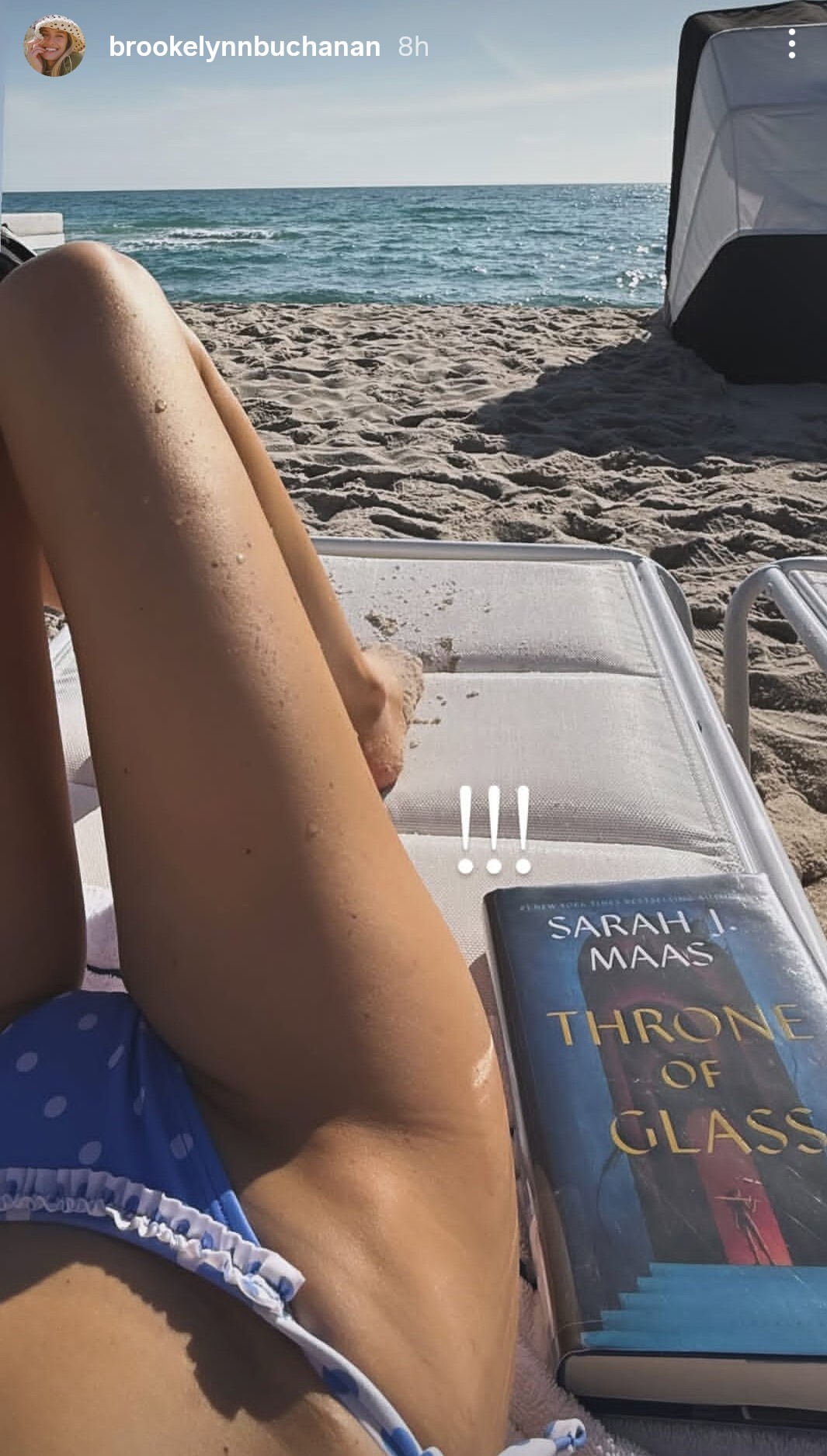
-
MasterHunter started following Eltoredo
-
Eltoredo started following MasterHunter
- Mallory Edens
- Brooke Buchanan
-
Brooke Buchanan
- Mallory Edens
- Mallory Edens
AQPIIurapWuSOiifrO4X4OX3uTTo34PLb2B23MIOAyAMCznOZMFgnQYCLOVJPjQGsoK1N9-zFF8O2E4ZiO3WxD9zAr049qMJ4IlfB0k.mp4- Gabby Westbrook-Patrick
Can anyone upload her other tiktok- Gabby Westbrook-Patrick
tikcdn_beubagah_com_ddb38c81_fab3_4592_aff8_3572555e7f33.mp4- Gabby Westbrook-Patrick
tikcdn_beubagah_com_062e3214_429e_4a2d_94a0_5d114e698a90.mp4- Brooke Buchanan
- Brooke Buchanan
- Brooke Buchanan
- Brooke Buchanan
- Brooke Buchanan
- Mallory Edens
Account
Navigation
Search
Configure browser push notifications
Chrome (Android)
- Tap the lock icon next to the address bar.
- Tap Permissions → Notifications.
- Adjust your preference.
Chrome (Desktop)
- Click the padlock icon in the address bar.
- Select Site settings.
- Find Notifications and adjust your preference.
Safari (iOS 16.4+)
- Ensure the site is installed via Add to Home Screen.
- Open Settings App → Notifications.
- Find your app name and adjust your preference.
Safari (macOS)
- Go to Safari → Preferences.
- Click the Websites tab.
- Select Notifications in the sidebar.
- Find this website and adjust your preference.
Edge (Android)
- Tap the lock icon next to the address bar.
- Tap Permissions.
- Find Notifications and adjust your preference.
Edge (Desktop)
- Click the padlock icon in the address bar.
- Click Permissions for this site.
- Find Notifications and adjust your preference.
Firefox (Android)
- Go to Settings → Site permissions.
- Tap Notifications.
- Find this site in the list and adjust your preference.
Firefox (Desktop)
- Open Firefox Settings.
- Search for Notifications.
- Find this site in the list and adjust your preference.