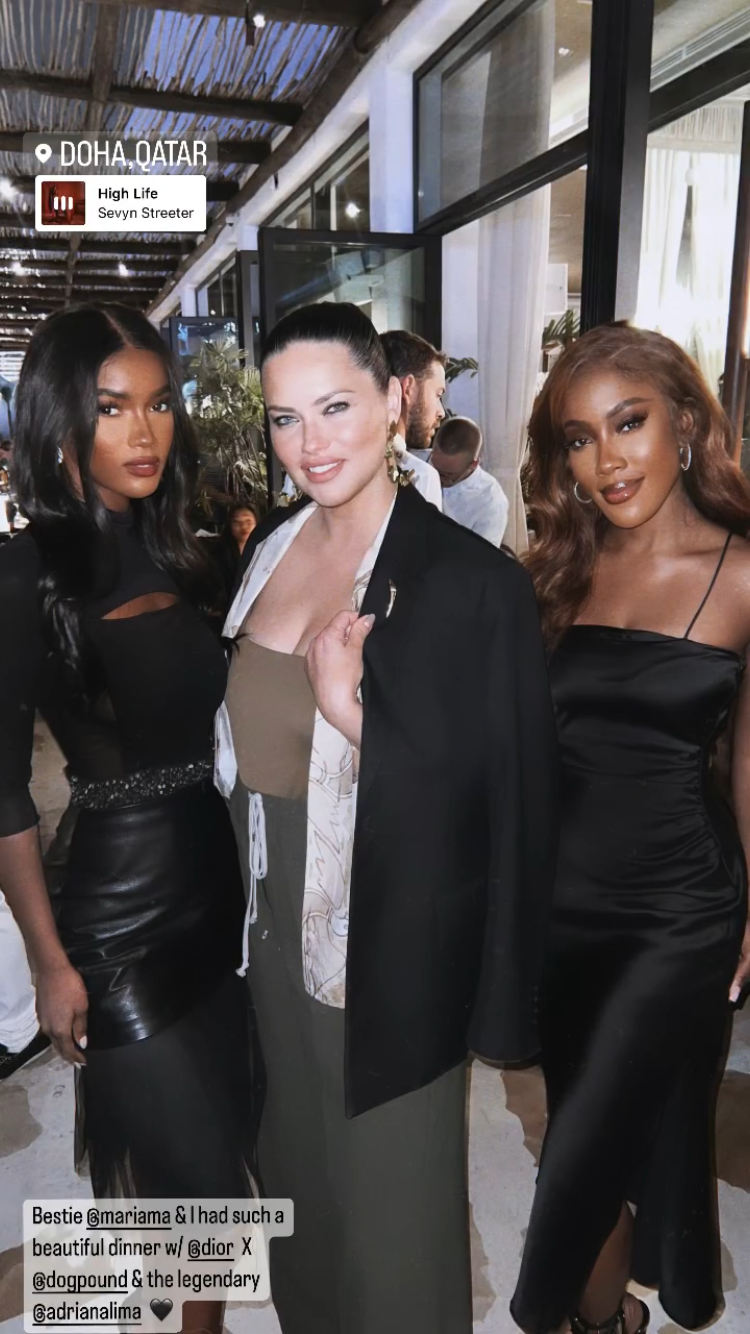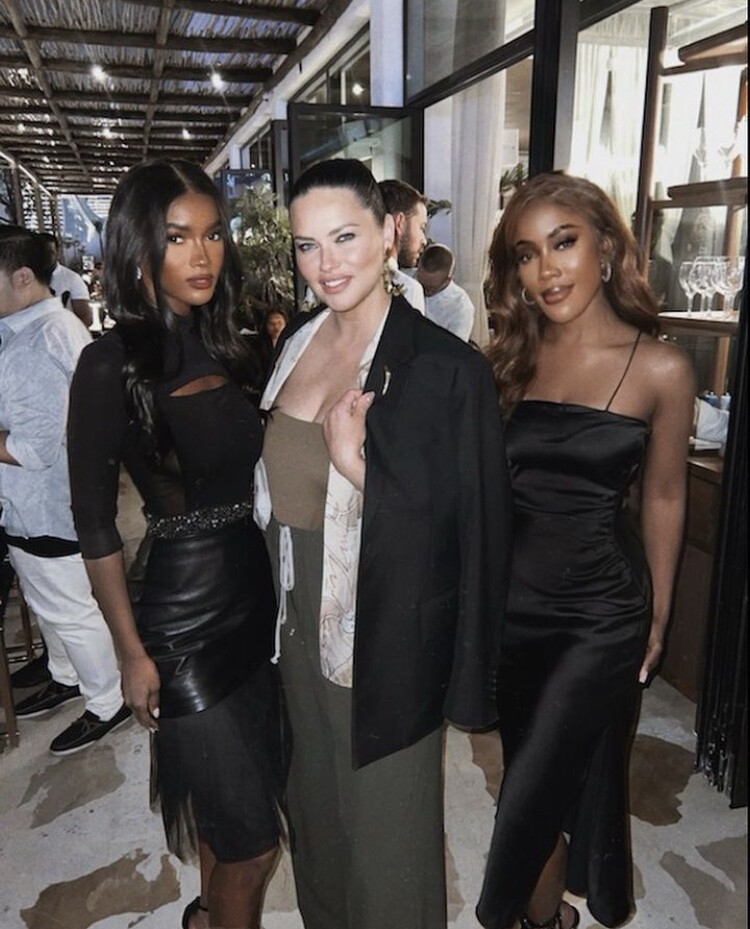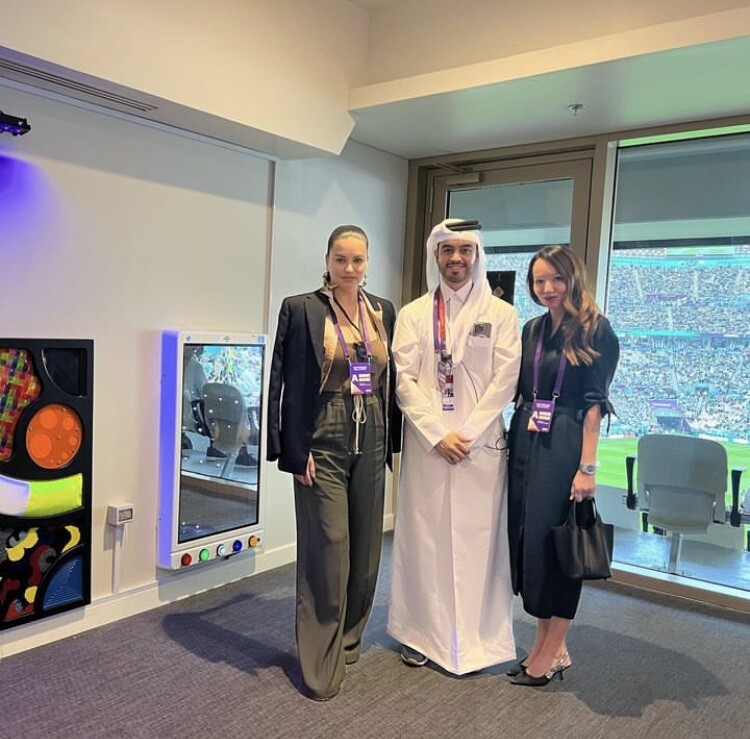
laeteita
Members
-
Joined
Everything posted by laeteita
-

-
-
-
https://www.instagram.com/p/ClekmOgoFKK/?igshid=YmMyMTA2M2Y=




-
https://www.instagram.com/p/ClekF7WsRFb/?igshid=YmMyMTA2M2Y=

-
-
her story 3845C27F7698F88DCB8A14F05335E88F_video_dashinit.mp4
-
Desiree deleted this one immediately from her TW and i think she posted a video (also deleted). Could you grab the video by any chance?
-
https://www.instagram.com/p/CledzrarqVG/?igshid=YmMyMTA2M2Y=

-
-
-
-
-
Anaantic insta story 21467E52B0CB1ADF867ED82852C96E9D_video_dashinit.mp4
-
her story 6840AF40819683F3D98B0DFB9CA66982_video_dashinit.mp4
-
-
carla.pereya15 insta story- she is at the end 614EEAFB8E180FEFEF5465AD610C03A6_video_dashinit.mp4
-
-
https://www.instagram.com/p/ClWNMPxjWTx/?igshid=YmMyMTA2M2Y=



-
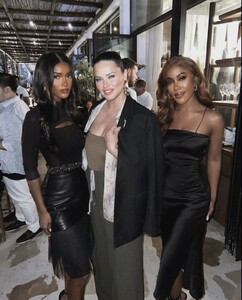
Sevyn story https://www.instagram.com/p/ClVxH_Du_zh/?igshid=YmMyMTA2M2Y=
-
rebekahbsantiago insta story 7A4ACDFE40805C7380306B35BE283688_video_dashinit.mp4
-
anaantic insta story 55452F43A911866689FE55707E491DB5_video_dashinit.mp4
-
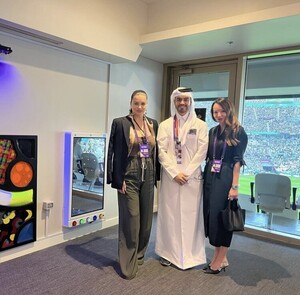
https://www.instagram.com/p/ClQzfCCPMK3/?igshid=YmMyMTA2M2Y=
-
anaantic insta stories FF4DC9153E30068B6E75929A54526594_video_dashinit.mp4 B94DAADF204D56B2744EB339A1B43A99_video_dashinit.mp4
-
her stories EB4AF4A00128BF2DF47172EBCFA539BB_video_dashinit.mp4 554D0927C262ABDB1953EF6AD582F4A3_video_dashinit.mp4