
Hyperion
Members
-
Joined
-
Last visited
-
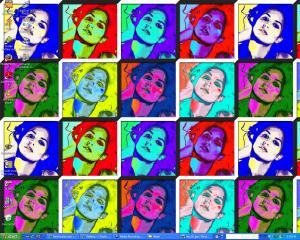
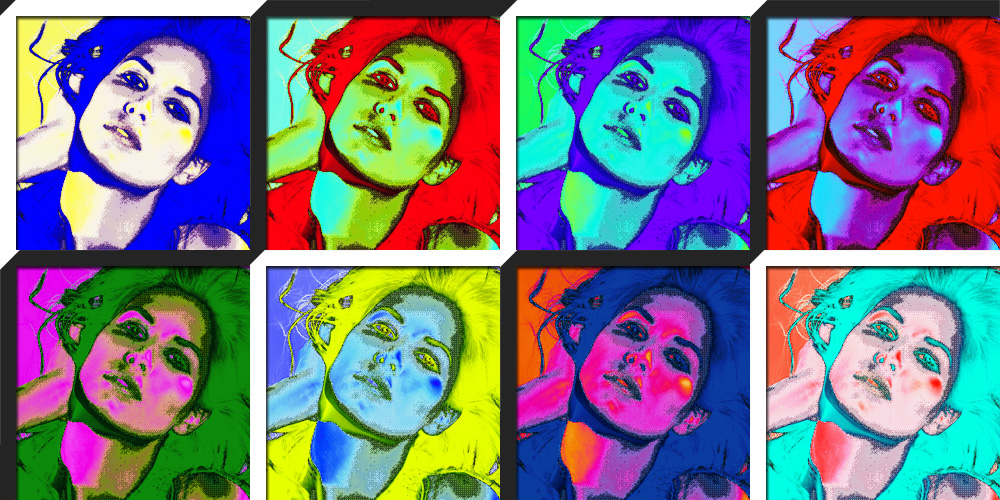
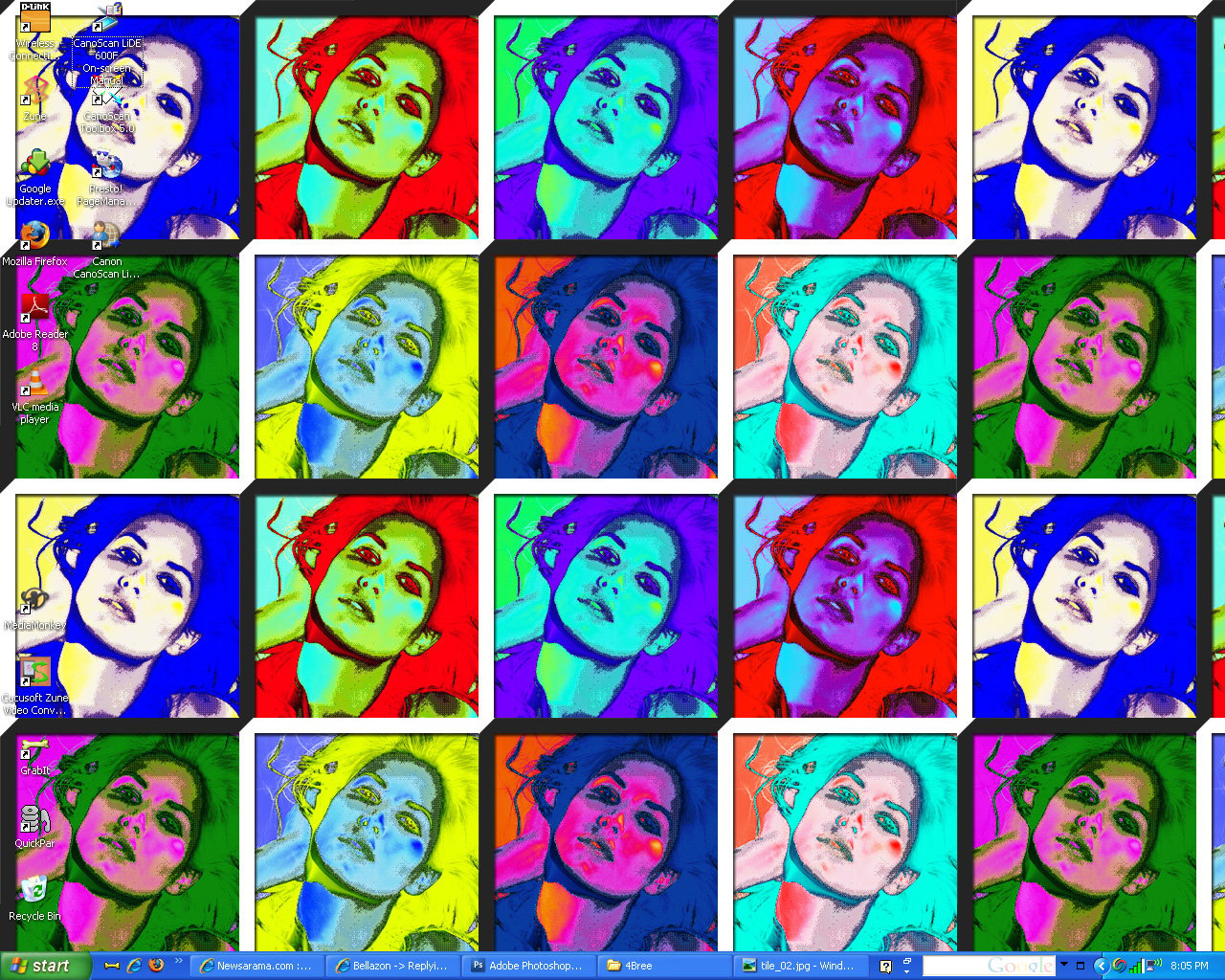
^ Thanks posted by unipine @ Tfs:Two things: 1.) A wallpaper 1200x1600: 2.) I made these as an experiment for the tile feature of the desktop wallpaper. If you tile these images, they look pretty cool. For example, my desktop:





 Another wallpaper. Enjoy!
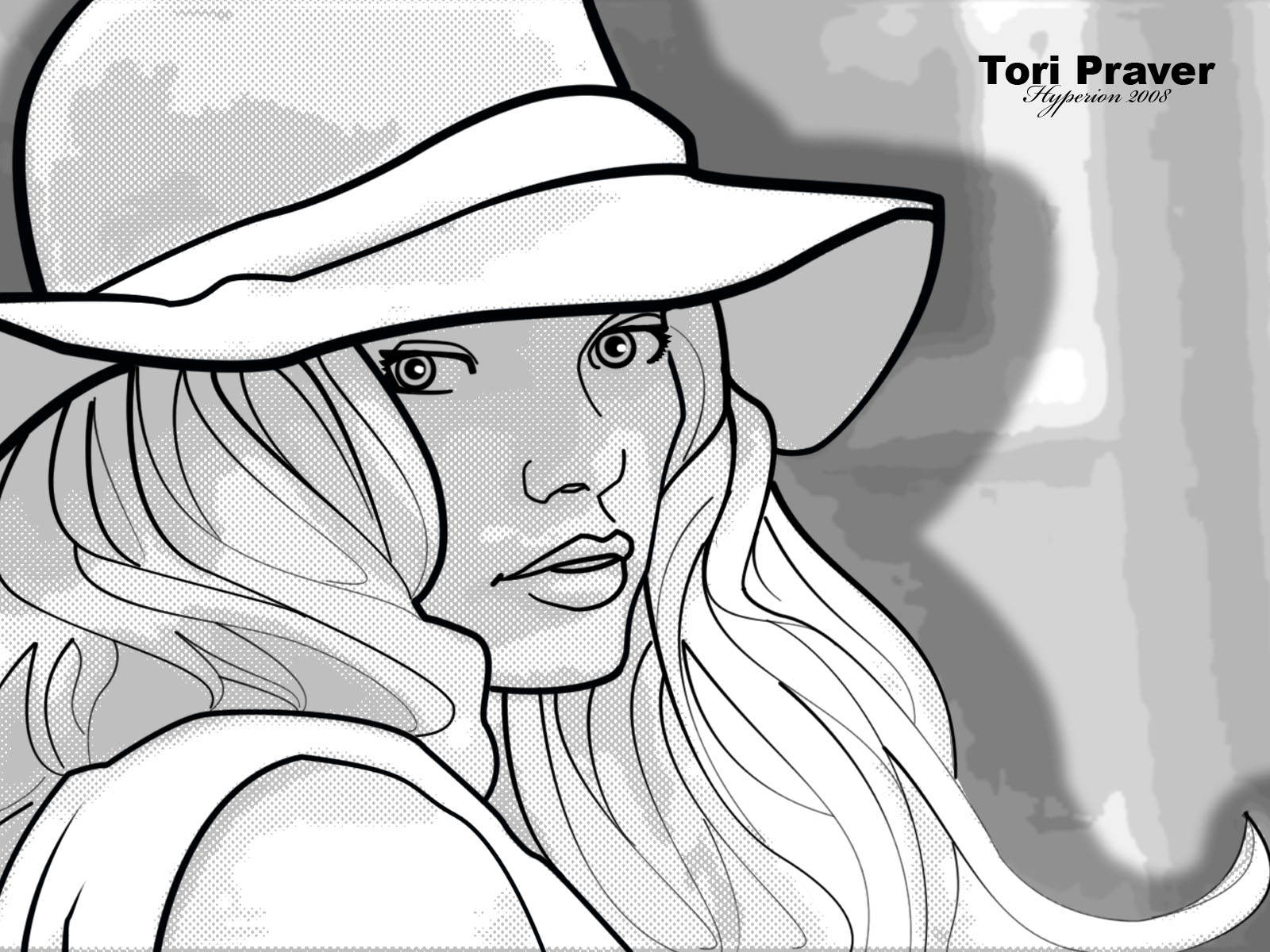
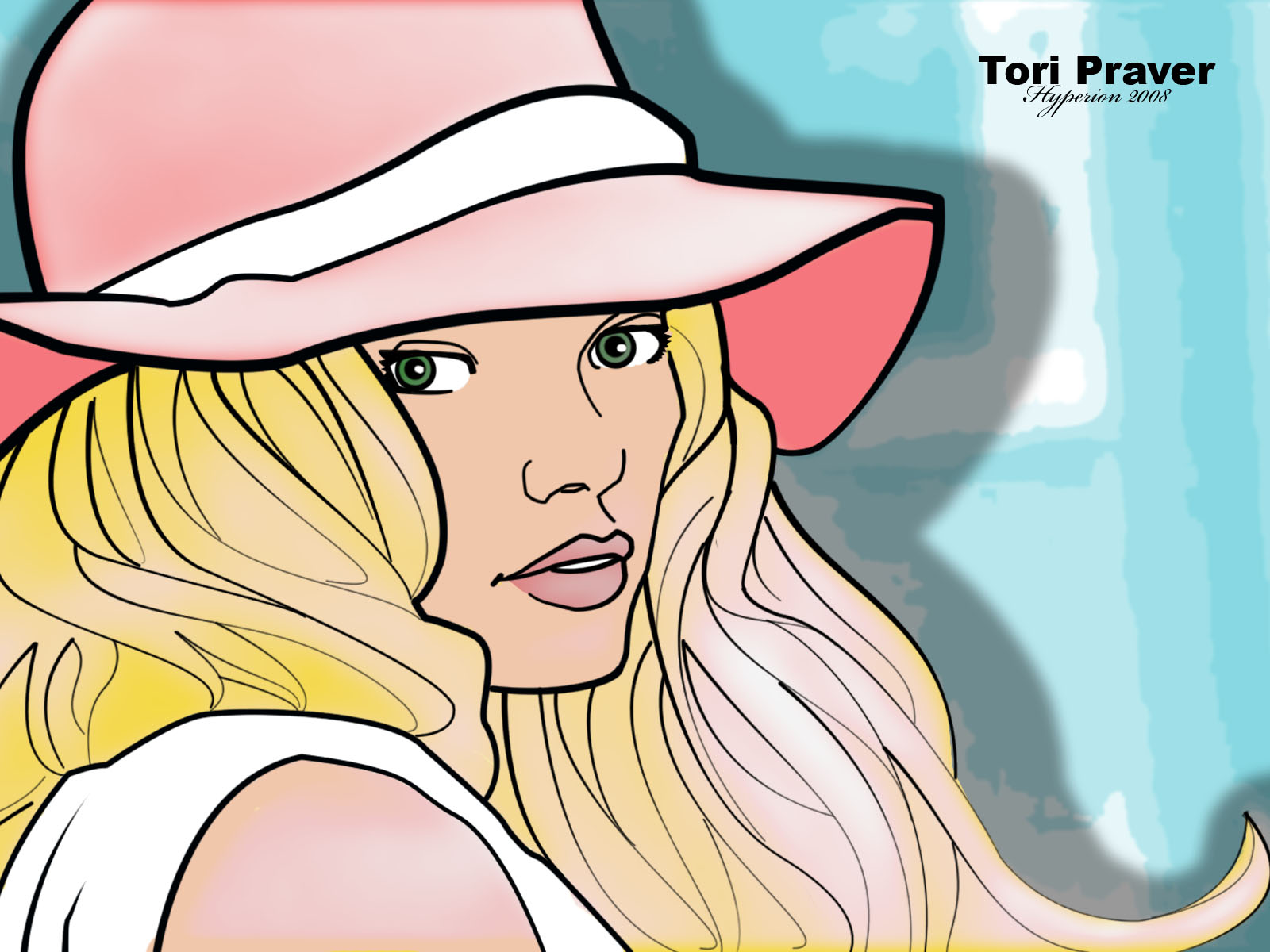
^ You're welcome. Work of art might be a stretch but I generally do put some hard work into my stuff. Nonetheless, I aim to please. Hopefully I can make at least one post a day for the next few weeks. I tried to clean this image up and remove the unsightly text. If I did a good job, then you shouldn't be able to tell that text used to be there... Of course I see all the little flaws, that's why I made the brighter version too.
 Angela x3...and a few "larger" resolution images. Maybe I'll have time to crop some images from the actual catalog images in HQ res tomorrow.








 Image hidden for guestsSign in to viewImage hidden for guestsSign in to viewImage hidden for guestsSign in to viewImage hidden for guestsSign in to viewImage hidden for guestsSign in to viewImage hidden for guestsSign in to viewImage hidden for guestsSign in to viewImage hidden for guestsSign in to viewImage hidden for guestsSign in to viewImage hidden for guestsSign in to viewImage hidden for guestsSign in to viewSome low res images (also from www.quelle.fr):






 Quelle Spring 2008 Catalog (www.quelle.com) I found these while looking for some Tori Praver pics. It appears that they both model for Quelle now.

































Account
Navigation
Search
Configure browser push notifications
Chrome (Android)
- Tap the lock icon next to the address bar.
- Tap Permissions → Notifications.
- Adjust your preference.
Chrome (Desktop)
- Click the padlock icon in the address bar.
- Select Site settings.
- Find Notifications and adjust your preference.
Safari (iOS 16.4+)
- Ensure the site is installed via Add to Home Screen.
- Open Settings App → Notifications.
- Find your app name and adjust your preference.
Safari (macOS)
- Go to Safari → Preferences.
- Click the Websites tab.
- Select Notifications in the sidebar.
- Find this website and adjust your preference.
Edge (Android)
- Tap the lock icon next to the address bar.
- Tap Permissions.
- Find Notifications and adjust your preference.
Edge (Desktop)
- Click the padlock icon in the address bar.
- Click Permissions for this site.
- Find Notifications and adjust your preference.
Firefox (Android)
- Go to Settings → Site permissions.
- Tap Notifications.
- Find this site in the list and adjust your preference.
Firefox (Desktop)
- Open Firefox Settings.
- Search for Notifications.
- Find this site in the list and adjust your preference.