MeganW
Members
-
Joined
-
Last visited
Everything posted by MeganW
-
SnapInsta.to_AQM0qnOFJ14HYRridFL15hy7BZ09CKcQCy9Aa3UxfFSxfqZGCg6qFtvvI4zqrBrC6rJR3sG9hKm70ggxhcQ06PgF9qdbwL3vSRs2IsM.mp4








 SnapInsta.to_AQPJTKcr7SFyXSCSLwniQ5bPjOCS4p7t-Lf_1rXq4lyWnF6dx8CIfoOLTyN_xb3GU6RCcdENckKIw0WJrxjiATLpjtxkzYgYU_H8YeM.mp4
SnapInsta.to_AQOBXBgd2rdjfVoyU8emdfmr1FEQF2ruOP3fcT3-a5DqXvCDMeRATG64DJY2wVUwDf8U4aNhFzQtY1856vXOegTAVVx1oxVq2-WmkVM.mp4
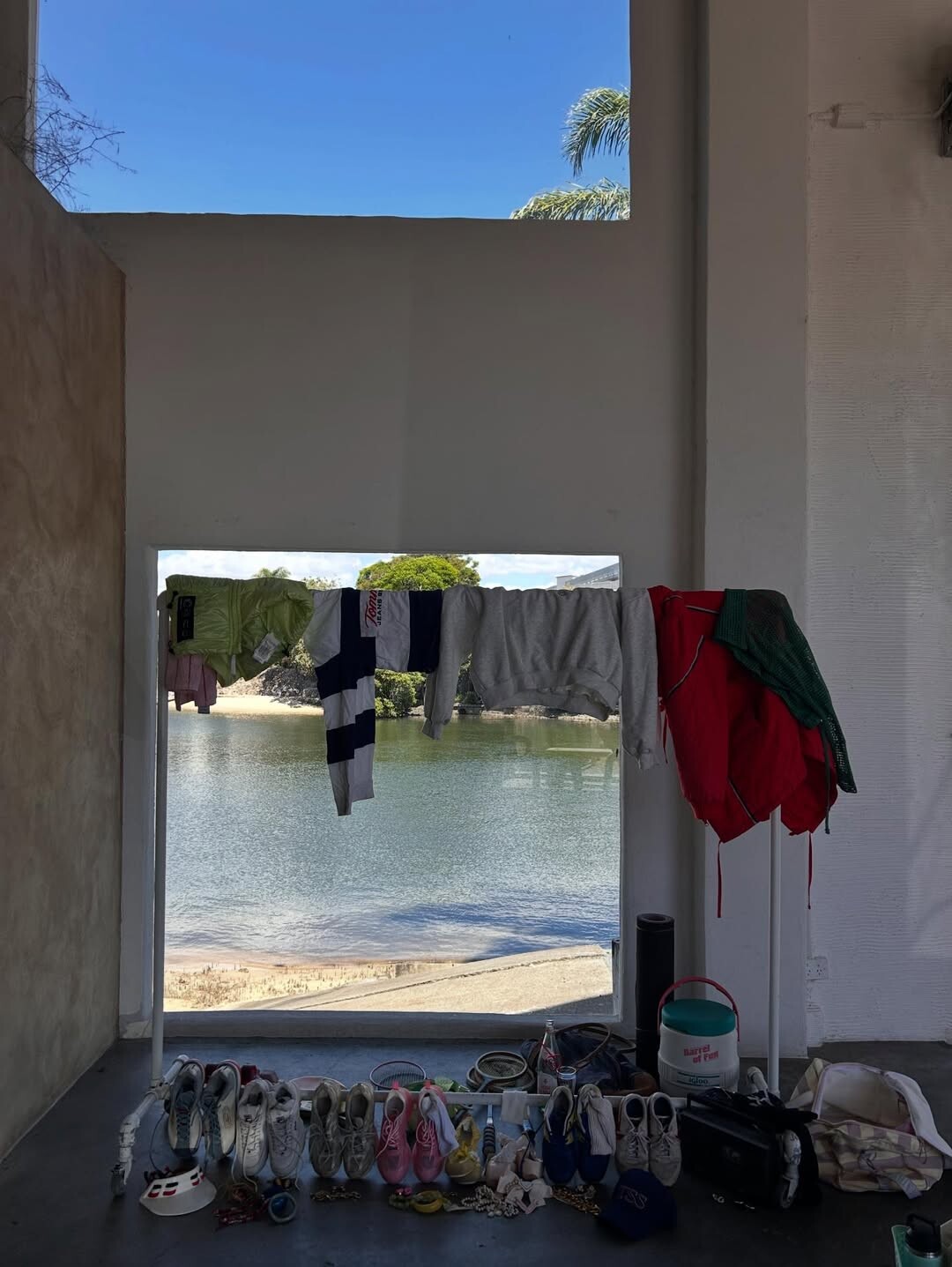
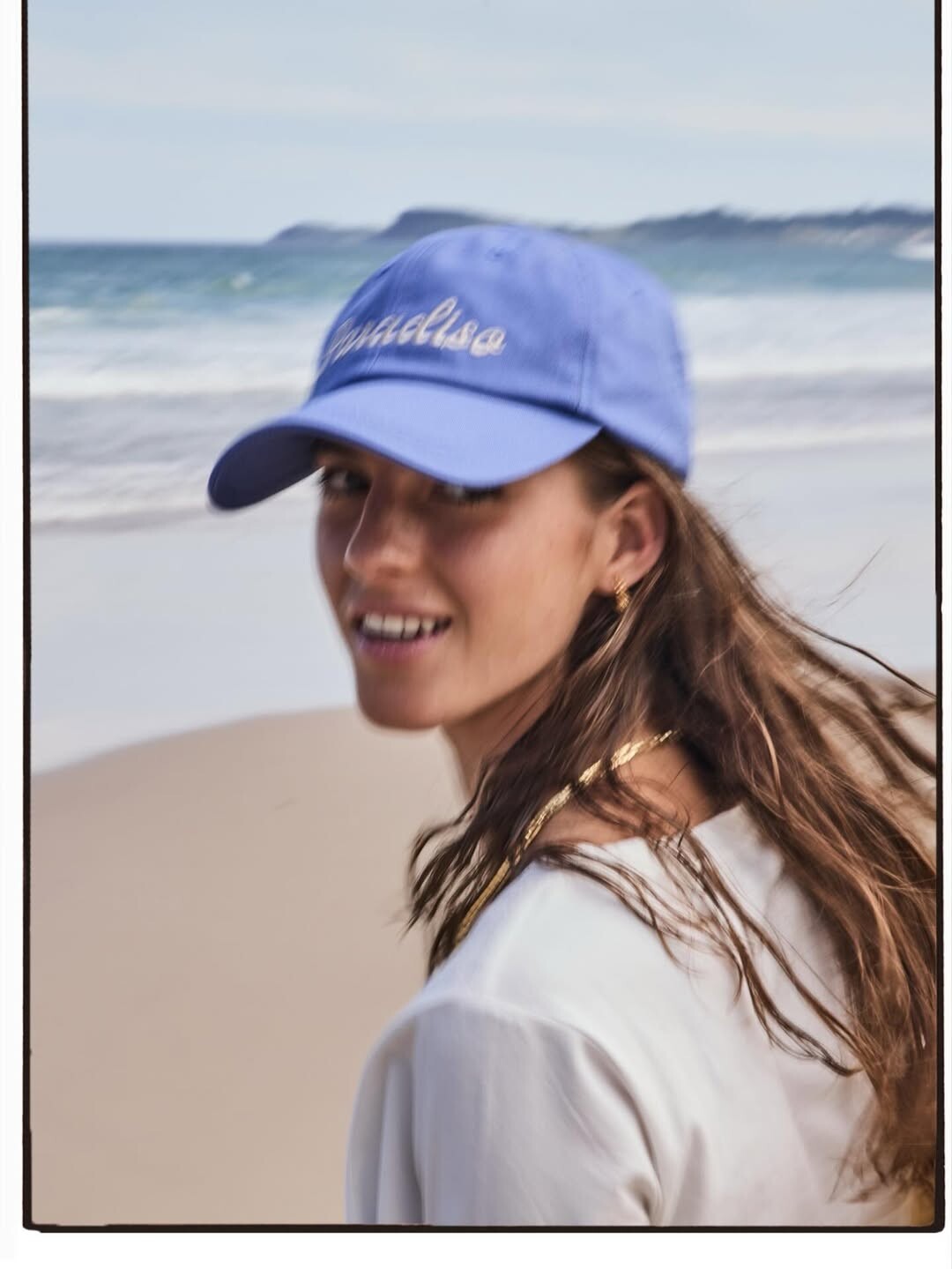
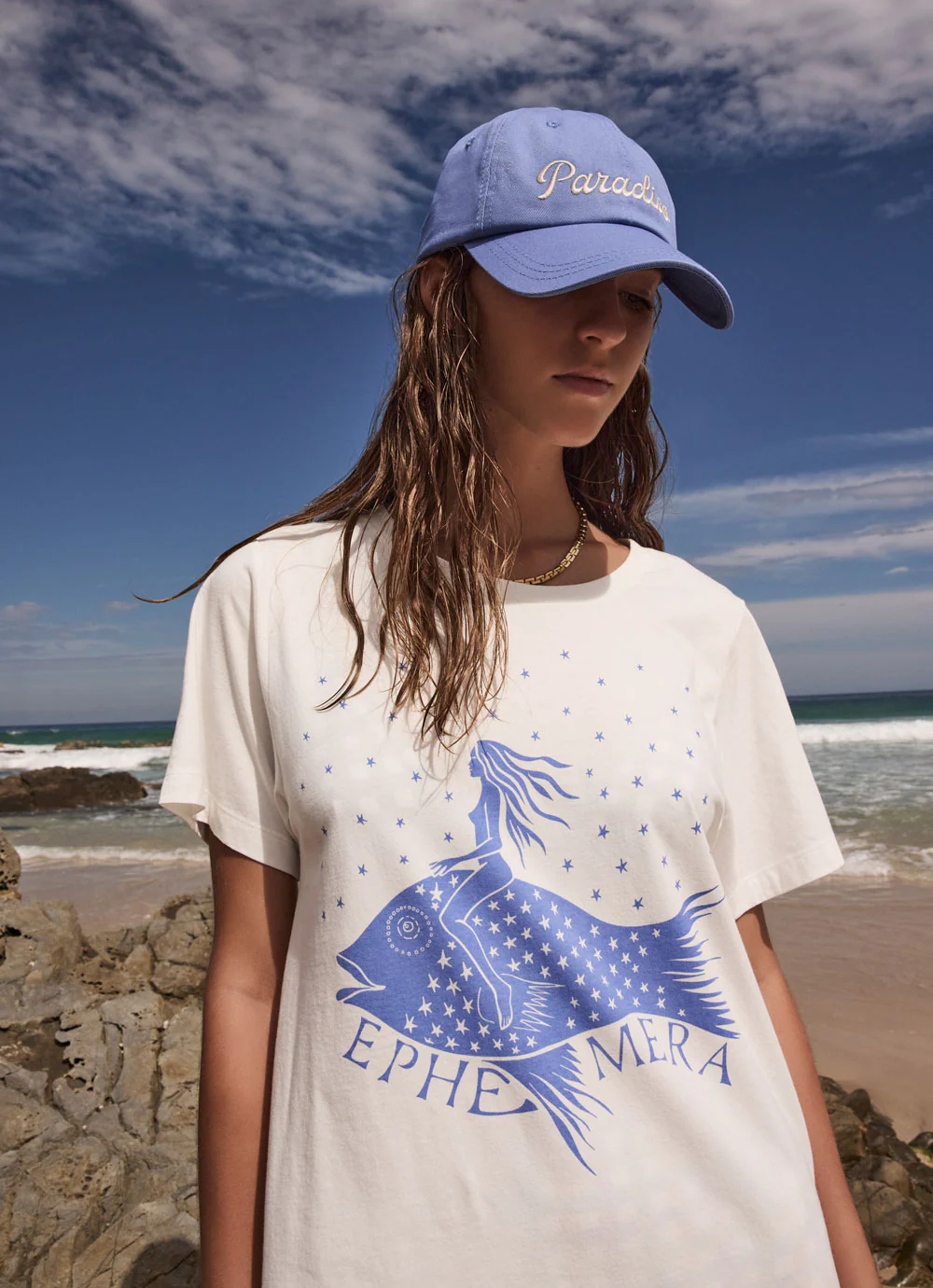
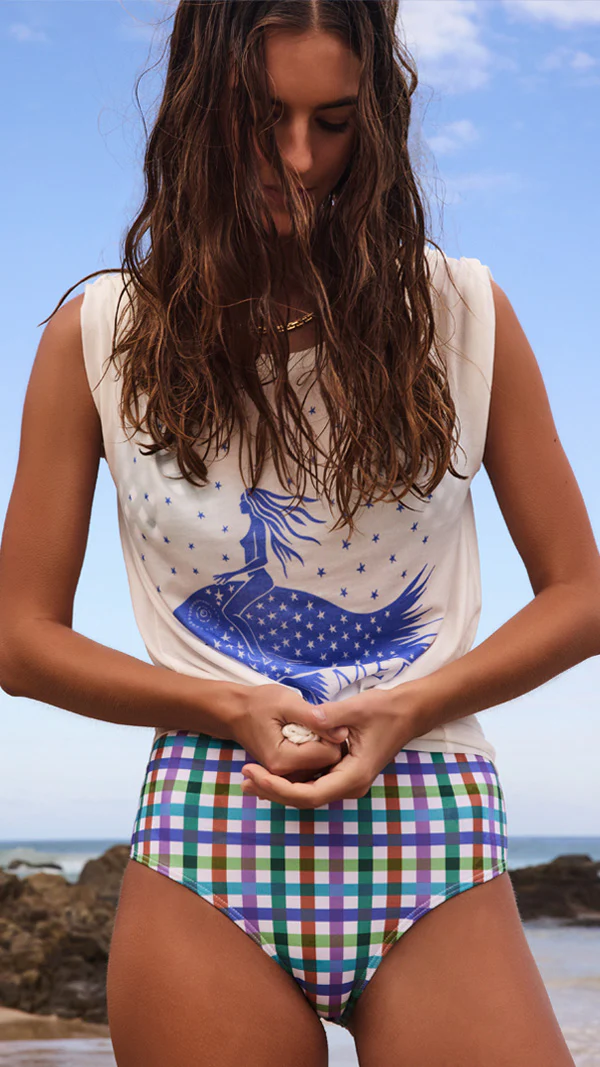
Ephemera Resort
SnapInsta.to_AQPJTKcr7SFyXSCSLwniQ5bPjOCS4p7t-Lf_1rXq4lyWnF6dx8CIfoOLTyN_xb3GU6RCcdENckKIw0WJrxjiATLpjtxkzYgYU_H8YeM.mp4
SnapInsta.to_AQOBXBgd2rdjfVoyU8emdfmr1FEQF2ruOP3fcT3-a5DqXvCDMeRATG64DJY2wVUwDf8U4aNhFzQtY1856vXOegTAVVx1oxVq2-WmkVM.mp4
Ephemera Resort























































Account
Search
Configure browser push notifications
Chrome (Android)
- Tap the lock icon next to the address bar.
- Tap Permissions → Notifications.
- Adjust your preference.
Chrome (Desktop)
- Click the padlock icon in the address bar.
- Select Site settings.
- Find Notifications and adjust your preference.
Safari (iOS 16.4+)
- Ensure the site is installed via Add to Home Screen.
- Open Settings App → Notifications.
- Find your app name and adjust your preference.
Safari (macOS)
- Go to Safari → Preferences.
- Click the Websites tab.
- Select Notifications in the sidebar.
- Find this website and adjust your preference.
Edge (Android)
- Tap the lock icon next to the address bar.
- Tap Permissions.
- Find Notifications and adjust your preference.
Edge (Desktop)
- Click the padlock icon in the address bar.
- Click Permissions for this site.
- Find Notifications and adjust your preference.
Firefox (Android)
- Go to Settings → Site permissions.
- Tap Notifications.
- Find this site in the list and adjust your preference.
Firefox (Desktop)
- Open Firefox Settings.
- Search for Notifications.
- Find this site in the list and adjust your preference.