

BrySanFan1
Members
-
Joined
-
Last visited
Everything posted by BrySanFan1
-
 AQNadoWCJACqHllQpxNGwcuxFkw5w-3dG6CWj7p7rvy1_eEonuSQ1nQtXGYtAbuNY-w0avGfjNvWI6iNhCi_qbp-EsF9TCcnA_lOFwM.mp4
 -
By Carol Persons





 Happy 4th!
 For Gooseberry



 By Carol Persons



 By George Zheng





 By Valerie Vogt Bauer



 By George Zheng








 By Valerie Vogt Bauer





 For Byrdie Golf








 At Coachella Part II:








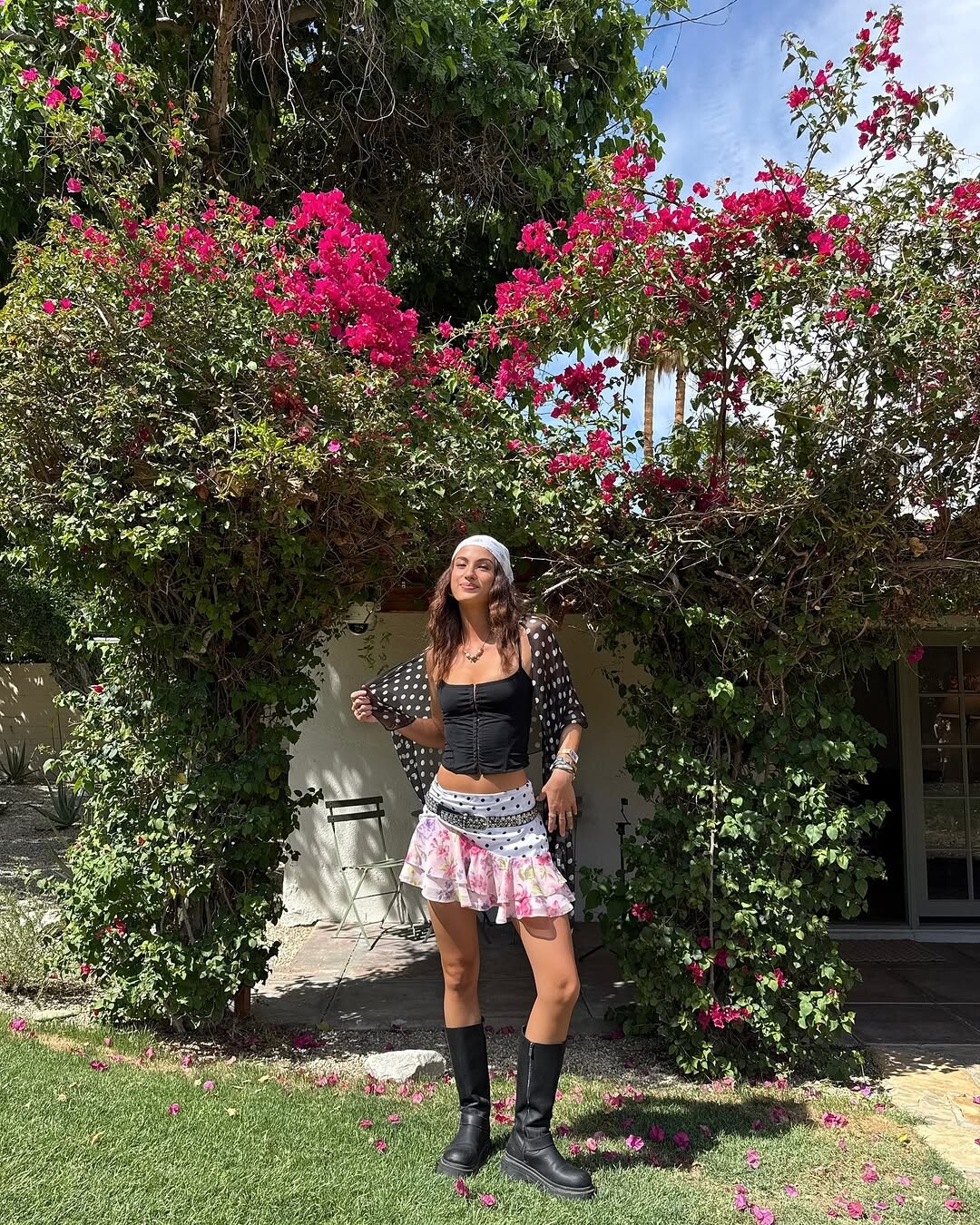
 At Coachella:






 +5
+5








 By Lena Melnik

 For Fila


 By Billy Hart for Byrdie Golf AQP5n7SQBIAOJ90AbV2splx-tHDogXiu7k0qskeEujVl6aif8BHxzXm2lSsxUugDWV4L5Rz7ay9JRCwCSvu5S3kVk2lMM7qA1z3GbTM.mp4










 +5
+5









 By Ryan Rodriguez:
Via Insta:
By Ryan Rodriguez:
Via Insta:



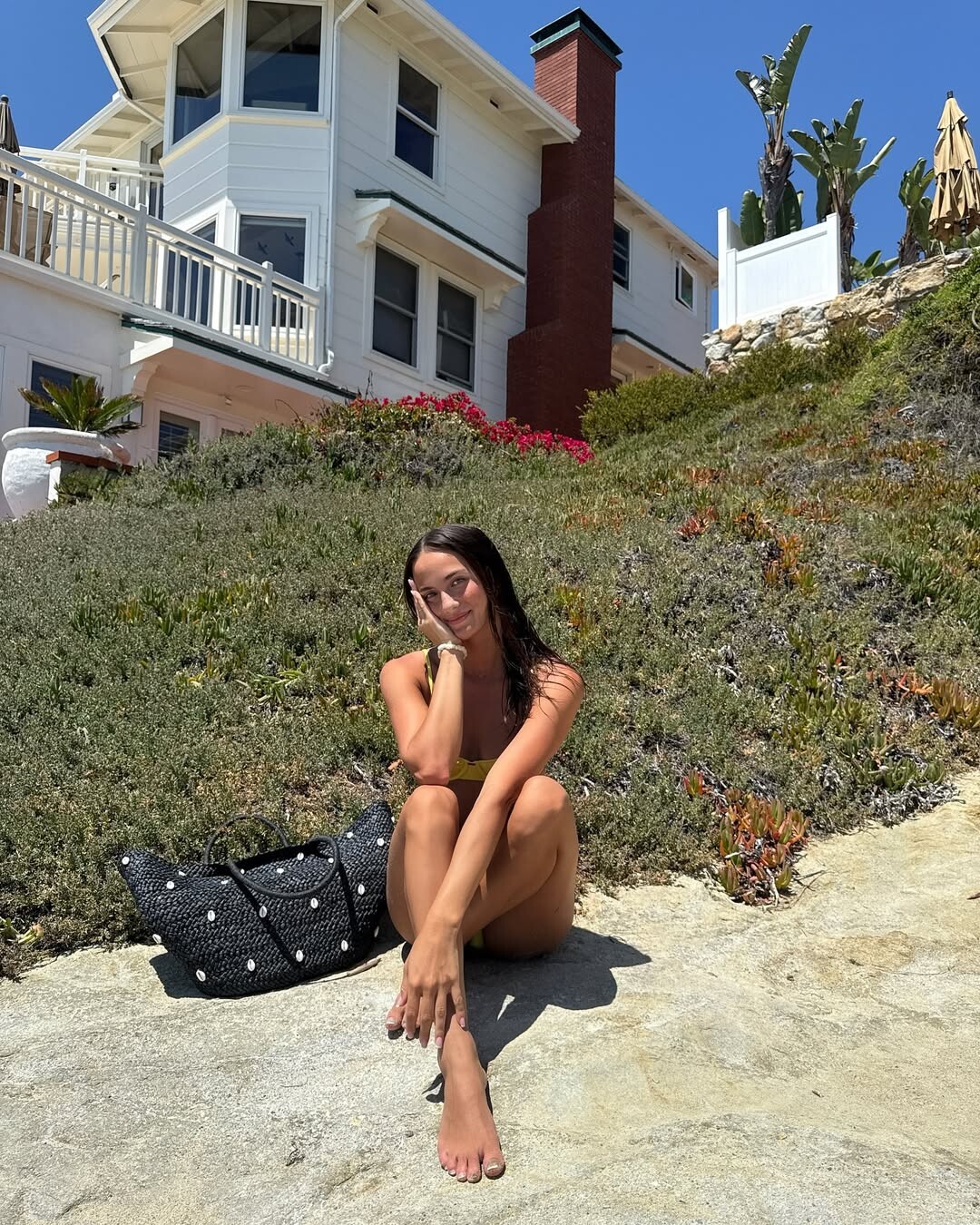
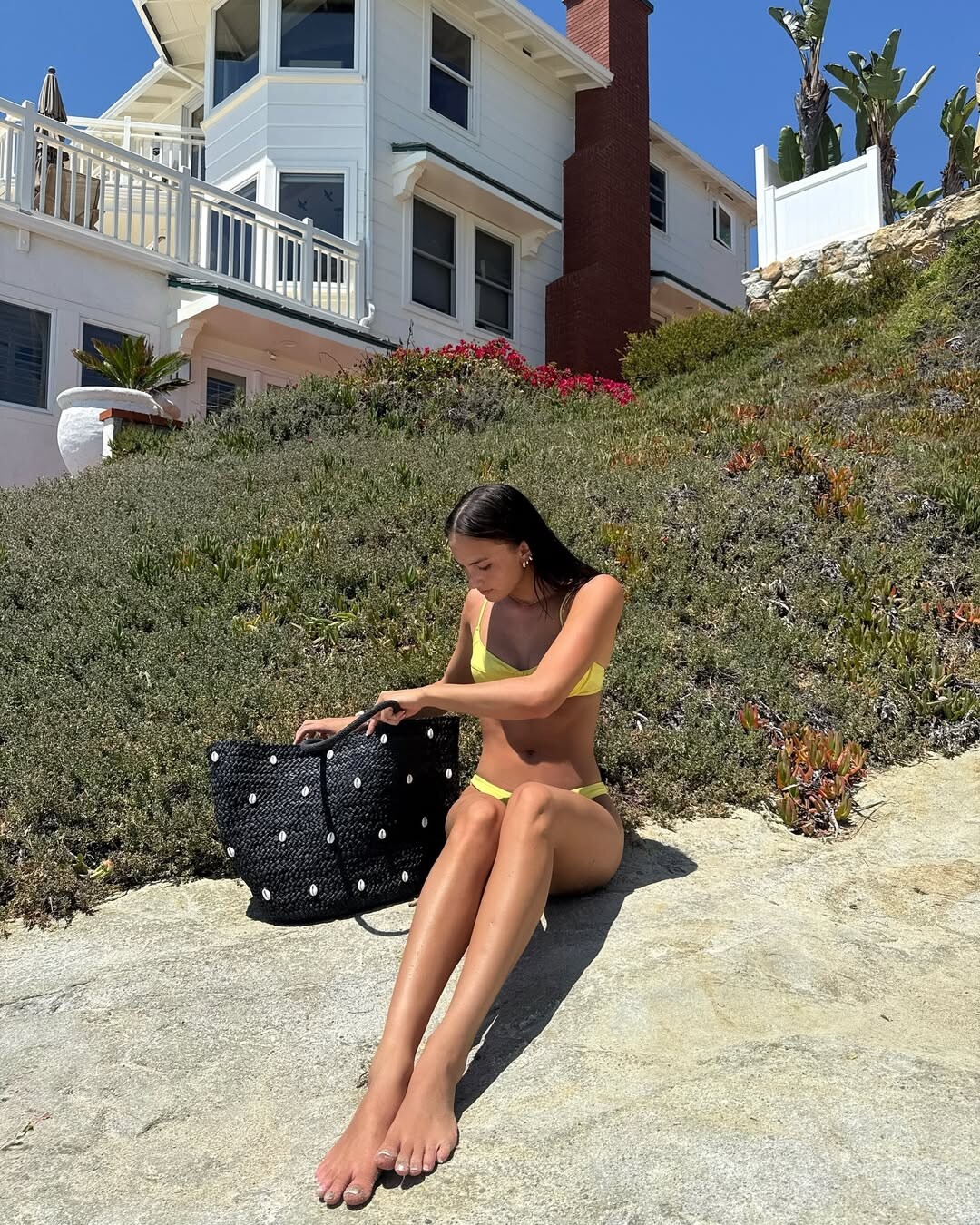
 via Insta:






































































































































Account
Navigation
Search
Configure browser push notifications
Chrome (Android)
- Tap the lock icon next to the address bar.
- Tap Permissions → Notifications.
- Adjust your preference.
Chrome (Desktop)
- Click the padlock icon in the address bar.
- Select Site settings.
- Find Notifications and adjust your preference.
Safari (iOS 16.4+)
- Ensure the site is installed via Add to Home Screen.
- Open Settings App → Notifications.
- Find your app name and adjust your preference.
Safari (macOS)
- Go to Safari → Preferences.
- Click the Websites tab.
- Select Notifications in the sidebar.
- Find this website and adjust your preference.
Edge (Android)
- Tap the lock icon next to the address bar.
- Tap Permissions.
- Find Notifications and adjust your preference.
Edge (Desktop)
- Click the padlock icon in the address bar.
- Click Permissions for this site.
- Find Notifications and adjust your preference.
Firefox (Android)
- Go to Settings → Site permissions.
- Tap Notifications.
- Find this site in the list and adjust your preference.
Firefox (Desktop)
- Open Firefox Settings.
- Search for Notifications.
- Find this site in the list and adjust your preference.